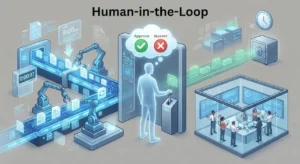

Conditional automation makes that decision-making a predictable digital workflow. Automation can monitor events and reply when conditions are satisfied instead of requiring employees to examine them. Essentially, “if this, then that.” The system takes action if an event meets the requirement.
That seems straightforward, but reliable conditional automation takes more than linking actions. You must understand triggers, conditions, actions, exceptions, timeliness, data quality, and what happens when a condition is not satisfied. This book describes conditional workflows, their value, common pitfalls, and how to create them so your organization understands them as it expands.
The Meaning of Conditional Automation
Conditional automation uses system data to make a judgment. Automation verifies if a condition is true before continuing instead of repeating the same activity. Imagine an internet store gets a fresh order. Every order may receive a confirmation email using a simple automated system. Selection is possible with conditional automation. It may check the order value first. If the order exceeds a specific amount, the system may contact a sales manager. If it’s below that amount, the order procedure can continue without notification. Condition determines decision.
A basic workflow can therefore be described as
If a specific event occurs and a specific condition is true, perform a particular action.
This pattern appears in CRM systems, project management platforms, email marketing tools, help desks, accounting software, e-commerce systems, spreadsheets, and business integration platforms. Conditional automation is useful because businesses rarely treat every event exactly the same way. A high-value customer may require different handling from a new prospect. An urgent support request may need faster attention than a normal question. A completed project may trigger different actions from an abandoned one. The condition allows the automation to recognize those differences.
The Three Parts of an If-Then Workflow
Most beginner-friendly conditional automations can be understood through three basic components: the trigger, the condition, and the action. More advanced workflows may contain several triggers, conditions, branches, delays, loops, or error-handling steps, but these three concepts provide the foundation.
| Component | Purpose | Example |
|---|---|---|
| Trigger | Starts the workflow | A new customer submits a form. |
| Condition | Checks whether a rule is true | The customer selected “Business.” |
| Action | What the automation does | Create a sales task. |
Consider a simple employee onboarding example. The trigger could be the creation of a new employee record. The condition could check whether the employee belongs to the finance department. If the condition is true, the workflow creates a finance-specific onboarding task. If it is false, the employee follows the standard onboarding process.
The important part is that the workflow is not simply reacting to an event. It is using information about the event to determine what should happen next. Once this pattern becomes familiar, complicated automation platforms become much easier to understand. Their interfaces may look different, but many of them are built around the same basic logic.
Understanding Triggers
A trigger is the event that tells an automation to start. Without a trigger, the workflow has nothing to react to. Common triggers include a new form submission, a newly created CRM record, a status change, a new email, a completed payment, a calendar event, a file being added to a folder, or a scheduled time being reached.
Triggers can be event-based or time-based. An event-based trigger responds when something happens. A time-based trigger runs according to a schedule or checks whether a deadline has been reached. For example, consider a project management system. An event-based workflow might start when a task changes to “Completed.” A time-based workflow might check every morning for tasks whose due dates have passed.
Why the trigger matters
A poorly selected trigger can cause an otherwise correct workflow to behave badly. If an automation starts every time someone edits a record, it may run dozens of times for the same item. If it starts only when a record is created, it may miss important changes that happen later.
Before creating an automation, ask exactly when the decision needs to happen. Should it run when the record is created, when a field changes, when a deadline arrives, or at regular intervals?
Tip: Choose the narrowest trigger that matches the business event. A precise trigger usually makes the rest of the workflow easier to control.
How Conditions Make Automation Smarter
Conditions are the decision-making part of the workflow. They compare information against a rule and determine whether the automation should continue down a particular path. A condition might ask whether a customer is located in a certain region, whether an order exceeds a particular amount, whether a task is overdue, whether a lead has a specific status, or whether a required field contains information.
Conditions can use different types of comparisons.
| Condition type | Example |
|---|---|
| Equals | Status equals “Approved.” |
| Does not equal | Status is not “Closed.” |
| Greater than | Order value is greater than a set amount. |
| Less than | Inventory is below a threshold. |
| Contains | The customer message contains a specific category. |
| Exists | The customer has an assigned account manager. |
| Is empty | Required information has not been entered. |
Good conditions are based on reliable information. If a workflow depends on a field that employees rarely complete correctly, the automation may make incorrect decisions. This scenario is one reason automation design and data quality are closely connected. The workflow can only make a valid decision when the information it receives is accurate and consistent.
Understanding Automated Actions
An action is what the workflow does after a trigger and condition have been evaluated. The action can happen inside the same application or involve another connected system. Common actions include sending a notification, creating a task, updating a record, assigning an owner, adding a tag, moving a file, creating a calendar event, sending an email, or starting another workflow.
For example, imagine a CRM where a new lead arrives. The workflow checks the lead’s country and industry. If the lead belongs to a target market, the system assigns it to the appropriate sales queue and creates a follow-up task. The action should have a clear business purpose. Automation becomes dangerous when you add actions simply because the platform makes them possible.
Be careful with actions that change data.
There is an important difference between an automation that sends a notification and one that changes customer records. Notifications can often be corrected easily. A workflow that modifies thousands of records can create much more serious problems if its logic is wrong. When designing a workflow that changes data, use narrow conditions, test with sample records, and understand whether the action can be reversed.
Practical Examples of Conditional Workflows
Conditional automation becomes easier to understand when viewed through everyday business situations. The following examples show how the same basic logic can be applied to different departments.
Lead qualification
- Trigger: A new lead is created.
- Condition: The lead matches the company’s target customer profile.
- Action: Assign the lead to a sales representative and create a follow-up task.
If the lead does not meet the criteria, the workflow might place it into a nurturing process instead.
Customer support
- Trigger: A new support request arrives.
- Condition: The request is marked urgent.
- Action: Notify the support supervisor and assign the case to the priority queue.
This prevents employees from manually checking every new request for urgency.
Invoice reminders
- Trigger: An invoice reaches its due date.
- Condition: The invoice remains unpaid.
- Action: Create a reminder task or send an approved notification.
The workflow can also include additional conditions to prevent reminders from being sent to customers who have already made a payment.
Project management
- Trigger: A task becomes overdue.
- Condition: The task is still marked as incomplete.
- Action: Notify the task owner and update an internal status.
The condition prevents completed tasks from generating unnecessary overdue alerts.
Working With Multiple Conditions
Real business decisions often require more than one condition. For example, a company may want to notify a manager only when an opportunity is both high-value and close to its expected closing date. This can be represented as
If opportunity value is high AND the closing date is within the target period, then notify the manager.
The word “AND” matters because both conditions must be true. Another workflow may use “OR.” For example:
If a customer is marked as VIP or if the issue is marked as urgent, then escalate the support request.
| Logic | Meaning | Example |
|---|---|---|
| AND | All specified conditions must be true. | High value AND urgent |
| OR | At least one condition must be true. | VIP OR urgent |
| NOT | Excludes a condition | Not already completed |
Multiple conditions can make workflows powerful, but they also make them harder to understand. Write the business rule in plain English before building it. If you cannot explain the rule clearly without looking at the automation builder, the logic may already be too complicated.
What Happens When a Condition Is False?
One of the most important questions in conditional automation is also one of the most frequently ignored: what happens when the condition is not met? Sometimes nothing should happen. That is perfectly valid. If a workflow is designed to alert a manager only for high-priority requests, normal requests can simply continue through the ordinary process. In other situations, the false condition should lead to a different action. This creates branching logic. For example:
If the customer type is “Business,” send the record to the business sales team. Otherwise, send it to the consumer sales team.
Branching can be useful when different groups require different processes. However, too many branches can make an automation difficult to maintain. A sensible rule is to keep the main workflow simple and separate genuinely different processes when they become difficult to follow. Sometimes two smaller workflows are easier to understand than one giant workflow containing dozens of branches.
How to Design a Reliable Conditional Workflow
The easiest way to build reliable automation is to design the logic before opening the automation platform. Begin by focusing on the business problem, rather than on the available buttons and integrations.
1. Describe the current manual process.
Write down what an employee currently does. Include the event that starts the process, the information they check, the decision they make, and the action they take.
2. Identify the decision point
Ask exactly what determines the next step. Avoid vague conditions such as “important customer” unless the CRM contains a clear field or rule that defines what “important” means.
3. Define the successful path
Write what should happen when the condition is true. Make the action specific enough that another employee could understand it without additional explanation.
4. Define the alternative.
Decide whether the workflow should stop, take another action, or send the record through another branch when the condition is false.
5. Test unusual situations
Test unusual situations, such as missing information, duplicate records, unusual dates, unexpected values, and changes made after the workflow starts.
Best practice: Write the automation in plain English first. For example: “When a new support ticket arrives, if it is time-sensitive, notify the supervisor; otherwise, assign it to the normal queue.” Then translate that sentence into the automation platform.
Common Conditional Automation Mistakes
Conditional workflows often fail because the logic was technically valid but did not represent the real business process. A workflow can execute perfectly and still produce the wrong result. One common problem is using vague or inconsistent data. If one employee enters “VIP” while another uses “Priority Customer,” a condition checking for only one value will miss some records.
Another problem is creating conditions that are too broad. A rule such as “if customer exists” may be true for almost every customer and therefore provide little useful filtering. Repeated triggers are another concern. Suppose a workflow updates a record after it detects a condition, and that update causes the same workflow to run again. Without proper safeguards, the workflow can repeat actions unnecessarily.
- Using inconsistent field values
- Creating conditions that are too broad
- Ignoring empty or missing fields
- Allowing workflows to trigger themselves repeatedly
- Adding too many branches to one automation
- Changing the underlying process without updating the workflow
- Failing to document why a condition exists
- Testing only the normal case
Another overlooked issue is timing. A workflow may run before another system has finished updating the required information. This can produce decisions based on incomplete data.
Testing and Troubleshooting Automation
Never assume an automation is correct because the workflow builder accepts it. Test it with realistic examples before relying on it for important business processes.
Start with a record that should meet the condition. Confirm that the expected action occurs. Then test a record that should fail the condition and confirm that the workflow does not perform the action. Finally, test unusual cases such as missing values, unexpected statuses, duplicate records, and changes made shortly after the trigger.
| Test | Expected result |
|---|---|
| The condition is true. | Correct action occurs. |
| The condition is false. | Correct alternative or no action |
| The required field is empty. | Workflow handles missing information safely. |
| Record changes later. | Workflow behaves as intended. |
| Workflow runs twice | Duplicate actions are prevented where necessary. |
Keep an eye on automation logs when your platform provides them. Logs can show whether the workflow triggered, which condition was evaluated, and whether an action succeeded or failed. When troubleshooting, do not immediately rebuild the entire workflow. Trace the process from the beginning. Confirm the trigger first, then inspect the data used by the condition, then check the branch, and finally examine the action.
Keeping Conditional Workflows Maintainable
A workflow that works today may not work correctly six months from now. Businesses change their processes, rename fields, introduce new teams, modify customer categories, and replace software. Automation must evolve alongside those changes.
Every important workflow should have a clear name that explains its purpose. “Automation 4” is not useful. A name such as “Escalate Urgent Support Tickets” tells another administrator what the workflow does. Documentation is equally important. Record what triggers the workflow, what conditions it evaluates, what actions it performs, and who owns the process. This information becomes especially valuable when the original person who created the automation leaves the organization.
- Review automation after process changes: If a business changes the meaning of a customer status, reorganizes sales teams, changes approval rules, or introduces a new CRM field, it should review the related workflows. A small change in one system field can affect several automations.
- Remove obsolete workflows: Old automations should not remain active simply because nobody remembers what they do. Review workflows periodically and disable or remove those that no longer support a current process. Automation should reduce complexity, not hide it. A workflow that requires extensive explanation may need to be redesigned.
Simple Rules vs. Conditional Workflows
Not every automated process requires complicated conditional logic. Sometimes a simple trigger-and-action workflow is the better choice.
| Approach | Best for | Example |
|---|---|---|
| Simple automation | Same response every time | New form submission creates a task. |
| Single condition | One important decision | If the request is urgent, notify the supervisor |
| Multiple conditions | More specific decisions | If the customer is VIP AND the issue is urgent, escalate. |
| Branching workflow | Different processes for different cases | Route customers to different teams. |
The goal is to create effective, not overly sophisticated, automation. The goal is to automate the right decision with the least unnecessary complexity. A simple workflow that everyone understands is usually easier to maintain than an elaborate workflow that only its creator understands.
Conclusion
The best automations start with a clear business rule. Determine the trigger, define the condition in straightforward terms, and decide what should happen when true and false. Test the workflow in routine and unexpected scenarios before using it regularly.
Avoid adding complexity to sophisticated operations just because the automation platform supports it. A simpler procedure that is straightforward to describe, test, and maintain is more beneficial than a complex system with hidden branching. Conditional automation can eliminate repetitive decision-making and predict key business processes when implemented appropriately. Not everything should be automated. Automating the appropriate decisions in a way people can trust is it.
FAQs
1. What distinguishes triggers from conditions?
A trigger starts an automation, and a condition determines its next step. A new customer record could trigger it. This condition could check if the customer is from a certain market. The workflow takes action after assessing the condition. Separating these notions makes automation easier to design and troubleshoot since you can tell if an issue happened when the workflow started or when it evaluated data.
2. If a condition fails, what happens?
It relies on workflow design. The automaton can freeze, change course, or send the record down another branch. The workflow may place non-urgent requests in the ordinary support queue rather than the escalation queue. Always decide what to do when a condition fails. That circumstance can cause unfinished procedures or unexpected behavior if ignored.
3. Why are conditional workflows sometimes inaccurate?
The procedure may work OK, but the rule is wrong. Inconsistent data, inaccurate field values, missing information, overly wide conditions, timing issues, or an overactive trigger are common causes. If employees use different labels for the same client category, an automation verification for one label may miss all relevant records. Testing actual and unique instances reveals these issues.
4. Should every business process be conditionally automated?
No. Automation works best for repeatable, predictable, and accurate processes. For rare processes that involve human judgment, manual or automated notification may be better than full decision-making. Determine how often a process occurs, whether its rules are clear, and whether the data is dependable before automating it.
5. Can I stop an automation from repeating?
First, see if the process action modifies its trigger. If the workflow edits the same record and restarts, it may repeat executions. Configure trigger criteria carefully and use conditions that detect whether the planned action has occurred. Logs or controlled test records can identify repeated workflow executions before production.
6. How often should automated workflows be reviewed?
When business processes, data structures, software, or team roles change, you should examine important workflows. Periodic reviews can also identify unnecessary automations. Check that triggers represent the right events, conditions reflect business rules, and actions still work. Instead of leaving outmoded workflows unattended, please consider removing them.