How Image Compression Works Without Losing Quality
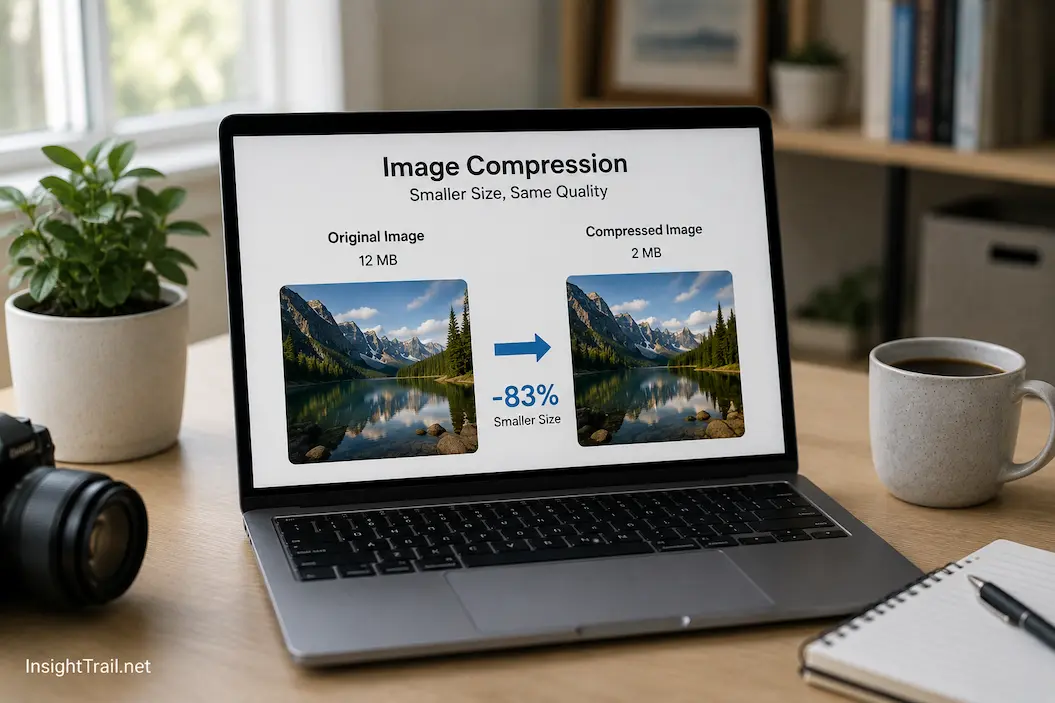
You upload a 12 MB photo to a website, and a few seconds later the platform offers an optimized version that’s only 2 MB. You open both images side by side, zoom in, and struggle to spot any obvious difference. It seems almost impossible that so much data could disappear while the picture still looks nearly identical.
This experience often leads to an understandable question: where did the missing information go? If the image still looks the same, was anything really removed?
The answer lies in how computers store visual information and how compression algorithms analyze images. Modern image compression is not simply about making files smaller. It is about identifying information that can be stored more efficiently or, in some cases, removing details that are unlikely to affect what people actually see. Understanding this process helps explain why some images shrink dramatically without noticeable quality loss, while others become blurry after only a small amount of compression.
Every Image Contains More Data Than We Usually Notice
A digital image is much more than a collection of colors on a screen.
Every photograph consists of millions of individual pixels, and each pixel stores numerical information describing its color and brightness. Even a single smartphone photo can contain tens of millions of separate values that the image file must save.
Many neighboring pixels are surprisingly similar. A clear blue sky, for example, may contain thousands of adjacent pixels with only tiny differences in color. A white wall, a sheet of paper, or an evenly lit background often contains large regions where neighboring pixels are nearly identical.
Because of these repeating patterns, images frequently contain information that can be represented more efficiently without changing their appearance.
Compression begins by searching for these opportunities.
A simple diagram showing repeated pixel patterns being represented with fewer stored values would help readers visualize this concept.
Smaller Files Do Not Always Mean Less Information
People often assume that reducing file size automatically means deleting image detail.
That is only part of the story.
Some compression methods reduce storage requirements simply by reorganizing existing information more efficiently. Instead of storing repeated patterns over and over, they record them in a more compact form.
Imagine writing the word “blue” one thousand times on a page. Rather than storing every repetition individually, a more efficient description could simply say, “repeat the word blue one thousand times.”
The meaning remains unchanged even though far fewer characters are required.
Ma”Repeatression te’blue’ques apply a similar idea to image data, allowing files to become significantly smaller while preserving every visual detail.
Not Every Pixel Deserves Equal Attention
Human vision does not respond equally to every tiny variation in an image.
We naturally notice sharp edges, contrast, recognizable objects, and sudden color changes far more readily than extremely small variations spread across smooth surfaces.
Modern compression algorithms take advantage of this characteristic.
Instead of treating every pixel as equally important, they analyze areas where small adjustments are unlikely to produce noticeable visual differences.
For example, a slight change within a large area of blue sky is generally much harder to detect than the same change occurring along the edge of a person’s face or within readable text.
This understanding of human perception allows many compression systems to reduce file size while maintaining an image that still appears visually unchanged during normal viewing.
Compression Can Preserve Every Pixel or Simplify Some Details
Not all compression follows the same philosophy.
Some methods preserve every original pixel exactly as it was created. When the image is opened again, every value matches the original file perfectly.
Other methods intentionally simplify certain visual information to achieve much greater reductions in file size.
Neither approach is universally better.
Preserving every pixel is valuable when editing images repeatedly or working with graphics containing sharp lines and text. Simplifying selected details often makes more sense for photographs intended for viewing rather than continued editing.
The important distinction is whether the compression changes image data or merely stores it more efficiently.
Why Some Images Compress Better Than Others
Two images with identical dimensions can respond very differently to compression.
Consider a photograph of a clear blue sky above a calm lake. Large portions of the picture contain gradual color transitions and repeated visual patterns.
Now compare that with a photograph of dense tree branches, colorful flowers, detailed fabric textures, or city lights at night.
The second image contains far more variation from one pixel to the next.
Because repeated patterns are less common, the compression algorithm has fewer opportunities to reduce storage without affecting visible detail.
This explains why some photographs shrink dramatically while others remain comparatively large even after careful optimization.
Image content often influences compression efficiency just as much as the chosen settings.
Metadata Occupies Space Without Affecting Appearance
An image file frequently contains much more than the picture itself.
Modern cameras and smartphones often record additional information known as metadata.
This may include the date the photograph was taken, camera model, lens information, exposure settings, GPS coordinates, orientation details, color profiles, copyright information, and editing history.
Although this information can be valuable for photographers and image management, it does not change the visible appearance of the picture.
Many optimization tools reduce file size by removing unnecessary metadata before publishing images online.
For everyday website use, eliminating unused metadata often produces modest file size reductions without altering a single visible pixel.
Photographers archiving original images, however, may prefer to preserve this information because it remains useful for cataloging and future editing.
Quality Settings Control the Balance Between Size and Appearance
Many image editing applications provide a quality slider during export.
At first glance, this setting appears straightforward, but it controls a careful balance rather than a simple increase or decrease in image quality.
Higher quality settings preserve more image information while producing larger files.
Lower settings remove additional visual detail to reduce storage requirements further.
Interestingly, the relationship is not always linear.
Reducing quality slightly may produce a significant reduction in file size with almost no visible difference. Reducing it much further, however, can suddenly introduce noticeable artifacts such as blocky textures, blurred edges, or color banding.
Finding the right balance depends on the purpose of the image rather than always selecting either the highest or lowest setting.
Compression Should Match the Way an Image Will Be Used
An image intended for a photography portfolio deserves different treatment from a thumbnail displayed on a news website.
A high-resolution product photograph viewed on large desktop monitors may justify preserving more detail than a small preview image displayed within a mobile search result.
Similarly, screenshots containing text often require different optimization choices than landscape photographs because readers quickly notice blurred lettering even when they overlook tiny changes within natural scenery.
Considering the final viewing conditions allows compression decisions to become far more effective than relying on identical settings for every image.
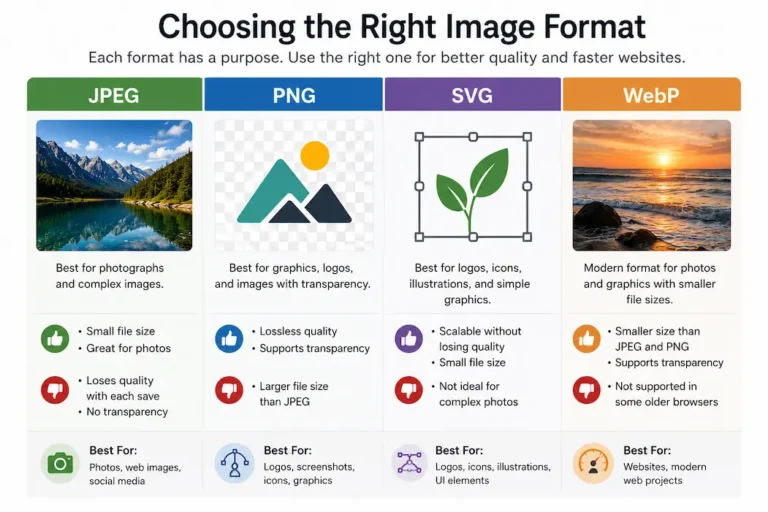
| Compression Approach | Image Quality | File Size | Common Uses |
|---|---|---|---|
| Lossless Compression | Original pixels preserved | Moderate | Editing, graphics, screenshots, archives |
| Visually Lossless Compression | Nearly identical to the eye | Small | Websites, blogs, online portfolios |
| Strong Lossy Compression | Noticeable quality reduction | Very Small | Thumbnails, previews, situations where file size is the highest priority |
Efficient Compression Is About Balance, Not Maximum Reduction
Many people judge compression by asking how small a file can become.
A more useful question is how much unnecessary information can be removed before the viewing experience begins to suffer.
Professional publishing workflows rarely aim for the smallest possible file. Instead, they seek the point where additional reductions begin producing visible quality loss.
Finding this balance explains why well-optimized websites can load quickly while still displaying images that appear crisp and natural across phones, tablets, laptops, and large desktop monitors.
Why Repeated Compression Gradually Reduces Quality
One of the most common mistakes people make is repeatedly compressing the same image.
Imagine editing a photograph, exporting it, reopening that exported version, making another small adjustment, and exporting it again. If the compression method removes visual information each time, those small changes begin to accumulate.
At first, the differences may be difficult to notice. After several rounds of editing and exporting, however, edges can become softer, fine textures may disappear, and unwanted compression artifacts may become visible.
This is why photographers and designers often keep an original version of an image that has not been repeatedly compressed. Whenever a new version is needed, they export it from the original source rather than editing an already compressed copy.
Following this workflow helps preserve image quality even when several different sizes or versions are required.
Image Optimization Is More Than Compression Alone
Modern image optimization involves several techniques working together rather than relying on compression by itself.
Often, reducing image dimensions has a greater effect on file size than increasing compression. A photograph displayed at 800 pixels wide should be uploaded at 800 pixels if only those pixels will be shown.
Removing unnecessary metadata can also reduce storage without changing the visible picture. Some optimization tools further reorganize image data internally so that browsers can decode it more efficiently.
Website optimization tools usually combine these improvements automatically, which is why they often produce much smaller files without noticeably changing the appearance of the image.
Compression is therefore only one part of a broader optimization process.
Faster Images Improve the Browsing Experience
When someone visits a website, every image must travel across the internet before it appears on the screen.
Larger image files require more data to download, which can increase waiting time, especially on mobile networks or slower internet connections.
Well-compressed images reduce this delay while still presenting content that looks clear and professional. Visitors can begin reading sooner, pages feel more responsive, and scrolling remains smoother because they need fewer resources to load visual content.
Website performance does not depend solely on images, but oversized graphics are among the most common reasons pages become unnecessarily slow.
For website owners, thoughtful image optimization benefits both visitors and overall site efficiency.
Different Types of Images Respond Differently
Not every image should be compressed using the same approach.
Natural photographs usually tolerate moderate compression remarkably well because they contain gradual color transitions and complex textures that help conceal small changes.
Screenshots are much less forgiving. They often include sharp text, interface elements, and thin lines where even slight quality loss becomes obvious.
Illustrations, diagrams, product graphics, and scanned documents each have their own characteristics that determine how aggressively you can compress them before quality begins to suffer.
For this reason, experienced designers rarely apply identical export settings to every image in a project. Instead, they consider both the content of the image and where it will be displayed.
Viewing Conditions Matter More Than Many People Realize
An image is not always viewed under ideal conditions.
A large desktop monitor may reveal details that are difficult to notice on a smartphone. Likewise, an image used as a full-screen presentation background requires different quality considerations than a small thumbnail beside an article headline.
Distance also matters. A banner viewed from across a room does not require the same level of visible detail as a product photograph that users may enlarge to inspect closely.
Understanding how people will actually view an image often leads to more practical compression decisions than focusing solely on technical measurements.
The objective is to optimize for real viewing conditions rather than perfect pixel comparisons.
Common Myths About Image Compression
Image compression is often misunderstood because people assume every reduction in file size must produce obvious visual damage.
One common misconception is that compression always makes images blurry. In reality, carefully optimized images often appear virtually identical to the originals during normal viewing, even though their file sizes are significantly smaller.
Another misunderstanding is that the highest quality setting should always be used. While maximum quality preserves more information, it may also create unnecessarily large files without producing noticeable improvements for most viewers.
Some people also believe smaller files always indicate poor quality. In many situations, efficient compression simply removes redundant information or stores image data more effectively rather than reducing visible detail.
Recognizing these misconceptions helps users make more balanced decisions instead of assuming that either maximum quality or maximum compression is always the right answer.
| Image Type | Compression Strategy | Reason |
|---|---|---|
| Digital photographs | Moderate visually lossless compression | Excellent balance between quality and file size |
| Screenshots | Lossless or very light compression | Preserves sharp text and interface details |
| Product images | Moderate compression after resizing | Maintains clarity while improving page speed |
| Blog illustrations | Moderate optimization | Fast loading with consistent appearance |
| Social media graphics | Balanced compression | Good quality across many devices |
| Archive or master files | Lossless storage | Preserves original image information for future editing |
A Practical Way to Decide How Much Compression to Use
Instead of choosing a quality setting based on habit, begin with a few practical questions.
Will the image be edited again later, or is it ready for final publication? Will people view it on mobile phones, large desktop monitors, or both? Does it contain detailed text or mostly natural scenery? Is loading speed more important than preserving every tiny visual detail?
Answering these questions usually leads to better results than using identical export settings for every project.
For most websites, the goal is not to produce the smallest possible image but to create one that loads efficiently while still looking natural under normal viewing conditions.
A thoughtful balance nearly always provides a better experience than pursuing either extreme.
Conclusion
Image compression is not simply a process of removing data until a file becomes smaller. It is a carefully designed method of storing visual information more efficiently while preserving the viewing experience as much as possible. Depending on the technique used, compression may eliminate redundant data, simplify details that are difficult for the human eye to notice, or reorganize information into a more compact form.
Understanding these principles makes it easier to explain why two images that appear almost identical can differ greatly in file size. It also helps avoid common mistakes such as repeatedly compressing the same image, exporting unnecessarily large files, or applying identical settings to every type of graphic.
When image compression is used thoughtfully, it becomes a practical tool for improving storage efficiency, website performance, and download speed without sacrificing the visual quality that matters most to the viewer.
Frequently Asked Questions
1. Can an image become much smaller without looking different?
Yes. Many compression methods remove redundant information or make changes that are difficult for the human eye to detect, allowing significant reductions in file size while maintaining nearly identical visual quality.
2. Does every type of compression reduce image quality?
No. Lossless compression preserves all original image data. Other methods reduce file size by simplifying certain visual details, but careful settings can make those changes nearly impossible to notice during normal viewing.
3. Why do screenshots often require different compression settings than photographs?
Screenshots usually contain sharp text and precise interface elements. Even small compression artifacts can make text appear less clear, whereas natural photographs generally hide moderate compression much more effectively.
4. Should I keep the original image after compressing it?
Yes. Keeping the original version allows you to create new optimized copies in the future without repeatedly compressing an already compressed image.
5. Does removing metadata change how an image looks?
No. Metadata contains information such as camera settings, dates, or GPS coordinates. Removing unnecessary metadata reduces file size without altering the visible appearance of the image.
6. Why are large images slower to load on websites?
Larger files contain more data that must be transferred across the network before they can be displayed. Optimized images reduce download time and improve overall page responsiveness.
7. Is maximum image quality always the best choice?
Not necessarily. Very high-quality settings often produce much larger files while offering little visible improvement for everyday viewing. Choosing a balanced level of compression usually provides better overall performance without sacrificing appearance.

Sunita Voss wanders through software like a city flâneur—observing, testing, occasionally getting lost, always finding shortcuts. She writes about digital minimalism, hidden web tools, and tech hacks with the patience of someone who enjoys the journey and the urgency of someone who values her time. No gurus. No gatekeeping. Just discovered paths.