How to Extract Text From Any Image Instantly—No Paid Software Needed
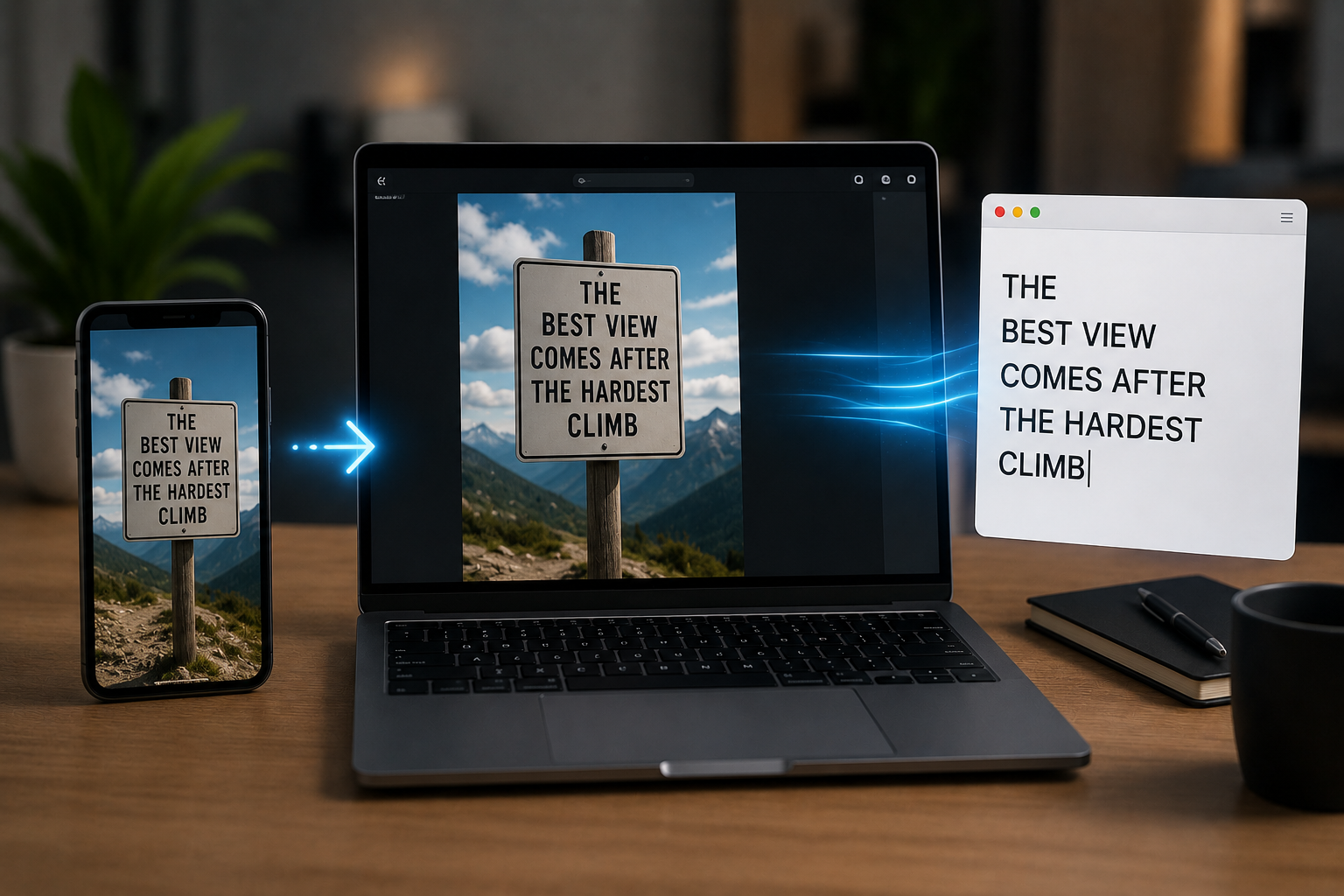
Extracting text from images might sound difficult, but it is actually basic once you know the methods. Whether it is a screenshot, a photo of a board, or an image of paper, you can quickly convert it into copyable, editable, or shareable text. The key is using an OCR (Optical Character Recognition) tool. OCR technology reads letters and numbers in an image and converts them into editable text. There are many free OCR tools available today that work on most platforms, such as computers, mobile phones, and tablets.
You do not have to type every word manually, as the entire process is almost fully automated. Whether you are a student who needs to take notes from images in a textbook or a businessman who wants to scan documents or other material, this method can save you a significant amount of time and effort. Best of all, you do not need paid applications to use these tools. Free apps or web-based tools can do this work almost immediately, so anyone can easily get started without extra costs or extensive technical knowledge.
Free Online OCR Tools Readily Available
Free online OCR tools are the best way to extract text from documents without installing any software. You can upload images to websites like OCR. You can use Space, OnlineOCR.net, or the built-in tools in Google Drive to receive the text within seconds. Simply add your image, select the language, and click ‘Convert.’ In most cases, these tools can process multiple languages, making them ideal for documents in another language. You can copy the results to word processors, spreadsheets, or even emails.
A major advantage of online OCR services is that they can be used on any device. You do not need software that is only for Windows or Mac; a browser is sufficient. Some tools can even process multiple images at once, so if you want to convert many images, you can convert them all simultaneously. For everyday documents, these services are safe, reliable, and fast, meaning you do not need to purchase expensive software. This is a time-saving and convenient method, especially for images with a lot of text or blurry text.
Extract text from images for free with Google Drive
Google Drive is more than just a file storage platform; it also offers a tool to extract text from images. You can upload images to Google Drive, then right-click on them and select ‘Open with Google Docs.’ The platform reads the text directly from the image and displays it in a new document. This method is simple and user-friendly and works for most text. You can edit the text immediately and rearrange it as desired. Because Google Docs is in the cloud, you can access the extracted text from any device.
This allows you to work easily anytime, anywhere. No extra software downloads or special permissions are required to use this method. Moreover, the layout of the original image is largely preserved, such as spacing and line breaks. This is a practical and free method for students, office staff, and anyone who regularly needs to extract text from images. Because Google Drive can both store files in the cloud and read text, it is an excellent option for quickly extracting text.
Mobile Apps for Fast Text Extraction
For mobile users, many free apps allow quick text extraction. Apps such as Microsoft Lens, Adobe Scan, and Text Fairy, for example, can quickly convert photos taken with a camera into editable text. Some apps can even recognize handwriting, which is very useful for filling out forms or taking notes. You can share the text via email or chat apps, or save it to the cloud. Many of these apps also offer the ability to scan multiple pages at once, which is very handy for larger documents.
Mobile OCR apps are designed to adapt to different image qualities and lighting conditions. This means you get accurate results even if your photo is a bit blurry or taken from an unfavorable angle. For simple tasks, these apps are free to use and can easily extract text from documents without a computer. They combine the ease of use of mobile devices with the power of OCR technology, allowing you to get results instantly, anytime, anywhere.
Conclusion
Before using an OCR tool, there are a few simple things you can do to improve the accuracy of text recognition. First, ensure that the image is sharp and well-lit. Blurry or poorly lit photos can lead to errors. Next, try to keep the text straight and avoid curves so that the letters do not look strange. High-resolution images are more accurate, especially for text with small fonts or many details. If the text is handwritten, you may need to adjust the handwriting style so that OCR can recognize it correctly.
Some free tools also let you select parts of the image to remove, so they don’t include backgrounds or other unwanted elements. Check the text again after extraction, as complex styles or special formatting can introduce minor errors. This way, you will quickly get the most accurate results and save time correcting errors. You can then use the extracted text for work, notes, or projects.
FAQs
1. How quickly can I extract text from images?
Most free tools and apps can recognize text almost instantly, usually within a few seconds of sharing an image.
2. Can these tools recognize handwritten notes?
Few OCR apps recognize handwritten text very well, but in most cases, handwritten text recognition works better. Clear and legible text achieves the best recognition results.
3. Can I use these tools on my phone?
Yes, you can use apps like Microsoft Lens or Text Fairy to capture and extract text directly on your phone.
4. Is it safe to use free OCR tools?
Yes, it is safe to use free online tools and apps on your phone for daily tasks and files you trust.
5. Do I need an internet connection to copy text?
You need an internet connection to use online tools, but some mobile apps also work fine offline after installation.

Sunita Voss wanders through software like a city flâneur—observing, testing, occasionally getting lost, always finding shortcuts. She writes about digital minimalism, hidden web tools, and tech hacks with the patience of someone who enjoys the journey and the urgency of someone who values her time. No gurus. No gatekeeping. Just discovered paths.