
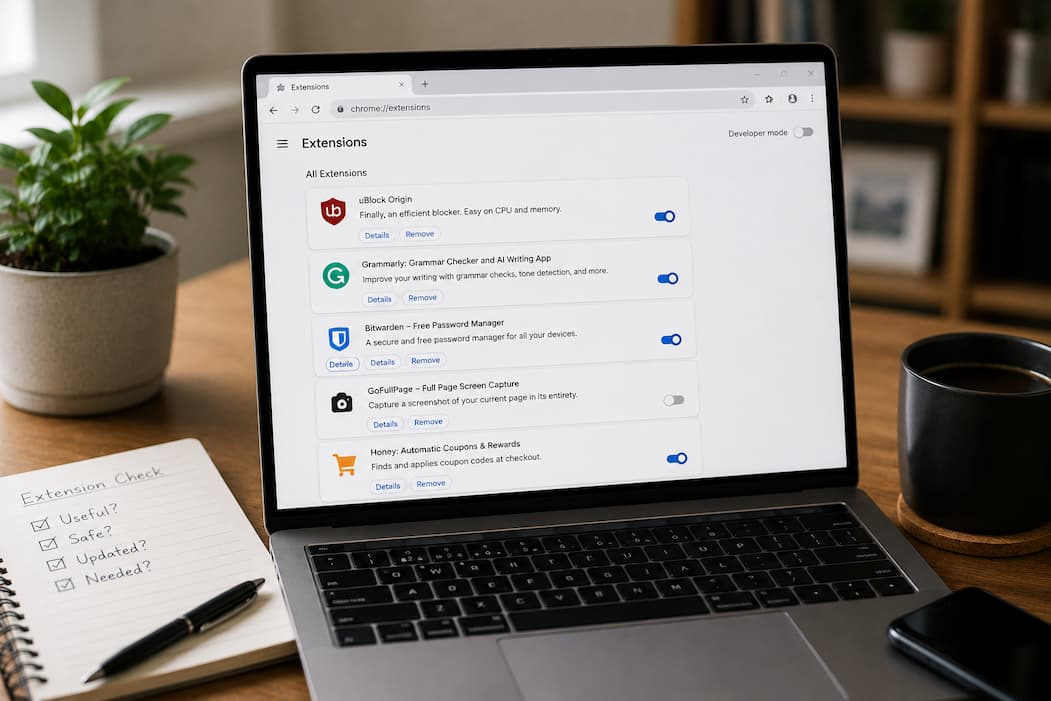
Managing Browser Extensions Without Slowing Down Your Browser
A browser often starts out fast when it’s newly installed. Web pages open quickly, tabs switch smoothly, and startup takes only a few seconds. Over time, however, many users add a password manager, an ad blocker, a grammar checker, a shopping assistant, a note-taking tool, a screenshot utility, and several other extensions. Each one solves a small problem, yet after several months the browser no longer feels as responsive as it once did.
It is easy to blame the browser itself, but extensions frequently play a larger role than people realize. That does not mean extensions are detrimental or should be avoided. Many provide valuable features that improve productivity, security, and accessibility. The challenge is understanding how they operate behind the scenes and how their combined activity can influence performance.
Managing browser extensions is less about keeping the total number as low as possible and more about knowing which ones deserve to stay active, which can be disabled when not needed, and which have quietly become unnecessary.
Extensions Become Part of the Browser’s Daily Work
Unlike ordinary websites that disappear when you close a tab, browser extensions often become part of the browser’s ongoing operation.
When the browser starts, many extensions load automatically so they are ready whenever users need their features. Some monitor pages as they load, others add buttons to the toolbar, and some wait for specific websites before becoming active.
This integration allows extensions to provide convenient features without requiring users to launch separate applications. At the same time, every extension adds another component that the browser must manage.
Most modern browsers are designed to handle extensions efficiently, but each additional feature still requires some amount of processing power, memory, or background activity.
A workflow diagram showing the browser loading its core components followed by installed extensions would help readers understand this process.
Not Every Extension Runs in the Same Way
One common misconception is that every extension continuously consumes the same amount of system resources.
In reality, extensions operate very differently depending on their purpose.
Some remain almost completely inactive until you click their toolbar icon. A PDF converter or screenshot tool, for example, may use very few resources while idle.
Others actively interact with every webpage you visit. Ad blockers examine page content before it finishes loading, grammar assistants analyze text fields while you type, and accessibility tools may continuously modify how pages are displayed.
Extensions designed for developers or website testing may also inspect network requests, browser activity, or page elements in real time.
Understanding these differences helps explain why two browsers containing the same number of extensions can perform quite differently.
Startup Time Can Gradually Increase
Many users notice that browser startup becomes slower long before individual websites start loading more slowly.
During launch, the browser initializes its processes before loading extensions that need to become available immediately.
If several extensions perform background checks, synchronize data, verify licenses, or prepare their interfaces at startup, these individual tasks may combine into a noticeable delay.
The increase is often gradual rather than dramatic. Installing one extension rarely causes obvious problems. After months or years of adding new tools, however, startup performance may change enough for users to notice.
Reviewing installed extensions periodically helps prevent unnecessary background activity from accumulating over time.
Memory Usage Depends on What Extensions Are Doing
Browser memory usage depends on far more than just the number of open tabs.
Extensions frequently store temporary information while they perform their work. Some maintain lists of blocked content; others synchronize bookmarks, monitor passwords, manage notes, or analyze webpage elements.
As browser sessions become longer and more tabs remain open, certain extensions may retain additional information in memory to continue functioning efficiently.
This does not necessarily indicate poor design. Many features require temporary storage to avoid repeating the same work each time a webpage changes.
However, when numerous extensions all reserve memory simultaneously, the combined effect becomes more noticeable, particularly on computers with limited RAM.
Permissions Affect Both Privacy and Performance
Every browser extension requests permissions based on the functions it provides.
Some require access only when you click them. Others ask to read and modify information across every website you visit because their features depend on examining page content.
These permissions influence more than privacy.
Extensions that monitor every webpage naturally perform more work than those activated only occasionally. Reading page content, injecting interface elements, or filtering network requests all require processing while websites load.
This does not mean broad permissions are automatically unsafe. Password managers, translation tools, and accessibility extensions often require extensive access to perform their intended functions.
The important consideration is whether the requested permissions make sense for the feature being offered.
If a simple calculator extension asks for permission to read data on every website, it is reasonable to question why that level of access is necessary.
More Extensions Do Not Always Mean a Slower Browser
People sometimes assume that installing ten extensions automatically makes a browser twice as slow as installing five.
Real-world performance is more complicated.
Several lightweight extensions that activate only occasionally may have very little effect on everyday browsing.
Conversely, a single extension performing intensive background analysis on every webpage can consume considerably more resources than multiple lightweight utilities combined.
The quality of the extension, how frequently it operates, and the complexity of its tasks often matter far more than the total number installed.
This is why performance should be evaluated based on actual browser behavior rather than extension count alone.
Extension Conflicts Can Produce Unexpected Problems
Extensions are created by different developers working independently.
Most function perfectly well alongside one another, but conflicts occasionally occur when two extensions attempt to modify the same webpage or browser feature simultaneously.
For example, one extension may change webpage layouts while another injects additional interface elements into those same pages.
Users may experience broken website formatting, missing buttons, duplicated controls, or pages that behave unpredictably.
These problems do not necessarily indicate faults in either extension individually. They sometimes result from two otherwise useful tools attempting to alter the same content in incompatible ways.
When troubleshooting unusual browser behavior, temporarily disabling extensions one at a time often provides valuable clues.
Different Browsers Handle Extensions in Slightly Different Ways
Modern browsers share many similarities, but their extension ecosystems are not identical.
Google Chrome and Microsoft Edge both use Chromium as their foundation, allowing many extensions to work across both browsers with little modification.
Mozilla Firefox supports its extension framework while maintaining compatibility with many common browser features. Apple’s Safari also supports extensions but follows its own development guidelines and may not offer every extension available elsewhere.
These differences affect more than installation.
Performance, permission models, update schedules, and extension availability can vary between browsers, meaning an extension that works exceptionally well in one browser may behave differently in another.
Users who regularly switch between browsers should avoid assuming identical performance across every platform.
| Extension Category | Typical Background Activity | Possible Performance Impact |
|---|---|---|
| Password Managers | Low to Moderate | Usually minimal during normal browsing |
| Ad Blockers | Continuous page analysis | Moderate, depending on filtering complexity |
| Grammar and Writing Tools | Monitors text fields | Moderate during active typing |
| Screenshot Utilities | Mostly inactive until used | Low |
| Developer Tools | Depends on usage | Low to High during debugging |
| Shopping Assistants | Monitors supported websites | Low to Moderate |
| Media Download Helpers | Activates on supported content | Usually low unless actively processing |
A Smaller Collection of Well-Chosen Extensions Often Works Better
Installing every useful extension that appears in an online recommendation list rarely produces the best browsing experience.
A more effective approach is to build a collection based on genuine daily needs.
An extension used several times each day provides ongoing value that easily justifies its presence. Another that has not been opened in six months may simply be adding complexity without offering meaningful benefits.
Treating extensions as working tools rather than permanent additions helps keep browsers efficient, organized, and easier to troubleshoot whenever unexpected problems arise.
Regular Reviews Prevent Small Problems From Growing
Most people install browser extensions gradually. One is added for saving articles, another for taking screenshots, another for online meetings, and eventually the collection becomes much larger than originally intended.
Because this process happens over months or years, it is easy to forget which extensions are still useful. Some may have been installed for a single project, while others solved a problem that no longer exists.
Setting aside a few minutes every few months to review installed extensions can make a noticeable difference. Ask simple questions such as whether the extension has been used recently, whether its features are now built into the browser, or whether another trusted extension already performs the same task.
Removing unnecessary extensions reduces complexity and makes future troubleshooting much easier.
Browser Updates Can Change How Extensions Behave
Modern browsers receive regular updates that improve security, introduce new features, and fix software bugs.
Extensions also receive updates from their developers. These updates may improve compatibility, fix security issues, reduce memory usage, or add new capabilities.
Occasionally, however, a browser update changes the way extensions interact with certain websites or browser features. An extension that worked perfectly before may temporarily behave differently until its developer releases an updated version.
For this reason, unexpected browser behavior following a major update does not always stem from the browser itself. Checking whether installed extensions have received recent updates is often one of the first troubleshooting steps to take.
Keeping both the browser and trusted extensions up to date helps maintain a more stable browsing environment.
Install Only Extensions From Developers You Trust
Performance is only one part of extension management. Security and privacy deserve equal attention.
An extension may request access to browsing activity, page content, downloads, clipboard data, or saved information depending on the features it provides. These permissions are sometimes completely reasonable, but they should always match the extension’s intended purpose.
Before installing a new extension, it is worth looking beyond the description. Reviewing the developer’s reputation, update history, user feedback, and requested permissions provides a much clearer picture than judging the extension by screenshots alone.
One common mistake is installing multiple extensions that perform nearly identical tasks simply because they appear in recommendation lists. Besides increasing browser complexity, such actions may expose more browsing data than necessary.
Choosing fewer, well-maintained extensions from reputable developers generally leads to a safer and more reliable experience.
Disabling Can Be Better Than Removing
People often think the only choices are keeping an extension permanently installed or uninstalling it completely.
Most browsers also allow extensions to be disabled.
Disabling prevents the extension from running while keeping its settings available for future use. This approach is useful for seasonal tools, specialized developer utilities, travel-related extensions, or software needed only occasionally.
If browser performance improves after disabling an extension, you have learned something valuable without losing the ability to restore it later.
This method makes disabling an excellent troubleshooting technique as well as a practical way to reduce unnecessary background activity.
Finding the Cause of Browser Slowdowns
When a browser becomes sluggish, removing extensions one by one without a plan is rarely the most efficient solution.
A better approach is to observe when the slowdown occurs.
If startup takes longer than expected, extensions that load immediately deserve attention. If specific websites become slow, extensions that modify webpage content may be involved. If memory usage continues increasing during long browsing sessions, extensions that remain active across many tabs are worth investigating.
Testing changes one at a time makes it much easier to identify the real cause. Disabling several extensions simultaneously may improve performance, but it also makes it difficult to determine which one was responsible.
Careful observation usually produces more reliable answers than making multiple changes all at once.
Built-In Browser Features Can Replace Some Extensions
Modern browsers have evolved considerably over the past several years.
Features that once required third-party extensions are now sometimes included directly within the browser. Password management, translation, screenshot tools, PDF viewing, tab grouping, reading modes, and tracking protection are examples of capabilities that many browsers now provide without additional software.
This does not mean dedicated extensions have become unnecessary. Some offer more advanced functionality than built-in alternatives.
However, if a browser already includes a feature that meets your needs, installing another extension for the same purpose may add unnecessary background activity without providing significant additional value.
Occasionally reviewing newly added browser features can help reduce reliance on extensions that have become redundant.
| Situation | Recommended Action | Reason |
|---|---|---|
| Used every day and from a trusted developer | Keep enabled | Provides ongoing value that justifies its resources |
| Needed only occasionally | Disable until required | Reduces background activity while keeping the extension available |
| Duplicates another extension’s features | Remove one of them | Simplifies the browser and avoids unnecessary overlap |
| Requests permissions unrelated to its purpose | Reconsider installation | Excessive permissions deserve careful evaluation |
| No longer maintained or rarely updated | Look for an alternative | Regular updates improve compatibility and security |
| Causes noticeable browser problems | Disable and test | Helps confirm whether the extension is responsible |
Building an Extension Collection That Stays Useful
The goal is not to create the smallest possible extension list.
Instead, think of browser extensions the same way you would think about tools in a workshop. Every tool should serve a clear purpose and earn its place through regular use.
Keeping only the extensions that genuinely improve your workflow creates a browser that feels easier to manage and less likely to develop unexpected performance issues over time.
This approach also makes security reviews simpler because fewer extensions require ongoing attention.
For most users, a carefully selected collection of reliable extensions is far more valuable than dozens of rarely used additions.
Frequently Asked Questions
1. Do browser extensions always make a browser slower?
No. Many lightweight extensions have a minimal effect on everyday browsing. Performance depends more on what an extension does than on how many extensions are installed.
2. Is disabling an extension the same as uninstalling it?
No. Disabling stops the extension from running while keeping it installed. Uninstalling removes it completely along with its associated data, depending on the browser.
3. Why do some extensions ask for permission to read website data?
Extensions that modify webpages, fill forms, translate content, or block advertisements often need access to page information to perform their intended functions.
4. How often should I review my installed extensions?
Reviewing them every few months is a practical habit. It helps identify extensions that are no longer needed, have become outdated, or duplicate features already available in your browser.
5. Can two extensions interfere with each other?
Yes. If multiple extensions attempt to modify the same webpages or browser features, conflicts can sometimes cause display issues, missing controls, or unexpected behavior.
6. Are browser updates responsible for extension problems?
Occasionally. Browser updates may introduce changes that require extension developers to release compatible updates. Temporary issues can occur until those updates are available.
7. Is it better to use browser features instead of extensions?
When a built-in browser feature meets your needs, it can reduce the number of third-party extensions you rely on. However, specialized extensions may still provide capabilities that built-in tools do not offer.

Sunita Voss wanders through software like a city flâneur—observing, testing, occasionally getting lost, always finding shortcuts. She writes about digital minimalism, hidden web tools, and tech hacks with the patience of someone who enjoys the journey and the urgency of someone who values her time. No gurus. No gatekeeping. Just discovered paths.