Understanding Temporary Files and Whether You Should Remove Them
You finish editing a large document, close your browser after hours of research, install a software update, and shut down your computer. Everything appears to be complete, yet your storage space is slightly lower than it was the day before. Weeks later, that missing space has grown, even though you haven’t intentionally saved many new files. It’s natural to wonder where that storage went.
Often, the answer lies in temporary files. They are quietly created by operating systems, web browsers, office applications, media editors, installers, and countless other programs while they perform everyday tasks. Most of these files exist for a valid reason and are removed automatically once they are no longer needed. Others remain behind because a program closes unexpectedly, an update is interrupted, or the software intentionally keeps certain temporary data for future use.
Rather than viewing temporary files as unnecessary clutter, it helps to understand why computers create them in the first place. Knowing their purpose makes it easier to decide when cleanup is useful and when leaving them alone is the better choice.
Your Computer Needs a Workspace While It Is Busy
Imagine building a piece of furniture on a workbench.
Before you finish the project, you temporarily place screws, measuring tools, instructions, and partially assembled pieces on the bench. Once everything is complete, the workspace is cleaned, and only the finished product remains.
Software works in a surprisingly similar way.
When an application edits a photo, converts a video, installs an update, or processes a large spreadsheet, it often needs a temporary location to store intermediate information. These working files allow the program to organize data efficiently without constantly rewriting the original file.
After the task finishes successfully, many of these temporary files are deleted automatically because they are no longer required.
A workflow illustration showing an application creating temporary working files before producing the final document would help readers understand this process.
Temporary Files Are Created for Many Different Reasons
Not all temporary files serve the same purpose.
Some are created while installing software so that installation packages can be unpacked before being copied into their final locations. Others store information while documents are being edited, helping applications recover unsaved work if the program crashes unexpectedly.
Browsers create temporary data while loading websites, allowing pages to display correctly during browsing sessions. Operating systems generate temporary files while downloading updates, configuring hardware, or performing maintenance tasks.
Even applications that appear simple may create temporary information behind the scenes because dividing complex work into smaller steps often improves reliability.
Understanding this variety helps explain why there is no single temporary folder containing every temporary file on a computer.
“Temporary” Does Not Always Mean “Short-Lived”
The word “temporary” sometimes creates the impression that these files disappear within minutes.
In reality, their lifespan depends on how they are being used.
Some files exist only while a program remains open. Others remain available until the next restart because the application expects they may still be useful.
Certain software intentionally preserves temporary working data for several days in case users need to recover unfinished projects or continue interrupted tasks.
Occasionally, files remain much longer than intended because an application closes unexpectedly before completing its cleanup routine.
This explains why storage can gradually fill with leftover temporary files even on computers that normally manage them well.
Programs Often Leave Temporary Files Behind
Most software attempts to remove its temporary files automatically.
However, computers do not always shut down under ideal conditions.
Power outages, forced restarts, application crashes, failed software updates, or insufficient storage space can interrupt the normal cleanup process. When such an event happens, temporary files that were supposed to disappear may remain on the system indefinitely.
Developers generally prioritize protecting user data over removing temporary information immediately. As a result, applications sometimes leave these files untouched rather than risking accidental deletion of information that might still be useful.
Over time, small leftovers from many different programs can accumulate into a noticeable amount of storage space.
Temporary Files Are Different From Cached Data
People often use the terms “temporary files” and “cache” as though they mean exactly the same thing.
Although they are related, they serve different purposes.
Temporary files usually support work that is currently happening or has recently finished. They exist because an application needs extra space while completing a specific task.
Cache files, by contrast, are often stored deliberately so future tasks can happen more quickly. A browser may save website images so they do not need to be downloaded again. An application may cache frequently used information to improve loading speed.
The distinction matters because deleting temporary files generally removes leftover working data, while clearing caches may cause applications to rebuild information they intentionally saved to improve performance.
Different Operating Systems Organize Temporary Data Differently
Whether you use Windows, macOS, or Linux, temporary files are part of normal system operation.
Windows stores temporary information in several locations, including user-specific folders and system directories used by applications and Windows itself.
macOS also maintains temporary directories, but it manages many of them automatically in the background. The operating system periodically removes data that is no longer needed, reducing the amount of manual maintenance required for most users.
Linux distributions use temporary directories such as /tmp and /var/tmp, with different rules determining how long information remains available.
Although these systems organize temporary files differently, they all rely on temporary storage to help software complete everyday tasks efficiently.
Storage Space Can Influence Their Impact
A handful of temporary files usually doesn’t affect computer performance.
The situation changes when available storage becomes extremely limited.
Applications need free space to create new temporary working files. Operating systems also rely on available storage for updates, virtual memory, logging, and routine maintenance.
If temporary files consume a significant portion of the remaining storage, other software may struggle to complete its own work effectively.
This is particularly noticeable on devices with relatively small storage capacities, where every gigabyte becomes more valuable.
The issue is therefore less about temporary files themselves and more about allowing enough free space for the entire system to operate comfortably.
| Temporary File Type | Why It Is Created | Typical Lifespan |
|---|---|---|
| Software installation files | Prepare application installation | Until installation finishes |
| Document recovery files | Protect unsaved work | Until project is saved or recovered |
| Browser session files | Support webpage loading | Usually during or shortly after browsing |
| Operating system update files | Install system updates | Until update completes successfully |
| Media editing workspace | Process large photos or videos | During editing and exporting |
| Application log files | Record software activity | Varies by application |
Automatic Cleanup Already Happens More Often Than Many People Realize
Some users believe they must manually delete temporary files every few days to keep their computer healthy.
Modern operating systems generally reduce that need.
Windows includes built-in storage management features that automatically remove certain temporary data when appropriate. macOS performs much of its maintenance quietly in the background, while many Linux systems periodically clear selected temporary directories according to system policies.
Individual applications also participate in this process by deleting their working files after successful completion of tasks.
Manual cleanup still has its place, particularly when storage becomes limited or after unusually large software installations. However, for most users, the system already manages temporary files more actively than they realize.
Cleaning Temporary Files Is Not a Performance Shortcut
It is common to see advice claiming that deleting temporary files will immediately make any computer much faster.
In practice, the results are usually far less dramatic.
Temporary files do not continuously consume processing power simply because they exist on the storage drive. Most remain inactive after they have been created. Removing them frees storage space, but it does not automatically reduce CPU usage or increase available RAM.
Performance improvements are most noticeable when a device has become critically low on free storage. In those situations, deleting unnecessary temporary data gives the operating system more room for updates, virtual memory, and application workloads.
If a computer already has plenty of available storage, removing temporary files may have little or no visible effect on everyday speed.
Understanding this difference helps set realistic expectations and prevents unnecessary maintenance.
Solid-State Drives Change the Conversation
Many modern computers use solid-state drives (SSDs) instead of traditional hard disk drives.
SSDs read and write data much faster, which allows applications to create and access temporary files with very little delay. This is one reason software often feels more responsive on newer systems.
Some people worry that temporary files will quickly wear out an SSD because they involve frequent writing.
Modern SSDs are designed to handle huge amounts of data over their expected lifespan. Under normal personal or office use, temporary files are only one small part of overall drive activity and are unlikely to shorten the drive’s useful life in any meaningful way.
For most users, there is no practical reason to avoid normal computer use out of concern for temporary file creation.
Temporary Files Can Sometimes Contain Sensitive Information
Although temporary files are usually created for technical reasons, they may occasionally include information related to documents, images, browser sessions, or application activity.
For example, a word processor might create a recovery file while you edit a report. A photo editor may generate temporary preview images during an editing session. Browsers may create temporary files while displaying websites or downloading content.
These files are generally intended for short-term use, but if they are left behind after an unexpected shutdown or software crash, they may remain on the system longer than expected.
This is one reason organizations that handle confidential information often include temporary file management as part of their broader privacy and security practices.
For everyday home users, built-in cleanup features of the operating system are usually sufficient, but understanding that temporary files may contain fragments of recent work is still worthwhile.
Choose Built-In Cleanup Tools Before Third-Party Software
Searching online for “PC cleaner” produces countless utilities that promise dramatic improvements with a single click.
Many of these applications remove temporary files, but modern operating systems already provide reliable tools designed specifically for that purpose.
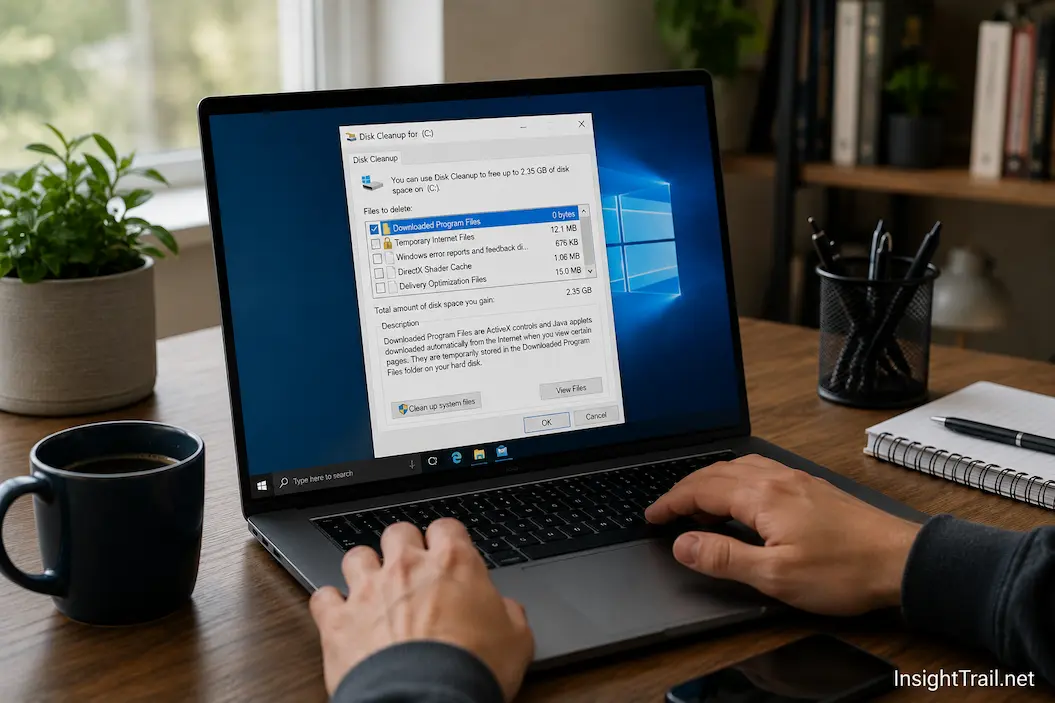
Windows includes features such as Disk Cleanup and Storage Sense. macOS automatically manages many temporary files and provides storage management recommendations. Linux users can use built-in package managers and system utilities that understand the operating system’s directory structure.
Using official system tools reduces the risk of deleting files that applications still expect to find.
Third-party cleanup software is not always harmful, but aggressive cleaning options sometimes remove data that programs intentionally keep for convenience or recovery.
A cautious approach is generally the safer one.
Avoid Deleting Folders You Do Not Recognize
One mistake some users make is browsing through system directories and manually deleting files simply because they appear old or unfamiliar.
Not every file stored in a temporary location is safe to remove at every moment.
Some applications create temporary working files that remain in use until a task finishes completely. Removing them while software is running can interrupt ongoing work or lead to unexpected errors.
If cleanup becomes necessary, it is usually better to close active applications first and allow the operating system’s cleanup tools to identify files that are no longer required.
Understanding why a file exists is more valuable than assuming every temporary folder contains unnecessary data.
A Sensible Cleanup Routine Is Usually Enough
Most personal computers do not require daily maintenance.
A more practical approach is to check available storage occasionally rather than deleting temporary files on a fixed schedule.
If storage remains plentiful and the computer is operating normally, there is often little reason to intervene. On the other hand, if a major software installation, operating system upgrade, or large video editing project has recently finished, reviewing temporary storage may recover useful space.
The goal is not to remove every temporary file but to prevent unnecessary accumulation over long periods.
Like many areas of computer maintenance, consistency matters more than frequency.
| Temporary Data | Usually Safe to Remove? | Best Time to Remove |
|---|---|---|
| Completed installation files | Yes, in most cases | After confirming software installed correctly |
| Old update leftovers | Usually, when identified by system tools | After successful operating system updates |
| Application recovery files | Only if no recovery is needed | After confirming work has been saved |
| Browser temporary files | Generally yes | When troubleshooting or reclaiming storage |
| Active editing workspace | No | Wait until the application has finished its work |
| Unknown system files | Avoid manual deletion | Let built-in cleanup tools manage them |
Understanding Their Purpose Leads to Better Decisions
Temporary files often receive more attention than they deserve because they are easy to see but not always easy to understand.
Rather than treating them as clutter, it helps to think of them as part of the operating system’s workflow. They allow applications to recover unsaved work, install updates safely, process large projects, and complete complex tasks more reliably.
Problems arise only when temporary information accumulates unnecessarily or begins consuming valuable storage that other applications need.
Looking at temporary files through this broader perspective encourages more informed decisions than deleting everything simply because the word “temporary” appears in the folder name.
Conclusion
Temporary files are an ordinary part of modern computing. They provide applications and operating systems with the working space needed to install software, edit documents, recover unfinished work, process media, and perform countless background tasks. Without them, many everyday operations would become slower, less reliable, or more vulnerable to data loss.
Although leftover temporary files can gradually consume storage, they are not usually responsible for major performance problems on their own. Modern versions of Windows, macOS, and Linux already perform much of the necessary cleanup automatically, making constant manual maintenance unnecessary for most users.
The best approach is to understand why temporary files exist, rely on the operating system’s built-in cleanup features, and remove unnecessary data only when storage space becomes limited or specific troubleshooting requires it. That balanced strategy keeps your computer organized without interfering with the work your software does.

Sunita Voss wanders through software like a city flâneur—observing, testing, occasionally getting lost, always finding shortcuts. She writes about digital minimalism, hidden web tools, and tech hacks with the patience of someone who enjoys the journey and the urgency of someone who values her time. No gurus. No gatekeeping. Just discovered paths.