
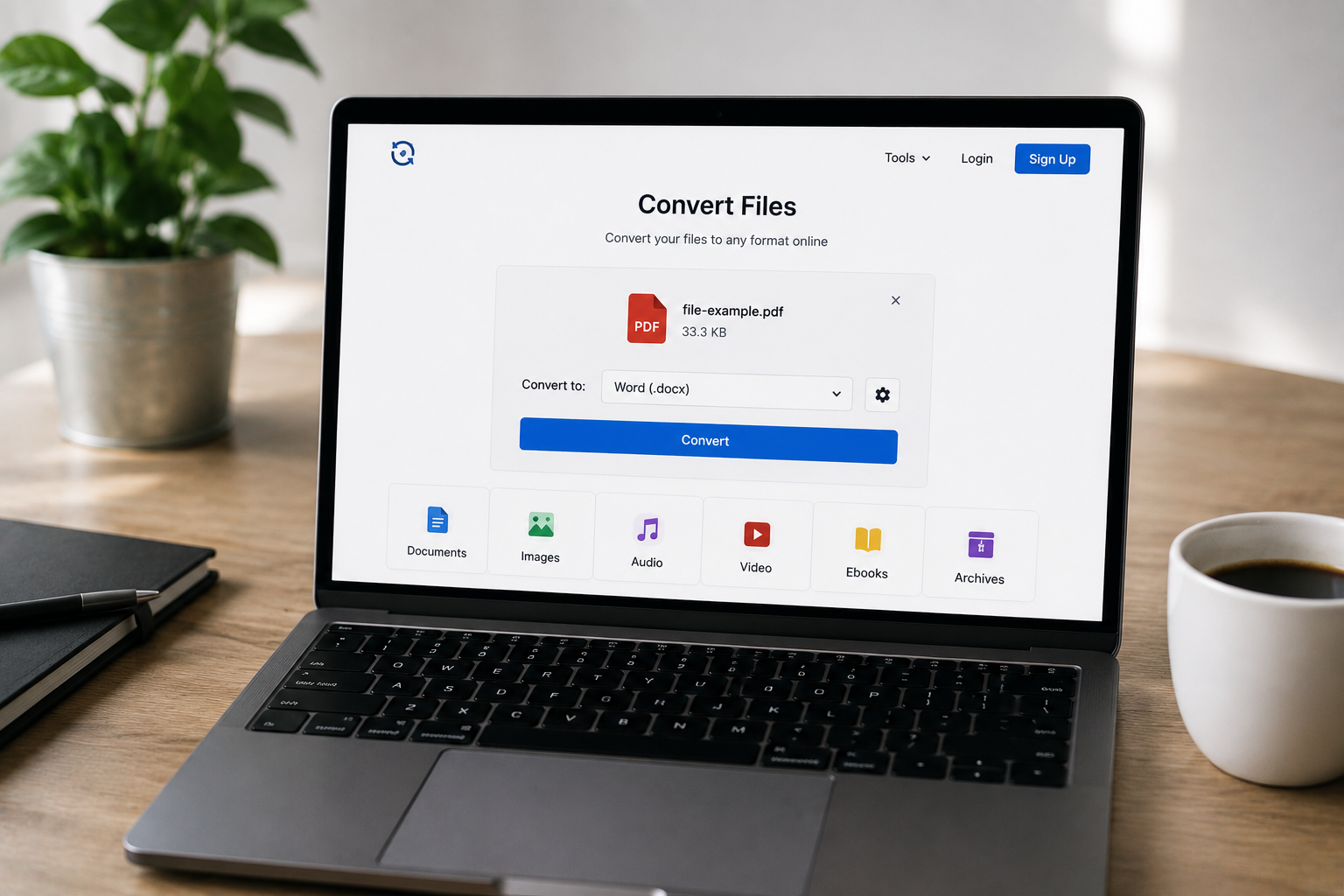
The client asked for an EPS logo before 4:00 PM, but I only had a .png file. The conference organizer asked for PDF slides, not PPTX. My editor couldn’t open a podcast guest’s M4A file. The video website didn’t accept my MOV files, only MP4. These kinds of things don’t happen weekly, but daily. And every single time, someone recommends that I buy software.
Actually, you don’t have to spend money. File conversion issues have long been resolved. There are free online conversion tools for almost every file format you encounter. The trick isn’t to find a converter, but to find one that meets your specific needs, doesn’t cause any loss of quality, and doesn’t contain viruses or hidden paywalls. In this article, we recommend 15 free tools for common conversion tasks, along with some specific settings to prevent problems you have undoubtedly encountered before.
Time-Consuming Conversion Pitfalls
But before we introduce the tools, let’s first discuss a few things to watch out for. Free online converters do not have a good reputation, and some truly live up to that reputation. Do NOT do the following:
Malware distribution: Some unreliable converters can install browser extensions, change your homepage, or worse. Choose reliable tools with a transparent privacy policy.
Degradation of image quality: Do not save high-resolution images as compressed files without quality control; otherwise, sharp images will turn into blurry, grainy masses. Always check your quality settings.
Size limitations: Generally, “free” means “free up to 50 MB.” For videos and large documents, this can severely hinder the workflow. The following tools show their actual limitations.
Watermarks: Some tools add watermarks to the results, despite offering free conversion. The tools below are truly free under normal use.
Security Rule: Never upload sensitive documents (contracts, financial records, medical files) to any online converter. For confidential files, use offline tools like LibreOffice or VLC. The convenience isn’t worth the data exposure risk.
Image Conversions: When Pixels Need to Change Shape
PNG ↔ JPG ↔ WebP ↔ SVG
Tool: Squoosh (by Google Chrome Labs)
Squoosh isn’t just a converter — it’s a compression laboratory. Drag in any image, see a live before/after comparison, and adjust quality settings with a slider. It handles PNG, JPG, WebP, and AVIF. The SVG conversion is basic (raster to vector tracing), but for standard image formats, nothing beats the visual feedback.
Specific use case: Converting a 4MB PNG screenshot to a 200KB JPG for email without visible quality loss. The slider lets you find the exact breakpoint where file size drops and quality stays acceptable.
Limit: Browser-based, so very large files (50MB+) may crash the tab. For those, use CloudConvert.
Pro move: Use the “Resize” option before converting. A 4000×3000 PNG converted to JPG at full resolution is still huge. Resize to 1200×900 first, then compress.
Raster to Vector (PNG/JPG → SVG/EPS)
Tool: Vectorizer.AI or Vector Magic (free tier)
Converting a photo to vector is technically impossible with perfect quality — vectors describe shapes mathematically, photos describe pixels. But for logos, icons, and simple graphics, auto-tracing works well enough.
Vectorizer.AI uses machine learning to trace edges more accurately than traditional algorithms. The free tier gives you low-resolution previews. For production use, you’ll need to pay — but the preview is usually enough to verify the tool can handle your specific image before committing.
Alternative for simple graphics: Inkscape (free desktop software) has a built-in trace bitmap function. No upload required, no limits, full control over tracing parameters.
HEIC (iPhone photos) → JPG
Tool: HEICtoJPG.com or iMazing HEIC Converter
Apple’s HEIC format saves space but breaks compatibility with Windows, older software, and many websites. HEICtoJPG.com handles batch conversion up to 50 files. The quality is preserved — it’s a format wrapper change, not recompression.
iPhone users: Settings → Camera → Formats → Most Compatible changes future photos to JPG. Do this before you have hundreds of HEIC files to convert.
Document Conversions: When Office Formats Fight
PDF ↔ Word ↔ Excel ↔ PowerPoint
Tool: iLovePDF or PDF24 Tools
These two tools cover the entire PDF ecosystem. iLovePDF handles PDF to Word, PDF to Excel, PDF to PowerPoint, and the reverse conversions. PDF24 Tools adds merging, splitting, compressing, and OCR (text recognition in scanned documents).
Specific scenario: A scanned contract arrives as PDF, but you need to edit a clause. PDF24’s OCR converts it to editable Word. The accuracy depends on scan quality — clean text at 300 DPI converts nearly perfectly; handwritten notes or low-resolution scans require manual cleanup.
Limit: iLovePDF’s free tier has a file size limit (around 100MB per file) and daily conversion caps. For heavy use, PDF24 Tools has fewer restrictions and runs partially offline.
Quality Tip: When converting PDF to Word, choose “Editable” over “Exact” if you need to modify the document. “Exact” preserves formatting but creates complex text boxes that are hard to edit. “Editable” sacrifices some layout fidelity for usability.
EPUB ↔ MOBI ↔ PDF (Ebook formats)
Tool: Calibre (desktop) or Online-Convert.com
Calibre is the gold standard for ebook management and conversion. It handles every format you’ll encounter — EPUB, MOBI, AZW, PDF, TXT, and more. The conversion includes metadata preservation, cover image embedding, and table of contents restructuring.
For quick online conversion without installation, Online-Convert.com handles EPUB to MOBI and reverse. The quality is acceptable for personal reading, but Calibre’s output is superior for publishing or distribution.
Audio Conversions: When Editors Demand Specific Codecs
MP3 ↔ WAV ↔ FLAC ↔ M4A ↔ OGG
Tool: CloudConvert or VLC Media Player
CloudConvert handles 200+ formats including every audio variant you’ll encounter. The free tier allows 25 conversions per day with files up to 1GB. For podcasters, musicians, and video editors, this covers daily needs.
Quality-critical scenario: Converting a WAV master to MP3 for distribution. CloudConvert lets you set bitrate (320kbps for high quality, 128kbps for speech-only). Always archive the original WAV — MP3 is lossy, and re-converting MP3 to another format degrades quality further.
VLC alternative: For offline conversion without limits, VLC (yes, the video player) converts audio formats. Media → Convert/Save → select file → choose output format. No upload, no limits, no quality loss beyond your chosen settings.
Video Conversions: The Format Minefield
MOV ↔ MP4 ↔ AVI ↔ MKV ↔ WebM
Tool: HandBrake (desktop) or CloudConvert
Video conversion is where online tools often fail — file sizes exceed limits, quality controls are crude, and processing takes forever. HandBrake is the free desktop solution that professionals use. It converts virtually any format to MP4 or MKV, with granular control over codecs, bitrates, resolution, and frame rates.
Specific scenario: A screen recording in MOV is too large to upload. HandBrake’s “Web Optimized” preset reduces file size by 60-80% with minimal visible quality loss. The H.264 codec is universally compatible; H.265 (HEVC) saves more space but isn’t supported everywhere yet.
For quick online conversion: CloudConvert handles video up to 1GB on the free tier. The “video options” let you set resolution, codec, and quality. It’s slower than HandBrake for large files but requires no installation.
| Video Scenario | Recommended Tool | Key Setting |
|---|---|---|
| Upload rejected (format wrong) | CloudConvert | Match target platform’s specs exactly |
| File too large for email/upload | HandBrake | Constant Quality RF 22-23 for web |
| Screen recording to shareable clip | HandBrake | Web Optimized preset + Fast 1080p30 |
| Archival (keep original quality) | HandBrake | Constant Quality RF 18-20, same resolution |
Archive and Compression: When ZIP Isn’t Enough
RAR ↔ 7Z ↔ TAR ↔ ZIP
Tool: 7-Zip (Windows) or The Unarchiver (Mac) or ezyZip (online)
RAR files arrive from Windows users. 7Z files promise better compression. TAR files come from Linux servers. Your built-in OS tools often handle only ZIP. 7-Zip opens everything — free, open-source, no ads. The Unarchiver on Mac does the same.
For online extraction without installing software, ezyZip handles standard formats. It extracts files locally in your browser (no upload to servers), which is faster and more private than cloud-based alternatives.
Specialized Conversions: The Edge Cases
Subtitle files (SRT ↔ VTT ↔ ASS)
Tool: Subtitle Tools or Subtitle Edit (desktop)
Video platforms demand specific subtitle formats. YouTube prefers VTT. Older players need SRT. Anime fansubs use ASS. Subtitle Tools converts between all three with timing preservation. Subtitle Edit (desktop) adds synchronization fixes and translation assistance.
CAD and 3D formats (DWG ↔ DXF ↔ STL ↔ OBJ)
Tool: AnyCAD Exchange or Autodesk Viewer
Engineers and 3D printers encounter format chaos constantly. AnyCAD Exchange handles DWG, DXF, STEP, IGES, and more. Autodesk Viewer opens 80+ formats for review and basic conversion. For 3D printing specifically, Meshmixer (free, discontinued but still functional) repairs and converts STL files.
Spreadsheet formats (CSV ↔ XLSX ↔ ODS)
Tool: Google Sheets or LibreOffice Calc
CSV files lose formatting, formulas, and multiple sheets. Converting CSV to XLSX requires a tool that preserves structure. Google Sheets imports CSV with delimiter detection and encoding options. LibreOffice Calc handles ODS (OpenDocument) format, which some European governments require for official documents.
Pro Tip: When converting CSV to XLSX, always check character encoding. A CSV saved as UTF-8 but opened as ASCII will corrupt special characters, currency symbols, and non-English text. Google Sheets auto-detects encoding; LibreOffice Calc lets you specify it during import.
The Master Reference: Your Conversion Toolkit
Bookmark these five tools and you’ll handle 95% of conversion needs:
- CloudConvert — The universal converter. 200+ formats, 25 free conversions daily, up to 1GB files.
- Squoosh — Image compression with visual quality control. Essential for web and email.
- iLovePDF / PDF24 — PDF ecosystem. Convert, merge, split, compress, OCR.
- HandBrake — Video conversion with professional-grade controls. Free, open-source, no limits.
- 7-Zip / The Unarchiver — Archive extraction for every compression format.
Everything else is specialized. Keep the specific tools in mind for your niche, but these five cover daily needs.
When Offline Tools Win
Online converters are convenient, but three scenarios demand offline alternatives:
Large files: Video projects, RAW photo batches, and multi-gigabyte archives exceed online limits and upload bandwidth. HandBrake, VLC, and ImageMagick handle these locally.
Confidential data: Legal documents, medical records, proprietary designs. Never upload these. Use LibreOffice, GIMP, Inkscape, or FFmpeg instead.
Unreliable internet: Travel, rural connections, or corporate networks that block file sharing sites. Offline tools work regardless of connectivity.
Related Articles
- Expensive Software Replaced: 15 Free Online Tools You Never Knew Existed
- Browser Features Hidden in Plain Sight (You’ve Never Clicked These)
- How to Extract Text From Any Image Instantly—No Paid Software Needed
- Stop Drowning in Downloads: One Setting That Organizes Everything Automatically
- Speed Up Your Laptop in 10 Minutes—No Software Installation Required
Sources and References
- Google Chrome Labs. (2026). Squoosh: Next-Generation Image Compression in the Browser. GitHub Repository. https://github.com/GoogleChromeLabs/squoosh
- CloudConvert. (2026). Supported Formats and API Documentation. CloudConvert Documentation. https://cloudconvert.com
- HandBrake Team. (2026). HandBrake Documentation: Video Encoding and Format Conversion. HandBrake Wiki. https://handbrake.fr/docs
- iLovePDF. (2026). PDF Tools: Conversion, Editing, and Management Features. iLovePDF Help Center. https://www.ilovepdf.com
- VideoLAN. (2026). VLC Media Player: Conversion and Streaming Capabilities. VLC Documentation. https://wiki.videolan.org
About the Author: The InsightTrail team has converted files in airport lounges, client offices, and once in a moving car using only a phone. We believe the right tool for the job is usually free — you just need to know which one.

Sunita Voss wanders through software like a city flâneur—observing, testing, occasionally getting lost, always finding shortcuts. She writes about digital minimalism, hidden web tools, and tech hacks with the patience of someone who enjoys the journey and the urgency of someone who values her time. No gurus. No gatekeeping. Just discovered paths.