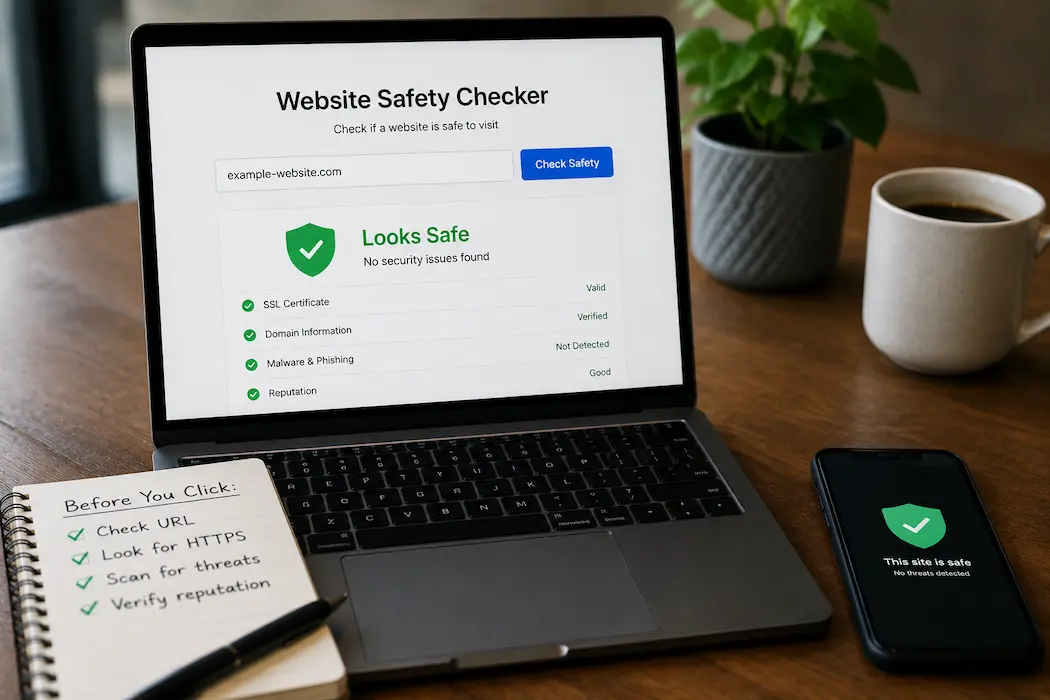
How to Check If a Website Is Safe Before You Click
Last updated: June 7, 2026
The link arrived in an email that looked exactly like my bank’s notification. Same logo, same font, same urgent tone about “suspicious activity.” I hovered over the link. The preview showed a close URL — very close — to the real domain, but not quite. One letter different. A trap set for anyone in a hurry.
I didn’t click. Instead, I ran a 90-second safety check that confirmed what I suspected: phishing site, registered three days ago, hosted in a region with no connection to my bank, and already flagged by three security databases. The email went to my bank’s fraud team. The account stayed secure.
This article isn’t about paranoia. It’s about a repeatable protocol that takes under two minutes and protects you from the threats that actually succeed: not sophisticated hacking, but social engineering that preys on hurry and trust. The checks below are free, require no technical expertise, and work on any device with a browser.
The 90-Second Safety Protocol
Before clicking any unfamiliar link — in email, social media, search results, or messaging apps — run these five checks in order. Each one takes 15-20 seconds. Skip any step, and you leave a gap attackers exploit.
Check 1: The Hover Test (5 Seconds)
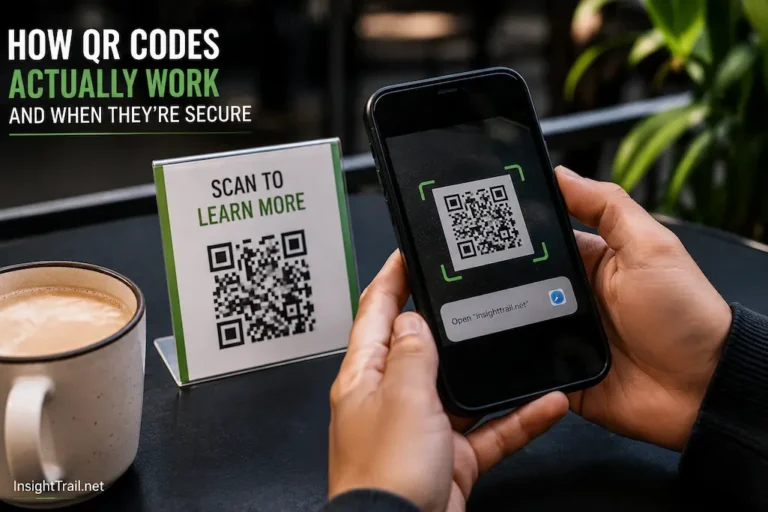
Don’t click. Hover your cursor over the link (or long-press on mobile). The actual destination URL appears in the corner of your browser window or as a preview popup. Read it carefully.
What to look for:
- Misspellings:
arnazon.cominstead ofamazon.com,paypa1.cominstead ofpaypal.com - Extra words:
amazon-security-update.cominstead ofamazon.com - Wrong domain endings:
amazon.netoramazon-security.cominstead ofamazon.com - Subdomain tricks:
amazon.login-verification.tk— the real domain is the last part before the slash (tk), not the first part (amazon)
Mobile caveat: Hover doesn’t work the same way. On iOS, long-press the link in Messages or Mail to see a preview. On Android, tap and hold. If the preview looks suspicious, don’t proceed.
Check 2: The SSL Verification (10 Seconds)
Look for the padlock icon in your browser’s address bar. This indicates the site uses HTTPS encryption — the data between you and the site is scrambled. But the padlock doesn’t mean the site is legitimate. It only means the connection is encrypted.
What the padlock actually tells you: Your data won’t be intercepted in transit. It says nothing about who’s receiving it.
What to check beyond the padlock: Click the padlock → “Connection is secure” → “Certificate is valid.” Look at the organization name. A legitimate bank should show the bank’s actual corporate name, not “Let’s Encrypt” or a generic certificate. Small blogs and legitimate small businesses often use free certificates from Let’s Encrypt — that’s normal. But a major corporation using a free certificate instead of their own branded one is a yellow flag.
Pro Tip: The padlock can be faked. Some phishing sites use valid SSL certificates because they’re free and automatic. Never trust the padlock alone. It’s one check in a chain, not the entire chain.
Check 3: The Domain Age Test (20 Seconds)
Legitimate businesses register domains years in advance. Scam sites are often registered days or hours before use. This is one of the strongest signals available.
Tool: who.is or whois.domaintools.com
How to use it: Type the domain into the search box. Look for “Creation Date” or “Registered On.” If the domain was registered in the last 30 days and claims to represent an established business, that’s a red flag. If it was registered today and the email claims urgency, that’s a stop sign.
What you’ll see:
- Established business: Registered 2010-2020, expires 2025-2030
- Legitimate new business: Registered recently, but consistent with stated launch timeline
- Likely scam: Registered 3 days ago, expires in 1 year (minimum registration to avoid suspicion), privacy protection hiding owner details
Privacy protection alone isn’t suspicious — many legitimate sites use it. Combined with recent registration and a claim of being an established institution, it becomes part of a pattern.
Check 4: The Reputation Scan (30 Seconds)
Multiple security organizations maintain databases of reported malicious sites. Check them simultaneously for the fastest coverage.
Tool 1: VirusTotal (virustotal.com)
Paste the URL into the search box. VirusTotal checks it against 90+ security engines and URL reputation databases. If even 2-3 engines flag it, avoid. If 10+ flag it, report it.
Tool 2: URLVoid (urlvoid.com)
Checks the domain against 30+ blacklists and provides a reputation score. Also shows IP address, server location, and domain age — consolidating multiple checks into one result.
Tool 3: Google Safe Browsing (transparencyreport.google.com/safe-browsing/search)
Google’s own database of unsafe sites. If Google has flagged it, major browsers will show warnings. But the check is useful for confirmation even if your browser hasn’t updated its local warning list yet.
| Check Result | Interpretation | Action |
|---|---|---|
| Clean across all tools | No known threats, but not a guarantee | Proceed with remaining checks |
| 1-2 engines flag it | Possible false positive, but suspicious | Proceed with extreme caution, verify through other channels |
| 3+ engines flag it | High probability of malicious content | Do not visit, report to your email provider or platform |
| Google Safe Browsing flags it | Confirmed malicious or deceptive | Do not visit, report to Google Safe Browsing team |
Check 5: The Content Verification (25 Seconds)
If the site passes all technical checks, the final verification is content-based. Scam sites often have telltale signs:
- Urgency language: “Account will be suspended in 24 hours,” “Immediate action required,” “Final notice” — legitimate institutions don’t communicate threats via email links
- Grammar and spelling: Professional organizations proofread. Multiple errors suggest overseas scam operations
- Contact verification: Look for a phone number. Call it. If it’s disconnected, a generic voicemail, or answered by someone who can’t verify the organization’s identity, stop
- Address verification: Search the physical address on Google Maps. Does it match the claimed business? A “bank” with a registered address in a residential apartment is suspicious
The Decision Tree: When to Click, When to Stop
After the five checks, you have enough information to decide. Here’s the flow:
Green Light (Proceed): Domain age is appropriate, SSL certificate shows legitimate organization, all reputation scans clean, content matches expected professionalism, and you initiated the visit (not responding to an unsolicited email).
Yellow Light (Verify First): One check is ambiguous — recent domain registration but plausible new business, or mixed reputation scan results. Contact the organization through a known channel (not the email that sent the link) to verify.
Red Light (Stop): Multiple checks fail, urgency language pressures immediate action, domain was registered yesterday, or reputation scans show flags. Do not click. Report the link to your email provider and, if it impersonates a real organization, to that organization’s fraud team.
Critical Rule: No legitimate organization will ever ask you to verify account details via an email link. Banks, government agencies, and major services communicate through secure portals you access independently. Any email requesting password, PIN, or payment information via link is fraudulent. No exceptions.
Advanced: The Sandbox Test (For the Technically Curious)
If you need to analyze a suspicious website, do so in a sandbox environment for extra security:
Option 1: Virtual Machine
Perform a clean installation of Linux in VirtualBox (free). Open the website from the virtual machine. Even if a virus is malicious, it remains confined to the virtual environment. You can remove the virtual machine afterwards.
Option 2: Online Sandbox
URLScan.io loads the website in an isolated environment and displays screenshots, web queries, and behavioral analyses without your browser needing to visit the website. Any.run offers interactive sandbox analysis. Both tools are free for basic use.
Option 3: Web Isolation
Microsoft Edge App Protection (Windows Enterprise) and Firefox Containers offer partial isolation. While not as secure as a virtual machine, they are much better than visiting a suspicious website directly.
What to Do If You Already Clicked
People make mistakes. The methods above are not foolproof, and social engineering attacks are designed to bypass reasonable tests. If you have clicked on a suspicious link:
Immediately (1 minute or less): Do not enter any data. Return to the form. If you have already started entering data, close the page and do not submit it. Clear your browser’s cache and cookies for this page.
Short Term (within 1 hour): Change the passwords of all accounts that this website claims to represent; if the website distributes malware, your current device may be infected. Therefore, use a different device if possible.
Medium Term (within 24 hours): Run a full antivirus scan. Check your bank and credit card accounts for illegal activity. Enable two-factor authentication for all accounts that support it.
Report: Send phishing emails to reportphishing@apwg.org (Anti-Phishing Task Force). Report the URL to Google Safe Browsing. If the URL appears to originate from a specific organization, report it to that organization’s fraud team.
Recovery Note: Clicking a link doesn’t automatically compromise you. Most attacks require you to enter information, download a file, or enable macros. If you closed the site immediately, your risk is minimal. Panic helps attackers more than caution helps you. Stay calm, follow the steps, and move on.
Building the Habit: Making Safety Automatic
The 90-second protocol feels slow at first. Within a month, it becomes automatic — hover, glance at URL, check padlock, done. The key is consistency. Apply it to every unfamiliar link, not just the obviously suspicious ones. The best phishing emails are designed to look obviously legitimate.
Browser extensions that help:
- uBlock Origin: Blocks malicious domains at the network level. Free, open-source, essential.
- HTTPS Everywhere (now built into most browsers): Forces encrypted connections when available.
- Bitdefender TrafficLight: Adds reputation indicators to search results. Flags known malicious sites before you click.
These extensions reduce but don’t eliminate the need for manual checks. Think of them as safety nets, not replacements for judgment.
Related Articles
- How to Find Any Website’s Traffic Stats Without Paying a Dime
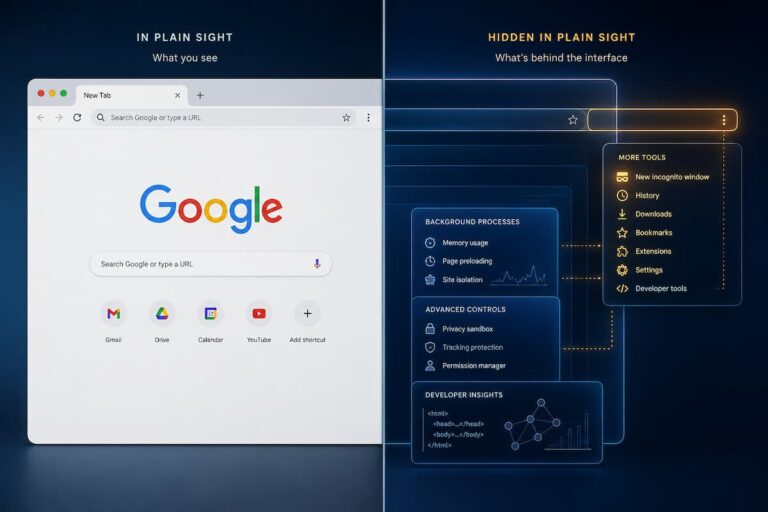
- Browser Features Hidden in Plain Sight (You’ve Never Clicked These)
- Expensive Software Replaced: 15 Free Online Tools You Never Knew Existed
- Small Teams, Big Collaboration: Free Web Tools That Actually Work
- Geo-Blocked Content? Access It Legally and Safely With These Tools
Sources and References
- Anti-Phishing Working Group. (2026). Phishing Activity Trends Report: Q1 2026. APWG. https://apwg.org
- VirusTotal. (2026). URL Analysis and Multi-Engine Scanning Methodology. VirusTotal Documentation. https://www.virustotal.com
- Google Safe Browsing. (2026). Transparency Report: Unsafe Site Detection and Warning Systems. Google. https://transparencyreport.google.com/safe-browsing
- URLVoid. (2026). Domain Reputation and Blacklist Checking Services. URLVoid. https://www.urlvoid.com
- ICANN. (2026). WHOIS Data Policy and Domain Registration Transparency. ICANN. https://www.icann.org
About the Author: The InsightTrail team has analyzed phishing sites, reported fraudulent domains, and learned that the best security tool is a two-minute pause. We write so you don’t have to learn the hard way.

Sunita Voss wanders through software like a city flâneur—observing, testing, occasionally getting lost, always finding shortcuts. She writes about digital minimalism, hidden web tools, and tech hacks with the patience of someone who enjoys the journey and the urgency of someone who values her time. No gurus. No gatekeeping. Just discovered paths.