
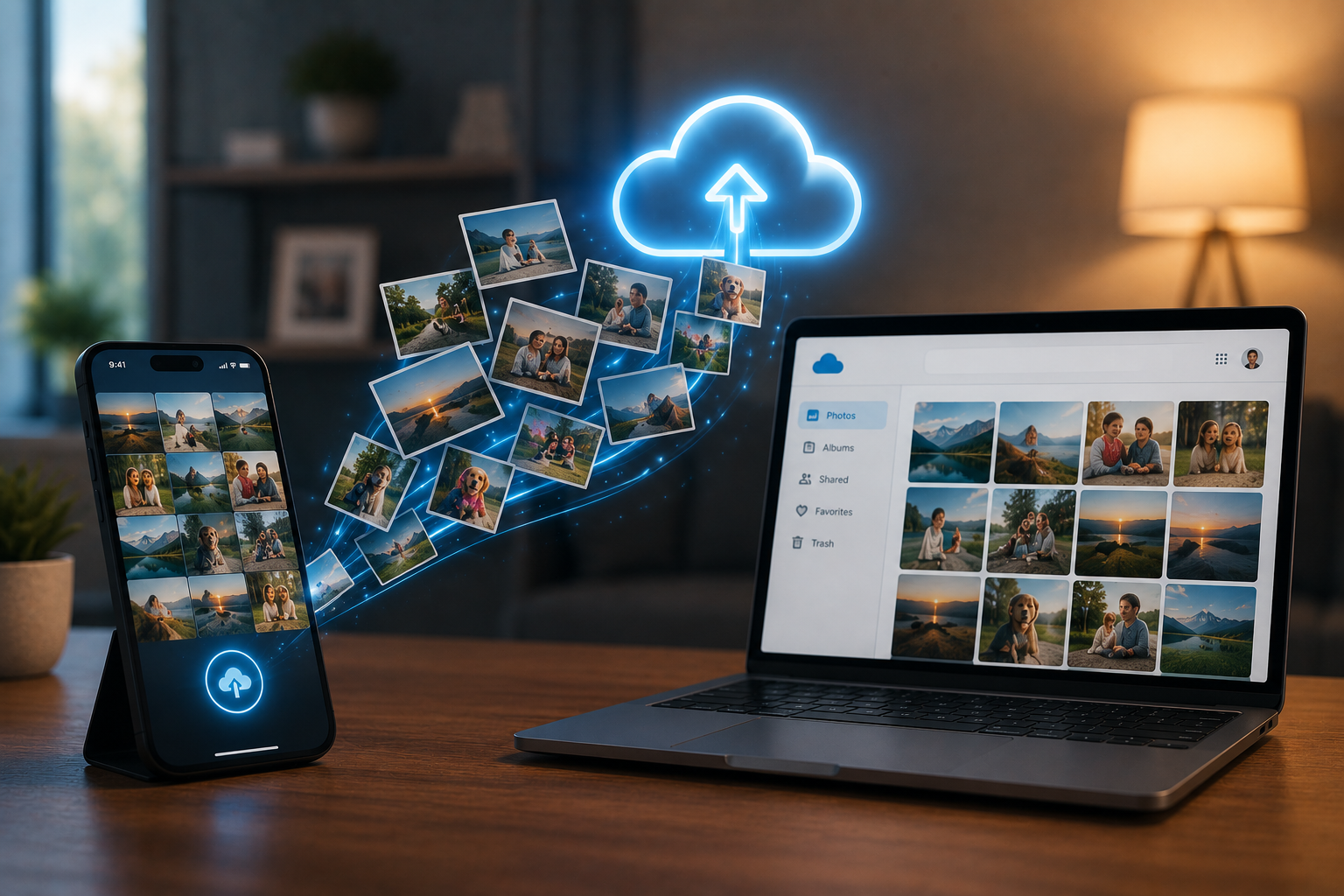
Losing photos feels different from losing other files. A corrupted spreadsheet is frustrating. A deleted folder of irreplaceable family moments is devastating. Yet most people still rely on their phone’s local storage as the only copy of years’ worth of memories.
The good news? You don’t need to be tech-savvy to protect your photos. Modern cloud backup services handle everything automatically once you’ve set them up—syncing new photos the moment they’re taken, without you ever opening an app or pressing a button. This guide walks you through everything you need to know: why cloud backup matters, how to choose the right service, and how to configure it so your photos are always protected.
The Importance of Photo Backup
Physical devices fail. Phones get lost, stolen, or dropped in pools. Hard drives crash without warning. According to Backblaze’s 2023 Drive Stats report, hard drive failure rates can reach up to 5% annually, and that figure climbs significantly for older drives.
If you store photos only on a single device, you risk losing them forever with just one bad day. Cloud backup eliminates that single point of failure by storing a copy of your photos on remote servers—accessible from any device at any time.
Understanding Cloud Storage
Cloud storage works by uploading your files to servers maintained by a third-party provider. When your phone connects to Wi-Fi, backup software running in the background quietly syncs new photos to those servers. The process is automatic, incremental, and invisible.
Most services compress images slightly to save space, though many also offer the option to store originals at full resolution. Your photos become accessible through a web browser or companion app, making it easy to view, share, or download them from any device.
Choosing the Right Cloud Service
Several major providers dominate the photo backup space, each with distinct strengths.
- Google Photos offers 15GB of free storage shared across your Google account, with affordable paid plans starting at $2.99/month for 100GB. Its AI-powered search—letting you find photos by typing “beach 2022” or “birthday cake”—is among the best available. It’s ideal for Android users but works seamlessly on iOS too.
- Apple iCloud Photos integrates natively with iPhones and Macs, making it the lowest-friction option for Apple users. The free tier offers 5GB, with 50GB available for $0.99/month. If you’re already in the Apple ecosystem, iCloud requires almost no setup.
- Amazon Photos provides unlimited full-resolution photo storage for Amazon Prime members, making it exceptional value for existing subscribers. It supports both Android and iOS.
- Dropbox and Microsoft OneDrive are strong options if you want photo backup bundled with broader file storage—particularly useful if you also back up documents, videos, or work files.
Choose based on your existing devices and subscriptions. Apple users will find iCloud the most seamless. Android users and Google Workspace subscribers benefit most from Google Photos. Amazon Prime members should take advantage of Amazon Photos before paying elsewhere.
Setting Up Automatic Backups
Setup takes under five minutes on most platforms.
- For Google Photos: Download the app, sign in, and navigate to your profile photo > “Photos settings” > “Backup.” Toggle backup on and select your preferred upload quality. Enable “Backup over Wi-Fi only” to avoid burning through mobile data.
- For iCloud Photos on iPhone: Go to Settings > [your name] > iCloud > Photos, then toggle “iCloud Photos” on. Your device will begin syncing immediately on Wi-Fi.
- For Amazon Photos: Install the app, sign in with your Amazon account, and enable “Auto-Save” in settings. Prime members can select “Original” quality to preserve full-resolution files.
One setting worth adjusting on all platforms: configure backups to run only on Wi-Fi. Cellular syncing can consume several gigabytes of data per month if you take a lot of photos.
Managing Your Cloud Storage
Once backups are running, a little housekeeping goes a long way. Duplicate photos, blurry shots, and screenshots accumulate fast—and they eat into your storage quota. Most services include built-in tools to help. Google Photos has a “Free Up Space” feature that removes locally stored photos already backed up to the cloud, recovering device storage without deleting anything permanently. Apple’s iCloud offers “Optimize iPhone Storage,” which replaces full-resolution photos on your device with smaller previews while keeping originals in the cloud.
Periodically reviewing your storage usage is smart practice. If you’re approaching your plan’s limit, most providers make it easy to upgrade, or you can manually delete content you no longer need through the app or web interface.
Security and Privacy Considerations
Cloud services encrypt your photos both in transit and at rest, which scrambles your files into unreadable data unless you access them with your credentials. Google, Apple, and Amazon all use industry-standard AES-256 encryption.
That said, a few habits strengthen your security posture considerably. Enable two-factor authentication (2FA) on your cloud account—this prevents unauthorized access even if your password is compromised. Use a strong, unique password for your backup account rather than reusing one from elsewhere.
It’s also worth reading the privacy policy of your chosen provider. Google Photos, for instance, states it does not use your photos to target ads. Apple has long positioned privacy as a core value and does not scan iCloud Photos content for advertising purposes. If privacy is a top priority, consider a service like Proton Drive, which offers end-to-end encrypted storage where even the provider cannot access your files.
Troubleshooting Common Issues
Automatic backups can get stuck. If yours has stopped operating, a few easy checks generally sort the problem The initial step is to make sure the program has permission to access your photo collection, a common problem after OS updates. On iPhone, go to Settings > Privacy & Security > Photos. Check app permissions on Android in Settings > Apps
If you have backups that are running but are slow, check whether “Backup over Wi-Fi only” is turned on and whether your device is actually connected to Wi-Fi. Some apps also delay backups when your phone is in battery saver mode—turn off this feature or keep your phone plugged in during the initial bulk upload. Another typical factor is storage restrictions. If you’re out of space for your current plan, new photos won’t upload until you either make space or upgrade your plan.
Protect Your Memories Now
An automatic cloud backup is one of those uncommon products that costs very little (money, time or effort) but gives you huge peace of mind. And once you’ve set it up, every photo you take thereafter is protected.
The finest service is the one you actually utilize. Have an iPhone? Turn on iCloud Photos today. Google Photos (Android) Open Google Photos. Turn on backup. Download Amazon Photos before your next vacation, Amazon Prime members. Your future self will thank you for it. Your memories are worth it, it only takes five minutes to secure.
FAQs
1. Are photo backups to the cloud free?
Most of the big providers have a free storage tier. Google Photos gives you 15GB, iCloud is 5GB, and Amazon Photos offers unlimited photo storage to Prime subscribers. Upgrades available for a fee if you require additional room.
2. Will auto-backup utilize my mobile data?
That’s not the case when you set the app to only back up on Wi-Fi, a feature offered in all the major photo backup programs. If you enable this setting, synchronization will only occur while you’re connected to a Wi-Fi network.
3. What happens to my photos if I end my cloud subscription?
If you terminate a subscription plan and fall below the free storage limit, usually your photos remain available, but new uploads are disabled. Providers normally give you a grace period before they start limiting access if you surpass the free tier. Always download a local copy before you cancel.
4. Are my personal images safe in the cloud?
Yes, for most people. Major suppliers employ AES-256 encryption and provide two factor authentication. Services such as Proton Drive offer strong privacy protections with end-to-end encryption so that only you can view your files.
5. Can I access my stored photos from any device?
Yeah. All major cloud photo services come with a web interface and mobile apps for iOS and Android so your photographs are available from phones, tablets and PCs, as long as you are signed in to your account.

Sunita Voss wanders through software like a city flâneur—observing, testing, occasionally getting lost, always finding shortcuts. She writes about digital minimalism, hidden web tools, and tech hacks with the patience of someone who enjoys the journey and the urgency of someone who values her time. No gurus. No gatekeeping. Just discovered paths.