How to Turn Your Old Phone Into a Free Second Monitor
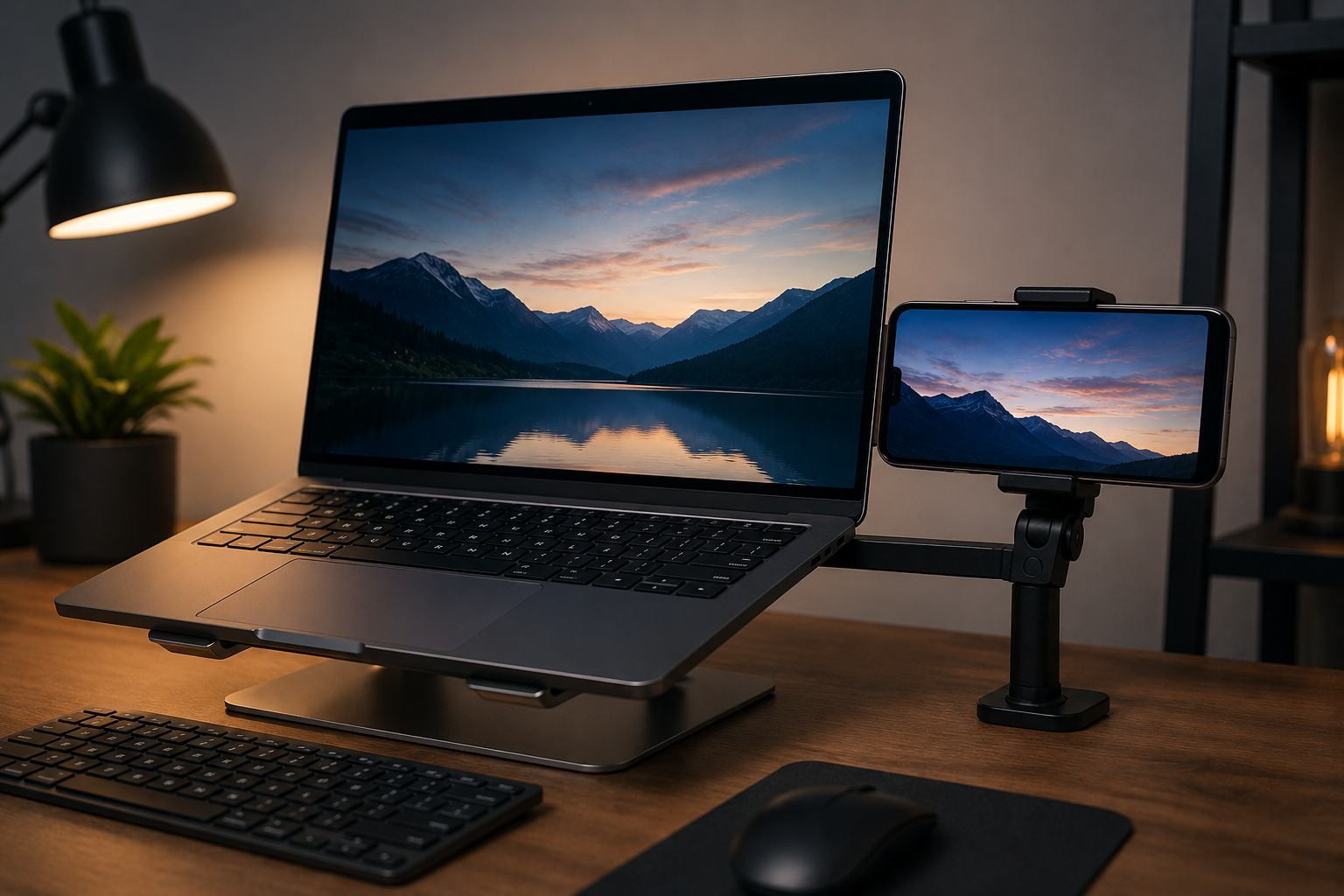
It may surprise you that an outdated phone may serve as a second computer monitor. Instead of collecting dust in a drawer, the device can increase your productivity if you use numerous windows or require more screen area for research, chat apps, or media controls. It’s simpler than it seems and requires no fancy equipment. The correct app and a solid Wi-Fi or USB connection are all you need. Today’s applications make it easy to mirror your computer’s screen to your phone in real time for a lag-free secondary display. You don’t require IT skills, and most solutions work on Android and iOS. After a simple setup, you’ll use your phone more at work and school. Extra screen area may improve job organization, document comparison, and notification monitoring without spending a dollar on new hardware.
Selecting the Right Old Phone App
The first step to turning your old phone into a second monitor is locating an app. Multiple free screen mirroring apps let your phone act as an extension of your PC. Some programs run wirelessly over Wi-Fi, while others require a USB connection for better performance and fewer latency. Consider OS compatibility while picking an app. Many apps operate on Android, iOS, and Windows and Mac PCs. Read several user reviews to choose a trusted, easy-to-use program. After installation, these apps let you connect your computer and phone, modify display settings, and optimize resolution for viewing. As with a second monitor, you may switch windows across displays. This method revives your outdated phone and offers a portable multitasking option. Without buying more monitors, you may create a fully working secondary display in minutes.
Setting Up Wireless
Your workstation stays tidy when you use your old phone as a second monitor over a wireless connection. Screen extension programs usually use Wi-Fi, so you simply need to connect your phone and computer to the same network. The software usually displays a code or QR scan to securely link devices after connection. After connection, your computer should detect the phone as an extra screen and let you alter its orientation, resolution, and location. Wireless installations are ideal for portability or for placing your phone anywhere on your desk without cords. Wi-Fi quality determines connection speed, thus a reliable network performs better. Wireless connections may cause modest delays, although they are normally minimal for basic things like reading emails, chat applications, and documents. A few simple steps may turn your old phone into a convenient secondary monitor, improving your desktop experience.
USB Connection Speeds Up Performance
USB cables are ideal for rapid performance and little latency. This approach provides a direct, reliable connection between your phone and computer, which is excellent for interactive operations on the secondary screen. The setup is usually as easy as wifi. After connecting your phone via USB, the software will recognize and setup it as an auxiliary display. You can smoothly slide windows across screens and switch between landscape and portrait modes for your productivity. USB connections also increase display quality, making text and graphics easier to see. If you desire seamless performance without interruptions or operate in poor Wi-Fi conditions, this strategy is best. Your old phone becomes a dependable second monitor with a cable, improving productivity and multitasking.
Optimization Tips for Your New Second Monitor
A few strategies can improve the experience while using your old phone as a second monitor. Adjusting the screen resolution to match your primary monitor sharpens text and graphics. Phones positioned at eye level help prevent neck strain and increase comfort during lengthy sessions. You may opt to mirror your primary screen or use the phone as an extra workplace with several apps. You may also prioritize auxiliary operations like messaging applications, reference materials, and media controls to keep your primary screen clean. Extended screen usage can drain your phone’s battery rapidly, so keep it charged, especially if you’re using it wirelessly. These little changes might make an ancient phone useful in your office. After a few minutes of setup and modification, this DIY second monitor is surprisingly useful for daily work.
FAQs
1. What kinds of phones can be used as extra screens?
You can use most smartphones, whether they’re Android or iOS, as a second screen. If they have the right screen-sharing or mirroring tools, even older devices can work well with the right app.
2. If I want to use my phone as a viewer, do I need a reliable Wi-Fi connection?
Yes, having a stable Wi-Fi link does speed things up and lower lag. Some slower networks may have small gaps, but most home or office Wi-Fi is fast enough for screen sharing to work smoothly.
3. When my phone is in portrait view, can I use it as a second screen?
Of course. Many apps let you rotate the screen and use portrait mode, which is great for reading papers, writing code, or keeping an eye on chat windows.
4. If I use my phone as a second screen, will it get broken?
No, it’s safe to use an old phone this way as long as you monitor the battery and prevent it from overheating. Long-term use might wear out the battery a little faster, but it won’t hurt the device.
5. Would it be possible to use more than one phone as a second screen?
Yes, some apps work on multiple devices, so you can use more than one phone simultaneously. Each device works as an extra screen, giving you even more ways to do more than one thing at once.

Sunita Voss wanders through software like a city flâneur—observing, testing, occasionally getting lost, always finding shortcuts. She writes about digital minimalism, hidden web tools, and tech hacks with the patience of someone who enjoys the journey and the urgency of someone who values her time. No gurus. No gatekeeping. Just discovered paths.