You unlock your laptop, open your favorite email service, and notice that your inbox appears immediately. There is no login screen, no request to enter your password, and no need to verify your identity again. The same thing happens with your music streaming service, online shopping account, and several work applications. Days—or sometimes even weeks—have passed since you last entered your password, yet the websites still recognize you.
It can seem as though your browser is secretly storing your password and sending it every time you visit. In reality, that is not how modern websites usually work. Your password is primarily used to prove your identity during the initial sign-in. Once that verification is complete, the website relies on a different system to remember that you have already been authenticated.
Understanding this process explains why logging out immediately ends your session, why clearing browser data sometimes signs you out of multiple websites, and why changing your password can disconnect other devices even though those devices never stored the password itself.
Your Password Opens the Door Only Once
Think about checking into a hotel.
When you first arrive, you present identification at the front desk. After your identity has been confirmed, you receive a room key. During the rest of your stay, you use the key to enter your room rather than showing your identification every time.
Websites follow a similar idea.
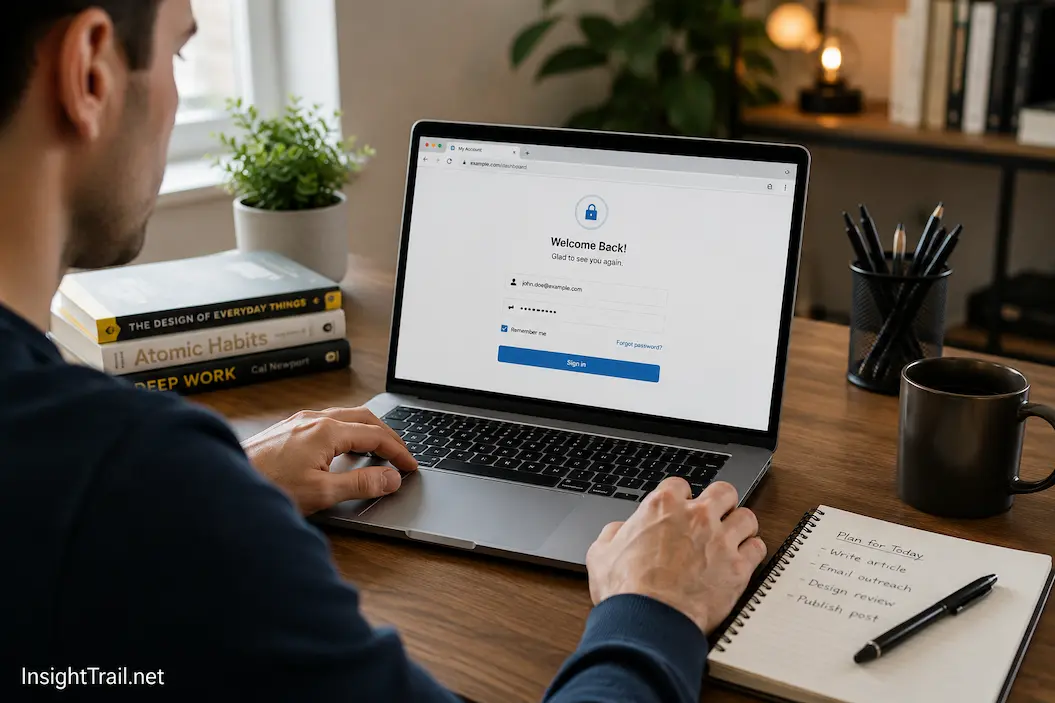
When you type your username and password, the website checks whether the information matches the account stored on its servers. If everything is correct, your identity is confirmed.
From that point forward, the website usually stops relying on your password during normal browsing. Instead, it creates a temporary way of recognizing your device so you do not need to repeat the login process on every page.
This approach improves both convenience and security because your password does not need to travel across the internet every time you click a new link.
A simple diagram showing “Password → Identity Verification → Session Created” would help readers visualize this sequence.
Every Successful Login Creates a New Session
After verifying your credentials, the website creates what is commonly known as a session.
A session represents an active conversation between your browser and the website. It tells the server that this browser has already completed the login process and may continue accessing information according to your account permissions.
Instead of asking for your password repeatedly, the website simply checks whether the current session is still valid.
Each session is unique. If you sign into the same account on your laptop and your phone, both devices usually receive separate sessions. Closing one session does not automatically end the other unless the website specifically decides to invalidate every active session.
This design allows people to stay signed in across multiple trusted devices without repeatedly entering their credentials.
A Small Identifier Does Most of the Work
The browser does not remember that you are logged in by storing a constant copy of your password.
Instead, it usually stores a small piece of information called a session identifier or authentication token.
This identifier functions much like a numbered claim ticket. By itself, it contains little useful information. Its purpose is simply to tell the website which active session belongs to your browser.
Whenever your browser requests another page, it sends this identifier along with the request. The website looks up the matching session on its servers and confirms whether it is still active.
If the session remains valid, access continues without requiring another password.
Because the important account information stays on the server, the browser only needs enough information to identify the existing session.
Cookies Often Carry the Session Identifier
One of the most common places to store session information is a browser cookie.
Cookies are small pieces of data that websites ask browsers to save for later use.
Although cookies have received considerable attention in discussions about online privacy, their original purpose was practical. They allow websites to remember useful information between visits, including login sessions.
A session cookie usually contains an identifier rather than your password.
When you revisit the website, the browser automatically sends the cookie back. The server reads the identifier, finds the matching session, and determines whether you are still signed in.
This explains why deleting cookies frequently logs users out of websites even though no passwords have been erased.
Authentication Tokens Serve a Similar Purpose
While traditional websites often rely heavily on session cookies, many modern applications also use authentication tokens.
The underlying idea remains similar.
Instead of repeatedly transmitting passwords, the application receives a token after successful authentication. This token represents your verified identity for a limited period.
Many mobile apps rely on tokens because they work well with modern application programming interfaces (APIs) that allow apps and servers to communicate efficiently.
Although the technical implementation differs from traditional browser sessions, both approaches share the same goal: recognizing an already authenticated user without requesting the password again.
“Remember Me” Changes How Long Recognition Lasts
Many login pages include a checkbox labeled Remember Me or Keep Me Signed In.
This feature often causes confusion.
Checking the box does not usually instruct the browser to save your password permanently. Instead, it typically tells the website to create a session that remains valid for a longer period.
Without this option, the session might expire after the browser closes or after several hours of inactivity.
With it enabled, the website may issue a longer-lasting authentication token or cookie that survives browser restarts and allows you to remain signed in for days or even months unless you log out manually.
Exactly how long the session lasts depends on the website’s own security policies.
Why Websites Sometimes Ask You to Log In Again
Remaining signed in indefinitely would create obvious security risks.
For that reason, sessions eventually expire.
Some websites automatically end sessions after prolonged inactivity. Others require fresh authentication after a certain number of days regardless of activity. Financial institutions often use much shorter session lifetimes than entertainment websites because they protect highly sensitive information.
Certain account changes can also invalidate existing sessions.
Changing your password, enabling two-factor authentication, detecting unusual login activity, or signing out from all devices may immediately cancel active sessions, forcing each browser or app to authenticate again.
These behaviors are security features rather than inconveniences.
Secure Connections Help Protect Active Sessions
Once a session has been established, protecting it becomes just as important as protecting the password itself.
Modern websites use encrypted HTTPS connections so that session identifiers cannot be easily intercepted while traveling across the network.
Without encryption, someone monitoring network traffic could potentially capture session information and attempt to impersonate the authenticated user.
This is one reason secure connections have become standard across reputable websites.
Encryption protects the communication channel while the server continues verifying that each session remains valid.
| Authentication Component | Purpose | Stored Where |
|---|---|---|
| Password | Verifies identity during login | Known by the user and securely managed by the website |
| Session Identifier | Recognizes an active login session | Usually stored in a browser cookie |
| Authentication Token | Confirms verified identity for applications or modern services | Browser, mobile app, or secure storage |
| Multi-Factor Authentication | Provides an additional identity check | Separate verification method such as an authenticator app or security key |
Recognition Depends on Trust Between the Browser and the Server
Every time your browser requests another page, the website evaluates more than just the session identifier.
It may also consider whether the session has expired, whether the request comes through an encrypted connection, whether unusual activity has been detected, or whether the account owner recently changed important security settings.
Only after these checks succeed does the server continue treating the browser as an authenticated user.
The browser therefore does not decide that you remain logged in.
The website makes that decision every time a new request arrives.
Why Your Phone and Computer Can Stay Logged In at the Same Time
Many people assume that signing in on a second device automatically replaces the first login.
For most online services, that is not how authentication works.
Each device usually receives its session after a successful login. Your laptop, smartphone, tablet, and work computer can all have separate session identifiers, allowing them to access the same account independently.
This approach makes everyday use much more convenient. You can read email on your phone while continuing to work on your laptop without repeatedly authenticating on each device.
Because every session is managed separately, websites can also revoke one device’s access without affecting the others. Some account security pages even display a list of active devices, giving you the option to end individual sessions if one is no longer trusted.
Private Browsing Changes What Gets Remembered
Private browsing modes, such as Incognito in Google Chrome or Private Browsing in Safari and Firefox, are designed to limit what remains on your device after the browsing session ends.
If you sign in to a website while using a private window, the login usually works exactly as it would in a normal window. The difference appears after you close the private session.
When the private window is closed, the browser typically removes the temporary cookies and session information that were created during that session. As a result, reopening the website later usually requires another login.
This behavior helps protect privacy on shared computers because the browser intentionally avoids keeping long-term session information after the private session ends.
Signing Out Does More Than Close a Browser Tab
Closing a browser window and signing out of a website are two different actions.
If you simply close the browser, many websites leave the session active so you can continue where you left off the next time you visit.
Signing out sends a request to the website telling it to invalidate the current session. Once that session is removed or marked as no longer valid, the session identifier stored by the browser is no longer enough to regain access.
The next visit requires a fresh login because the server no longer recognizes that session as authenticated.
This distinction explains why closing your laptop does not usually log you out, while selecting Sign Out immediately ends your authenticated session.
Why Changing Your Password May End Other Sessions
Changing an account password serves two purposes.
First, it replaces the old password with a new one. Second, many websites treat the password change as a security event.
If someone else had previously gained access to your account, allowing existing sessions to remain active could leave the account exposed even after the password had been updated.
To reduce that risk, many online services automatically invalidate all or most existing sessions after a password change. Every device must then authenticate again using the new password before receiving a new session.
Some services allow users to choose whether current devices remain signed in, while others enforce a complete logout across all sessions.
This behavior is intended to protect accounts rather than inconvenience legitimate users.
Session Security Is Just as Important as Password Security
People often focus entirely on creating strong passwords while overlooking the importance of protecting active sessions.
If an attacker somehow obtained a valid session identifier, they might attempt to impersonate an already authenticated user without knowing the actual password.
Modern websites reduce this risk in several ways.
Encrypted HTTPS connections protect session information while it travels across the internet. Session identifiers are usually long, randomly generated values that are extremely difficult to guess. Many websites also monitor unusual activity, such as sudden changes in location or device, and may request another login before allowing access to sensitive account settings.
These protections work together to make unauthorized use of active sessions much more difficult.
Staying Signed In Is Not Always the Best Choice
Remaining logged in saves time, but convenience is only one part of the decision.
On a personal computer that only you use, allowing trusted websites to remember your login is often perfectly reasonable.
A shared family computer, a public library workstation, or an internet café presents a very different situation. Leaving an active session behind on these devices could allow the next person to access your account.
The safest approach in shared environments is to avoid selecting Remember Me, sign out when finished, and close the browser session completely.
Small habits like these provide meaningful protection without making everyday browsing significantly less convenient.
| Situation | What Usually Happens to Your Login |
|---|---|
| Close the browser normally | Many websites keep the session active if it has not expired. |
| Click Sign Out | The current session is invalidated, requiring a new login next time. |
| Clear cookies and site data | Session identifiers are removed, and most websites ask you to sign in again. |
| Change your account password | Many services invalidate existing sessions across one or more devices. |
| Use a private browsing window | Session information is generally removed when the private window closes. |
| Sign in on another device | A separate session is usually created without affecting existing ones. |
Common Misunderstandings About Staying Logged In
Several misconceptions continue to cause confusion about online authentication.
One common belief is that cookies contain your password. In reality, authentication cookies usually store a session identifier rather than the password itself.
Another misunderstanding is that the browser alone decides whether you remain signed in. The browser simply stores session information. The website’s server decides whether that session is still valid each time you make a request.
Some people also believe that staying logged in is always insecure. On trusted personal devices protected by strong passwords, device encryption, and up-to-date software, you can generally consider maintaining an authenticated session a normal and secure practice.
Understanding these details makes it easier to recognize why modern login systems are designed the way they are.
Frequently Asked Questions
1. Does a website save my password in my browser after I log in?
Usually not. Most websites authenticate your password once and then use a session identifier or authentication token to recognize your browser during future requests.
2. Why do I stay logged in even after restarting my computer?
Many websites create long-lasting sessions when you choose options such as Remember Me or Keep Me Signed In, allowing your browser to reconnect without entering the password again.
3. Why does clearing cookies sign me out?
Cookies often store the session identifier that tells the website your browser has already been authenticated. Removing those cookies breaks the connection to the active session.
4. Can I stay logged in on multiple devices at once?
Yes. Most online services create separate sessions for each device, allowing your phone, tablet, and computer to remain signed in independently.
5. Is staying signed in safe?
On a trusted personal device with current software and a secure login method, it is generally safe. On shared or public computers, signing out after each session is the safer choice.
6. What happens if I change my password?
Many websites invalidate existing sessions after a password change, requiring all devices to authenticate again using the new password.
7. Are session cookies the same as passwords?
No. Session cookies usually contain a unique identifier that references your authenticated session on the website’s server. They do not normally store your actual password.