We have all been there. You open your laptop to finish a quick task, but instead, you find yourself staring at a spinning loading wheel, frozen application menus, and a sluggish cursor that seems to move through molasses.
Your immediate reaction is often to search the web for a quick fix, leading you down a rabbit hole of sketchy third-party “PC cleaner” apps, registry boosters, and RAM-optimizer utilities. Ironically, most of those downloaded tools are bloated, ad-supported adware that consume even more background memory and slow your machine down further.
You don’t need to install any software to restore your laptop’s performance. Your operating system (whether Windows or macOS) already comes packed with powerful, built-in maintenance tools. Here is how to execute a safe, 10-minute speedup using zero third-party software.
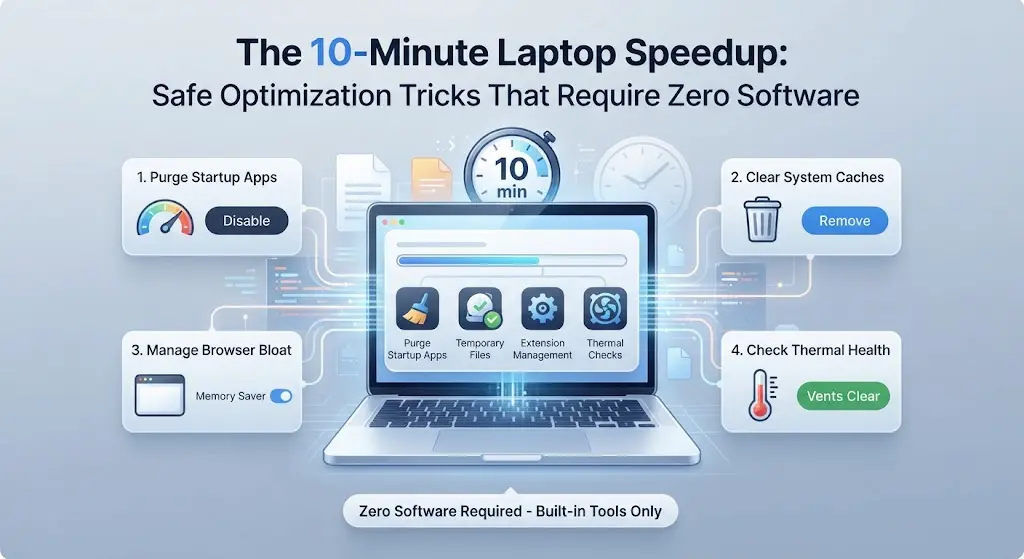
1. Purge Background Startup Apps
When your computer boots up, dozens of applications launch silently in the background and stay running indefinitely. That messaging app you use once a week, a printer utility, and a cloud sync tool are likely hogging CPU and RAM from the second you press the power button.
On Windows (Task Manager):
-
Press
Ctrl + Shift + Escto open the Task Manager. -
Click on the Startup apps tab (represented by a speedometer or gauge icon on the left sidebar).
-
Review the list of enabled apps and look at their Startup impact.
-
Right-click any non-essential application (like Spotify, Skype, or gaming launchers) and select Disable. (Note: Do not disable system drivers or your antivirus software).
On macOS (System Settings):
-
Open System Settings -> General -> Login Items.
-
Under the Open at Login and Allow in the Background sections, toggle off apps that you do not need running continuously from startup.
2. Clear System Cache and Temporary Files
Over months of web browsing, app updates, and document editing, your hard drive accumulates gigabytes of temporary “junk” files that clutter storage drives and slow down file indexing.
On Windows (Storage Sense / Disk Cleanup):
-
Open Settings -> System -> Storage.
-
Turn on Storage Sense to let Windows automatically clean up temporary files.
-
Click on Temporary files to inspect what can be safely removed—such as Windows update logs, previous installation files, and the Recycle Bin—then click Remove files.
On macOS (Optimized Storage):
-
Click the Apple menu -> System Settings -> General -> Storage.
-
Review the recommendations, such as Store in iCloud or Empty Trash Automatically, to free up local SSD space instantly.
3. Manage Browser Bloat and Extension Overload
For most users, the browser is the computer. If your browser is sluggish, your entire system feels broken. Rather than downloading optimization apps, manage your browser directly:
-
Audit Extensions: Click your extension menu and remove any add-ons you haven’t used in the last month. Every active extension drains RAM and CPU cycles.
-
Enable Memory Savers: Both Google Chrome and Microsoft Edge feature built-in “Memory Saver” or “Efficiency Mode” toggles in their settings. Enable them to automatically freeze background tabs that you aren’t actively viewing.
-
Clear Site Data Selectively: Instead of wiping your entire browsing history, clear cached images and files for specific heavy sites that are lagging.
4. Check for Thermal Throttling and Dust Blockage
Sometimes a sluggish laptop isn’t suffering from a software bottleneck at all—it’s choking on heat. When dust clogs your laptop’s internal fans and heatsinks, the processor reaches high temperatures and automatically throttles its speed to prevent permanent hardware damage.
-
Feel the Chassis: If your laptop bottom is burning hot even when you are just browsing the web, your cooling system is compromised.
-
The Fix: Take a can of compressed air and carefully blow out dust from the intake and exhaust vents. Keep your laptop on hard, flat wooden or plastic desks rather than soft surfaces like beds or couches that block airflow into the chassis.
Frequently Asked Questions (FAQs)
Q: Are third-party PC cleaner or driver updater apps ever safe to use?
A: Generally, no. Most commercial driver updaters and registry cleaners use aggressive scare tactics to force you into paid subscriptions, and they can occasionally install incorrect drivers that destabilize your operating system. Stick to native system tools (like Windows Update and built-in disk cleanup) for maximum safety.
Q: How often should I perform this 10-minute speedup routine?
A: Doing a quick audit of your startup apps, clearing temporary caches, and checking browser extensions once every month or two is more than enough to keep your laptop running smoothly without micromanaging your hardware.
Q: Will shutting down my laptop completely at night help speed it up?
A: Yes. Many users rely exclusively on “Sleep” or “Hibernate” modes, leaving their laptops running for weeks at a time. Shutting down or restarting your computer completely flushes the RAM, terminates lingering background memory leaks, and applies pending system patches, instantly restoring fresh performance.