
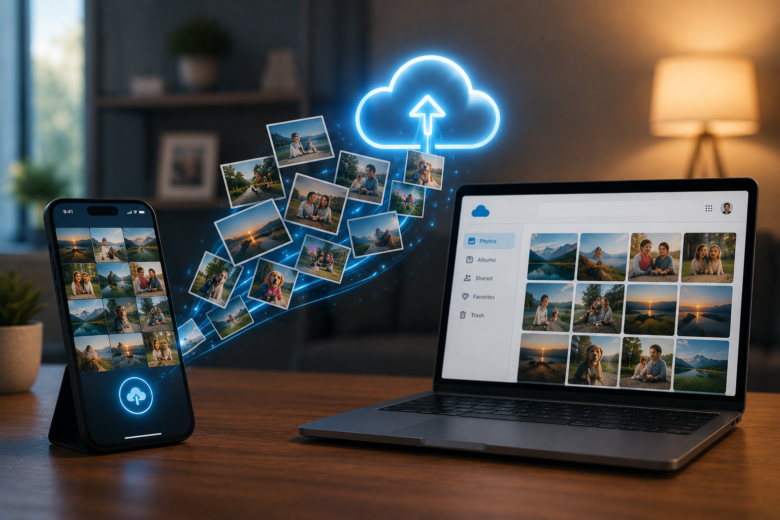
The moment many people begin thinking seriously about photo backups is often the moment something goes wrong. A phone slips into water during a vacation, a laptop refuses to start, or a device is replaced after years of use. Only then does the question arise: Where are all my photos? Sometimes every image appears safely on a new device within minutes. Other times, entire albums seem to have disappeared because they were never backed up in the first place.
Digital photography has made capturing memories easier than ever, but it has also changed how those memories are stored. Instead of keeping pictures in a single photo album or on one computer, many people now spread their collections across smartphones, tablets, laptops, cloud services, external drives, and messaging apps. Without a clear strategy, it becomes difficult to know which copy is the original, which photos are safely backed up, and which exist only on one device.
Cloud photo backup is designed to reduce that uncertainty, but understanding how it works is just as important as enabling the feature. A good backup strategy protects your photos from accidental loss while making them easy to access across different devices. The best approach depends on how you use your technology, how much storage you need, and how much control you want over your personal photo library.
Backing Up Photos and Synchronizing Them Are Not Always the Same Thing
One of the biggest sources of confusion is the assumption that cloud synchronization and cloud backup mean the same thing. They are closely related, but they serve different purposes.
Synchronization is designed to keep the same photo library consistent across multiple devices. If you take a picture on your phone, it appears on your tablet and computer after the upload finishes. Edits, albums, and organizational changes often follow that same pattern so every connected device reflects the same library.
A backup has a different objective. Its primary purpose is to preserve your data so it can be recovered if something happens to the original device. In a true backup system, deleting a photo from your phone does not necessarily remove the backup copy immediately because recovery is part of the design.
Many cloud photo services combine elements of both synchronization and backup, which is why users sometimes become surprised when deleting a photo on one device removes it everywhere else. The service is keeping every connected library synchronized rather than maintaining completely independent copies.
Understanding this distinction is one of the most important steps toward protecting your photos effectively.
A simple workflow illustration showing the difference between synchronization and backup would help readers visualize these two concepts.
Every Photo Collection Grows Differently
Not everyone creates photos in the same way, and that affects the type of backup strategy that makes sense.
Someone who mainly takes family snapshots may generate a few hundred images each year. Another person who enjoys wildlife photography or records videos in high resolution could produce hundreds of gigabytes in a relatively short time. A small business owner documenting products or projects may have completely different storage priorities again.
Because of these differences, estimating future growth is often more valuable than calculating current storage usage. A cloud storage plan that feels generous today may become restrictive after several years of higher-resolution cameras and increasing video content.
It also helps to think beyond photographs alone. Modern smartphones capture Live Photos, portrait effects, slow-motion videos, panoramic images, screenshots, and edited versions alongside the original files. Together, these can consume considerably more storage than many people expect.
Planning for gradual growth reduces the need for frequent changes later and makes the photo library easier to manage over time.
Original Quality and Optimized Storage Serve Different Needs
Cloud photo services often provide options that sound similar but produce different results. One common choice involves storing original-quality images or using storage optimization.
Keeping original-quality files preserves every detail captured by the camera. This approach is valuable if you intend to edit photos extensively, print large images, or archive important memories without any reduction in quality.
Storage optimization works differently. The original image usually remains safely stored in the cloud while the device keeps a smaller version to save local storage space. When the full-resolution file is needed, it can be downloaded automatically.
For many users, optimized storage is a practical balance because it allows thousands of photos to remain accessible without filling the device completely. However, it also means reliable internet access becomes more important when opening older images that are no longer stored locally in full quality.
Choosing between these options depends less on image quality alone and more on how the photos are likely to be used in the future.
Internet Connections Influence the Backup Experience
Cloud photo backup is often described as automatic, but that automation still depends on the network connecting your device to the cloud.
Large photo libraries, especially those containing videos, can require significant upload time. Many services therefore allow users to upload only while connected to Wi-Fi, helping avoid excessive mobile data usage. Others provide separate controls for mobile networks, allowing uploads to continue when faster internet is unavailable.
Travel introduces additional considerations. Someone taking hundreds of photos during a holiday may assume everything is already backed up, only to discover later that uploads were paused because the phone remained on mobile data or entered a battery-saving mode.
Checking backup status periodically is therefore worthwhile, particularly before deleting files or resetting a device. Most cloud photo applications clearly indicate whether recent photos have finished uploading or are still waiting to be synchronized.
Understanding these behaviors helps avoid situations where important memories exist only on a single device longer than expected.
More Devices Mean More Convenience—And More Responsibility
One of the biggest advantages of cloud photo storage is that a single library can be available almost everywhere. Pictures taken on a phone can appear on a laptop for editing, on a tablet for viewing, and through a web browser while traveling.
This convenience also introduces new decisions about organization. Multiple family members may contribute photos from different devices. Tablets used primarily for viewing may not need local copies of every image. Desktop computers might serve mainly as editing stations while phones remain the primary capture devices.
Managing these relationships becomes easier when every device has a clearly understood role. Some devices create new content, others edit it, and others simply provide convenient access. Clarifying those roles reduces accidental duplication and helps users understand where their original files are stored.
Cross-platform compatibility also deserves attention. Many cloud services support Android, iPhone, Windows, macOS, and web browsers, allowing photo libraries to remain available even when someone changes devices in the future.
Albums Help Organize Photos Without Moving Them
People often assume creating albums means making additional copies of photographs. Most modern cloud photo libraries work differently.
An album usually functions more like a collection of references than a separate folder containing duplicate images. The same photo can appear in several albums while physically existing only once in the library. This approach saves storage space while allowing flexible organization.
For example, a photograph taken during a family vacation might appear in an album for the trip, another album containing favorite landscapes, and a third collection shared with relatives. Removing the image from one album typically does not delete the underlying file unless it is removed from the library itself.
Many cloud services also organize images automatically using dates, locations, recognized objects, or facial grouping where available. These features make searching easier without requiring users to manually categorize every photograph.
Albums therefore work best as organizational tools rather than storage locations, helping people browse growing collections without increasing file duplication.
Privacy Begins With the Account Protecting Your Photos
Cloud storage providers invest heavily in protecting their infrastructure, but individual accounts remain an important part of overall security.
The strongest backup strategy becomes much less effective if someone else gains access to the account managing the photo library. This is why account protection deserves as much attention as storage capacity.
Using a unique password and enabling multi-factor authentication significantly reduces the likelihood of unauthorized access. Recovery methods should also remain current so access can be restored if a device is lost or replaced.
Privacy extends beyond security as well. Many photo services include features such as object recognition, searchable locations, or facial grouping to improve organization. While these capabilities can make large libraries easier to navigate, users should understand which features are enabled and review the available privacy settings according to their preferences.
Protecting photos involves both preserving them from accidental loss and ensuring they remain accessible only to the people who should be able to view them.
| Backup Approach | Best Suited For | Main Consideration |
|---|---|---|
| Cloud synchronization across devices | Everyday personal use | Deleted items may synchronize across devices |
| Cloud backup with local originals | Users who want extra protection | Requires more local storage |
| Cloud plus external drive | Large libraries and long-term archives | Involves managing two storage locations |
| Family shared photo library | Households sharing memories | Requires clear organization and permissions |
Deleting a Photo Can Have Wider Consequences Than Expected
One of the most common surprises people experience with cloud photo services is discovering that a deleted photo disappears from every connected device. This often leads to the mistaken belief that the backup has failed, when in reality the service is behaving exactly as designed.
Synchronization aims to keep every copy of the library consistent. If an image is intentionally removed from one device, that action is often treated as an instruction to remove it from the entire synchronized collection. To help prevent accidental loss, many services place deleted photos in a temporary recovery folder where they remain for a limited period before being removed permanently.
Before deleting large numbers of images, it is worth confirming whether your photo service treats deletion as a synchronized action or keeps independent backup copies. Spending a few minutes understanding this behavior can prevent the loss of photos that may have existed only in one cloud library.
Whenever you clean up your photo collection, check that important pictures have already finished uploading and verify that they still exist in your cloud library before removing local copies.
Duplicate Photos Usually Appear for Understandable Reasons
Large photo collections often contain duplicates, but they are not always true copies of the same file.
A single image may exist as the original camera photo, an edited version, a screenshot, a version downloaded from a messaging app, or a copy exported for social media. Some devices also create additional files for portrait effects, Live Photos, or burst photography, making the library appear larger than expected.
Moving photos between different devices can introduce another layer of duplication. Importing the same folder multiple times, restoring old backups without checking existing images, or using multiple cloud services simultaneously may create several versions of the same photograph.
Rather than deleting duplicates immediately, compare creation dates, resolutions, and editing history. The larger or original version often contains more information than copies shared through messaging apps or social networks, where images are frequently compressed before delivery.
A well-organized library values quality over quantity. Keeping one complete original is generally more useful than storing several lower-quality copies.
Replacing a Phone Should Not Feel Like Starting Over
One of the clearest advantages of a reliable cloud backup strategy becomes apparent when changing devices.
Instead of manually transferring thousands of photos, signing into the same account usually begins restoring access to the existing library. Depending on storage settings, full-resolution images may download automatically or remain available whenever needed.
Even so, it is wise to avoid resetting or selling an old phone immediately after purchasing a new one. Confirm that recent photos have synchronized successfully, check that albums appear correctly, and ensure videos, Live Photos, and edited versions are accessible before erasing the original device.
This short verification process is particularly valuable after major trips, family events, or important work projects. It provides confidence that every significant memory has been transferred successfully rather than assuming the process completed without interruption.
One Backup Location Is Better Than None, but Two Are Better Than One
Cloud storage has dramatically reduced the risk of losing photos because of damaged or stolen devices. However, relying on a single backup location still creates a potential point of failure.
Account issues, accidental deletions, synchronization mistakes, or unexpected service problems can occasionally affect access to cloud libraries. Although these situations are uncommon, they illustrate why photographers and digital archivists often recommend keeping more than one backup.
For most households, this does not require an elaborate system. Maintaining a cloud photo library while periodically copying important memories to an external drive provides an additional layer of protection without making everyday use more complicated.
Some people also keep yearly archives stored separately from their active photo library. This approach protects irreplaceable memories while reducing the amount of data that needs to be managed on a daily basis.
The objective is not to collect endless copies of every image. Instead, it is to ensure that one unexpected event cannot erase years of photographs.
A Backup Strategy Should Match the Way You Use Your Devices
There is no single backup method that suits everyone.
Someone who uses only one smartphone may prioritize simplicity and automatic synchronization. A family sharing memories across multiple phones and tablets might benefit from shared albums and carefully managed permissions. A photographer working with large RAW files may need both cloud storage and high-capacity local archives to preserve original image quality.
The important factor is consistency. A backup system that operates automatically and fits naturally into daily routines is usually more dependable than a complex solution requiring frequent manual attention.
It is also helpful to review storage usage occasionally. Growing video collections, higher-resolution cameras, and changing photography habits can gradually increase storage requirements without being immediately noticeable.
| Situation | Recommended Backup Strategy | Why It Fits |
|---|---|---|
| Single smartphone user | Automatic cloud synchronization with regular upload checks | Simple management with easy device replacement |
| Family using multiple devices | Shared cloud library with clearly organized albums | Makes collaboration easier while reducing duplicate uploads |
| Frequent traveler | Cloud backup plus periodic offline copies | Protects memories even if a device is lost during travel |
| Photography enthusiast | Original-quality cloud storage with external drive backup | Preserves editing flexibility and long-term archives |
| Small business owner | Cloud backup combined with scheduled local backups | Protects valuable work while improving recovery options |
Small Maintenance Habits Prevent Bigger Problems Later
Cloud photo backup works best when it is supported by a few simple habits rather than forgotten after initial setup.
Checking available cloud storage from time to time helps avoid situations where uploads silently stop because the account has reached its capacity. Reviewing recently added photos confirms that synchronization continues working as expected after software updates or device changes.
It is equally useful to remove genuinely unnecessary screenshots, blurred images, or accidental duplicates before they become buried among thousands of valuable photographs. Keeping the library reasonably organized makes searching easier and reduces the amount of storage consumed over time.
Finally, review account recovery information periodically. An outdated recovery email address or phone number can become a significant obstacle if access to the account is ever lost.
These small checks require very little effort but greatly improve confidence that your photo collection remains protected.
Protecting Memories Is About More Than Storage
Cloud photo backup is often described as a storage feature, but its real value lies in preserving experiences that cannot easily be recreated. Family celebrations, travel memories, important documents captured with a phone camera, and years of everyday moments all become part of a digital history that deserves thoughtful protection.
Understanding how synchronization works, planning for future storage needs, keeping more than one backup where appropriate, and reviewing your library occasionally creates a system that remains dependable as technology changes.
The goal is not simply to save space or move photos into the cloud. It is to ensure that your memories remain available when you need them, regardless of whether you replace a phone, switch operating systems, or recover from an unexpected hardware failure.
Conclusion
Cloud photo backup has become an essential part of modern digital life, but its effectiveness depends on understanding how it manages your images. Knowing the difference between synchronization and true backup, choosing appropriate storage settings, and recognizing how deletions, uploads, and shared libraries behave can prevent many of the problems that users encounter after changing devices or recovering from data loss.
For most people, the strongest strategy combines automatic cloud backups with sensible organizational habits and, where practical, an additional local copy of especially important photos. This balanced approach provides convenience for everyday use while reducing the risk that a single mistake or device failure could result in permanent loss.
As photo collections continue to grow across smartphones, tablets, and computers, a well-planned backup strategy becomes less about managing files and more about preserving memories for years to come.
Frequently Asked Questions
1. Does cloud synchronization automatically mean my photos are backed up?
Not always. Synchronization keeps your photo library consistent across devices, while a true backup focuses on preserving recoverable copies. Some services combine both, but they may handle deletions differently.
2. Will deleting a photo on my phone remove it from the cloud?
It depends on how your cloud service works. Many synchronized libraries remove the photo from all connected devices, although deleted items are often retained in a recovery folder for a limited time.
3. Should I upload photos in original quality?
If you plan to edit, archive, or print images at high quality, keeping original files is usually the better choice. Optimized storage is often sufficient for everyday viewing while saving space on your device.
4. Is cloud backup enough by itself?
For many people it provides excellent protection, but keeping an additional copy of irreplaceable photos on an external drive or another trusted backup location offers extra security against unexpected account or synchronization issues.