
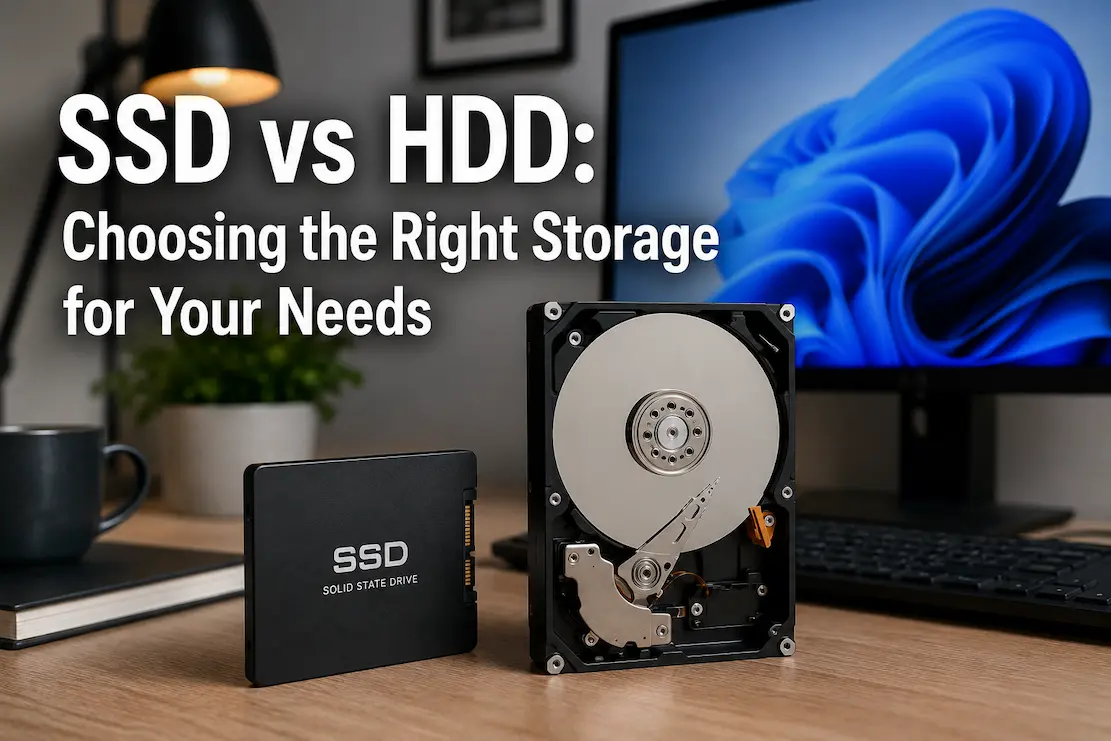
Imagine you’re shopping for a new laptop and notice two nearly identical models. One offers a 512 GB SSD, while the other includes a 1 TB hard drive for about the same price. At first glance, choosing the larger capacity seems obvious. After all, more storage should be better. Yet many experienced users would recommend the smaller SSD without hesitation. Why would someone deliberately choose less space?
The answer lies in understanding that storage does far more than determine how many files your computer can hold. It also influences how quickly your operating system starts, how responsive applications feel, how long large files take to open, and even how enjoyable everyday computing becomes. Capacity matters, but so does the technology storing your data.
Both Solid State Drives (SSDs) and Hard Disk Drives (HDDs) remain widely used today because each solves different problems. Rather than asking which technology is universally better, it is more useful to understand where each one performs well, where compromises exist, and how your computing habits should influence the decision.
Two Different Technologies Solving the Same Problem
Whether you save a family photo, install software, or download a document, the goal remains the same: you store information so you can access it later. SSDs and HDDs accomplish this task in entirely different ways.
An HDD stores data on rapidly spinning magnetic disks. A mechanical arm moves across these disks to read and write information, much like a record player’s needle locating different parts of a vinyl record. Although modern hard drives have become highly refined, they still rely on moving physical components.
An SSD works without moving parts. Instead of spinning disks, it stores information electronically using flash memory chips. Data can be accessed almost immediately because there is no need for motors or mechanical arms to locate individual files.
These different designs explain nearly every practical difference users experience, including speed, durability, noise, and power consumption.
A simple diagram comparing the internal structure of an HDD and an SSD would help readers visualize why their performance characteristics differ.
Why Computers Feel Faster With an SSD
Many people assume a faster processor is always responsible for a responsive computer. In reality, storage often plays a much larger role than expected.
Every time the operating system starts, software launches, or files open, information must be retrieved from storage. If retrieving that data takes several seconds, the computer feels sluggish even if the processor itself is powerful.
Because SSDs access stored information almost instantly, operating systems such as Windows, macOS, and Linux spend much less time waiting for files. Applications generally launch faster, updates install more quickly, and switching between programs often feels smoother.
This improvement becomes especially noticeable on older computers originally equipped with hard drives. Replacing the storage device with an SSD frequently transforms everyday responsiveness without changing the processor or increasing memory.
For many users, this upgrade provides one of the most noticeable performance improvements available.
Speed Differences Extend Beyond Startup Time
Booting a computer is often the first comparison people notice, but storage performance affects many other everyday activities.
Opening large spreadsheets, importing thousands of photos, copying videos, installing games, or searching through extensive document collections all involve reading and writing data repeatedly.
With an HDD, these operations require the mechanical read/write head to move constantly between different sections of the disk. This movement introduces small delays that accumulate over time, particularly when many files are involved.
An SSD avoids these mechanical limitations. Because electronic memory can access different locations almost immediately, workloads involving many small files often complete much more efficiently.
This does not necessarily mean every task becomes dramatically faster. Editing a simple text document may feel almost identical on both storage types. The greatest improvements usually appear when working with large applications, operating systems, creative projects, or multitasking environments.
Capacity Still Matters More Than Many Buyers Expect
Although SSD prices have fallen considerably over recent years, storage capacity remains an important factor when choosing between technologies.
Someone who primarily stores office documents, email, and web browser data may find that a few hundred gigabytes comfortably supports everyday work for years.
A photographer managing RAW images, a video editor handling high-resolution footage, or a gamer installing numerous modern titles can consume several terabytes surprisingly quickly.
In these situations, focusing only on speed without considering future storage growth may lead to frequent upgrades or constant file management.
It helps to estimate not only today’s requirements but also how your storage needs are likely to change. Videos recorded at higher resolutions, larger software installations, and growing personal archives can increase storage usage much faster than many people anticipate.
Balancing performance with sufficient capacity usually provides better long-term value than prioritizing either factor alone.
Mechanical Parts Influence Reliability in Different Ways
One common misconception is that one storage technology is simply reliable while the other is unreliable. In practice, both SSDs and HDDs can provide years of dependable service when used appropriately.
Because hard drives contain spinning disks and moving components, they are more vulnerable to physical shock while operating. Dropping a laptop or moving an external storage drive during active use can potentially damage the internal mechanism.
An SSD contains no moving mechanical parts, making it more resistant to bumps and vibration during everyday use. This characteristic makes SSDs particularly attractive for portable devices that travel frequently.
However, SSDs have their limitations. Flash memory cells gradually wear as data is repeatedly written over long periods. Modern drives manage this process intelligently, distributing writes across memory cells to maximize lifespan. For typical home and office users, this wear rarely becomes a practical concern before they replace the computer itself.
Rather than assuming one technology never fails, it is safer to recognize that all storage devices can eventually experience problems, making regular backups important regardless of drive type.
Storage Performance Changes How Applications Behave
People often evaluate storage by looking only at file transfer speeds, but everyday responsiveness depends on many smaller operations occurring continuously behind the scenes.
Modern operating systems constantly read configuration files, update indexes, manage temporary files, and load background services. Creative software accesses project assets, fonts, and preview files while web browsers maintain large collections of cached resources.
Because SSDs handle these numerous small requests efficiently, the overall experience often feels smoother even when no single task appears dramatically faster.
This is one reason two computers with similar processors and memory can feel completely unique during everyday use if one relies on a traditional hard drive while the other uses solid-state storage.
Performance is therefore not measured solely by benchmark numbers. It is also reflected in how quickly the computer responds during ordinary daily work.
| Feature | SSD | HDD |
|---|---|---|
| Data Storage Method | Flash memory chips | Spinning magnetic disks |
| Moving Parts | None | Yes |
| Startup Speed | Very fast | Slower |
| File Access | Nearly instant | Mechanical seek time required |
| Noise | Silent | Audible spinning and clicking possible |
| Resistance to Movement | High | Lower during operation |
| Power Consumption | Lower | Higher |
Newer SSDs Are Not All the Same
Choosing an SSD involves more than selecting the word “SSD” on a product page. Different models use different connection technologies, and understanding the basics helps avoid unnecessary confusion.
Many computers use SATA SSDs, which were designed as replacements for traditional hard drives while using familiar connections. They provide a substantial improvement over HDDs and remain an excellent choice for many everyday users.
Newer systems increasingly support NVMe SSDs, which connect through faster interfaces capable of transferring data much more quickly. These drives excel in workloads involving huge files, software development, professional media production, and other demanding tasks.
For everyday activities such as browsing the web, writing documents, watching videos, or managing email, the difference between SATA and NVMe may be less noticeable than benchmark numbers suggest. In practice, both deliver a responsive experience compared with mechanical storage.
Choosing the faster option makes sense when the workload benefits from it, but purchasing the highest-speed drive available is not always necessary for general computing.
Combining Both Technologies Can Offer the Best Balance
Not every computer needs to rely on a single type of storage. Many desktop computers and some laptops are designed to use both an SSD and an HDD, allowing each drive to perform the tasks it handles best.
A common approach is to install the operating system, frequently used applications, and active projects on the SSD. This allows the computer to boot quickly and keeps everyday work responsive. Meanwhile, the HDD provides long-term storage for photos, videos, archived documents, and files that users access less often.
This arrangement can be especially useful for users who need several terabytes of storage but also want the speed benefits of solid-state technology. Rather than paying a premium for a sizable SSD, they can combine a smaller SSD with a larger hard drive and achieve a practical balance between performance and cost.
Many businesses and creative professionals use this strategy because it matches the strengths of each technology instead of expecting one drive to do everything.
External Storage Deserves the Same Careful Consideration
You shouldn’t limit your storage decisions to the inside of your computer. External drives have become essential for backups, travel, and expanding storage without opening a laptop or desktop.
External HDDs remain popular because they offer large capacities at relatively low prices. They are well suited for storing completed projects, family photo collections, and backup archives that do not require constant access.
External SSDs focus on speed and portability. Copying large files, editing media directly from the drive, or transferring data between computers is often much faster than with a mechanical drive. Their lack of moving parts also makes them easier to carry during travel or daily commuting.
The right choice depends on how the drive will be used. If you connect it only during scheduled backups, an HDD may be perfectly adequate. An SSD often provides a noticeably smoother experience if it accompanies you every day and frequently handles large files.
An Older Computer May Benefit More From a Storage Upgrade Than You Expect
Many people assume an aging computer has reached the end of its useful life simply because it feels slow. Before replacing the entire machine, it is worth considering whether storage is the real limitation.
Computers originally equipped with hard drives often spend much of their time waiting for data rather than processing it. Installing an SSD can significantly reduce boot times, speed up software launches, and improve overall responsiveness, even if the processor itself remains unchanged.
This upgrade is particularly noticeable for everyday activities such as web browsing, office work, email, and light photo editing. While it will not transform an entry-level processor into a high-end one, it can make an older system feel considerably more pleasant to use.
Before purchasing an upgrade, confirm that the computer supports the intended drive type. Most systems can accommodate a SATA SSD, while newer devices may also support NVMe drives. Checking compatibility beforehand helps avoid unnecessary frustration.
Storage Is Not a Substitute for a Backup
One misunderstanding that appears surprisingly often is the belief that choosing a reliable storage device removes the need for backups.
No storage technology is immune to failure. Mechanical drives can experience hardware wear, while SSDs can also fail because of electronic faults, firmware issues, accidental damage, or other unexpected problems. Theft, fire, accidental deletion, and ransomware can affect both technologies equally.
A backup serves an entirely different purpose. It protects your information by ensuring another copy exists somewhere else if the original becomes unavailable.
For most home users, keeping important files on the computer while maintaining an additional copy on an external drive or a trusted cloud backup service provides a sensible level of protection. Businesses and professionals often follow more advanced backup strategies, but the principle remains the same: valuable data should never depend on a single storage device.
Buying Decisions Often Go Wrong for Predictable Reasons
Many storage purchases are influenced by one specification without considering how the computer will actually be used.
One common mistake is focusing only on capacity. Buying the largest hard drive available may provide plenty of space, but everyday tasks can still feel slow if the operating system runs from mechanical storage.
The opposite mistake also occurs. Purchasing the fastest premium SSD for basic web browsing and document editing may offer little noticeable benefit compared with a more affordable model.
Another oversight involves ignoring future requirements. A drive that comfortably stores today’s files may become restrictive after several years of higher-resolution photos, larger applications, and growing video collections.
Thinking about both present and future needs usually leads to a better investment than comparing specifications alone.
Matching the Drive to the User Makes the Decision Easier
Rather than asking which technology is objectively superior, it helps to consider how different people use their computers.
A student preparing assignments, attending online classes, and browsing the web generally benefits from an SSD because responsiveness improves everyday productivity.
A hard drive’s lower cost per gigabyte may be important to someone who is making a personal media library with thousands of movies or family videos.
Creative professionals working with large photo libraries or high-resolution video projects often combine technologies, using SSDs for active editing while storing completed work on larger secondary drives.
This practical approach avoids treating storage as a competition and instead focuses on selecting the tool that best fits the workload.
| User Type | Recommended Storage | Why It Makes Sense |
|---|---|---|
| Student | SSD | Fast startup, responsive applications, and reliable portability. |
| Office or Remote Worker | SSD | Improves daily productivity and multitasking. |
| Gamer | SSD for games, optional HDD for older titles | Reduces loading times while providing additional storage if needed. |
| Photographer | SSD plus large HDD | Fast editing with ample archive space. |
| Video Editor | High-capacity NVMe SSD with backup storage | Handles large project files efficiently while protecting completed work. |
| Home User With Large Media Library | HDD or SSD + HDD | Balances affordability with sufficient storage capacity. |
Looking Beyond Specifications
Product listings often emphasize impressive numbers, but specifications alone rarely tell the whole story.
Sequential read and write speeds, for example, measure how quickly a drive handles large continuous files under specific conditions. Everyday computing often involves many smaller tasks happening simultaneously, making overall system responsiveness a better indicator of real-world performance.
Warranty length, manufacturer reputation, available software support, and compatibility with your existing hardware are also worth considering. A slightly slower drive from a well-established manufacturer may prove more valuable than chasing the highest benchmark figures.
In practice, most users benefit more from choosing reliable storage that suits their daily workload than from purchasing the fastest model available.
Frequently Asked Questions
1. Is an SSD always faster than an HDD?
Yes, for nearly all everyday tasks. SSDs access data electronically rather than mechanically, allowing operating systems, applications, and files to load much more quickly.
2. Can I replace my laptop’s HDD with an SSD?
In many cases, yes. Many older laptops support SATA SSD upgrades, while newer models may also support NVMe drives. Always check your device’s specifications before purchasing.
3. Does installing an SSD improve gaming?
An SSD usually reduces game loading times and speeds up updates or installations. However, frame rates are generally determined by the processor and graphics hardware rather than the storage device.
4. Which storage type lasts longer?
Both SSDs and HDDs can remain reliable for many years under normal use. Their failure modes differ, but neither should be considered permanent, which is why regular backups remain essential.
5. Are SSDs worth the extra cost for everyday users?
For most people, yes. Faster startup, quicker software launches, and a more responsive overall experience often provide noticeable benefits during daily computing.
6. Can I use both an SSD and an HDD in the same computer?
Many desktop computers and some laptops support multiple drives. A common setup places the operating system and frequently used applications on an SSD while storing larger files on an HDD.
7. Should I choose a larger HDD or a smaller SSD if my budget is limited?
For general home, school, or office use, a reasonably sized SSD often provides a better overall experience because it improves system responsiveness. If you need to store sizable collections of videos, photos, or backups, adding an HDD later can provide additional capacity without sacrificing everyday performance.