
How RAM Affects Everyday Computer Performance
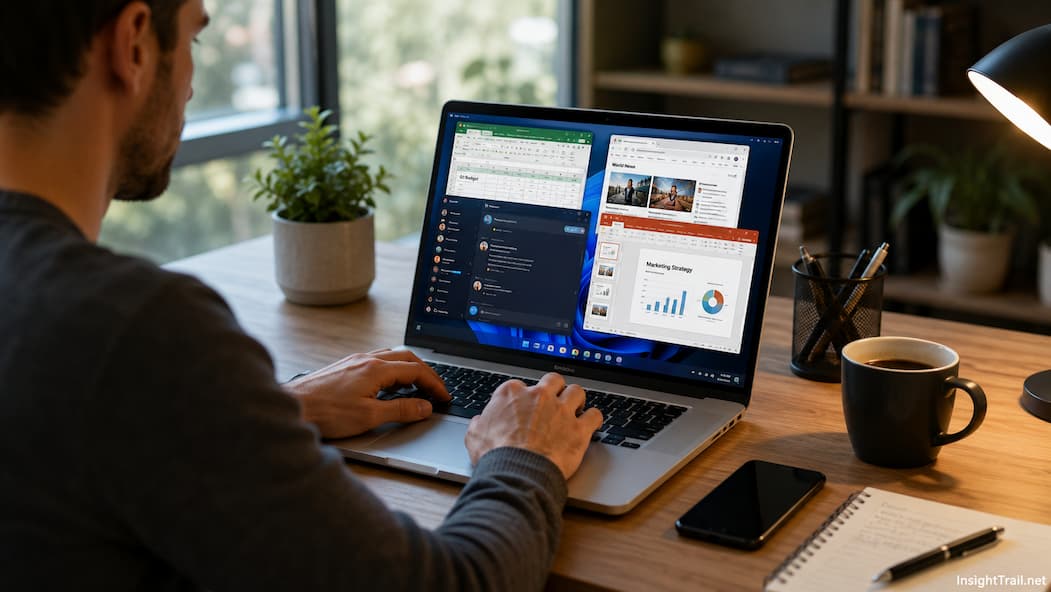
Your computer starts the morning feeling quick and responsive. You open a few browser tabs to check email, begin working on a spreadsheet, join a video meeting, and keep a messaging app running in the background. After another hour, you’ve added a photo editor, a music player, and several more browser windows. Suddenly, switching between applications feels sluggish. Programs hesitate before responding, and even simple tasks like opening a new tab take longer than expected.
Many people immediately assume the processor has become too slow or that the storage drive is failing. In reality, one of the most common reasons for this gradual slowdown is that the computer is running low on available memory. More specifically, it is running out of RAM.
RAM plays a central role in how smoothly a computer handles everyday work. It allows the operating system and applications to keep the information they are actively using nearby, so they can switch between tasks quickly without repeatedly loading data from much slower storage devices. Understanding how RAM works helps explain why some computers remain responsive under heavy workloads while others begin slowing down long before their processor reaches its limits.
Think of RAM as Your Computer’s Active Workspace
Imagine working at a large desk while preparing several reports. The papers you need immediately are spread across the desktop where you can reach them without standing up. Older files that are not currently needed remain inside filing cabinets across the room.
RAM serves a similar purpose inside a computer.
When you open a program, the operating system loads much of the information that the application needs into RAM, where it can be accessed extremely quickly. The operating system places instructions, temporary calculations, images displayed on the screen, and active documents in this high-speed working area.
Storage devices such as SSDs and hard drives act more like long-term filing cabinets. They permanently store programs and files, but retrieving information from them takes longer than accessing data already held in RAM.
This difference explains why launching an application usually takes more time than switching back to one that is already open. Once the application loads into memory, it immediately has access to much of the information it needs.
A simple illustration comparing RAM to a desk and storage to a filing cabinet would help readers understand this relationship.
RAM Keeps Programs Ready to Respond
One reason modern computers feel responsive is that they rarely need to reload every application from storage each time you return to it.
Suppose you pause work on a presentation to answer emails. A few minutes later, you return to the presentation, and it appears almost instantly. The operating system has often kept much of that application’s working data in RAM, allowing it to continue where you left off.
The same principle applies when switching between browser tabs, editing photos, reviewing PDF documents, or moving between several office applications during the workday.
As long as sufficient memory remains available, the operating system can keep many programs ready for immediate use instead of repeatedly rebuilding their working environment.
This ability to maintain several active applications simultaneously is one of RAM’s most noticeable contributions to everyday performance.
Every Running Program Competes for Memory
RAM is a shared resource.
Every application currently running asks the operating system for memory to store the information it needs. Web browsers, messaging platforms, video conferencing software, games, spreadsheets, antivirus tools, and background services all occupy part of the available memory.
Some programs require very little. Others can consume hundreds of megabytes or even several gigabytes, depending on the type of work you perform.
Modern web browsers provide a clear example. Each browser tab may contain images, videos, interactive content, scripts, advertisements, and background processes. Opening dozens of tabs can gradually increase memory usage, even if many of those tabs are not actively being viewed.
The operating system continuously decides how to distribute memory so that every application receives enough resources to function properly without preventing other software from running.
What Happens When RAM Starts Running Out?
Computers are designed to continue operating even when available RAM becomes limited.
Instead of immediately displaying an error, the operating system begins reorganizing memory.
Information that has not been used recently may be moved from RAM to make room for applications that currently demand more memory. This process helps the computer continue functioning, but it also introduces additional delays because retrieving that information later takes much longer than accessing it directly from RAM.
Users usually notice the effects gradually.
Applications pause briefly while switching between tasks. Browser tabs may need to reload. Large documents take longer to reopen. Programs that previously responded instantly begin hesitating before displaying their windows.
The processor itself may still have considerable computing power available, yet overall responsiveness declines because the system spends increasing amounts of time managing limited memory resources.
Virtual Memory Helps, but It Isn’t a Replacement
When physical RAM becomes scarce, operating systems use another technique called virtual memory.
Rather than relying entirely on installed RAM, the operating system temporarily stores some information on the computer’s storage drive. Windows uses a paging file for this, Linux uses swap space, and macOS uses similar memory management techniques in the background.
This approach allows more applications to remain open than would otherwise be possible.
However, there is an important trade-off.
Even the fastest SSD is considerably slower than RAM when it comes to the rapid, repeated access required by active applications. As a result, relying heavily on virtual memory often makes the computer feel less responsive.
Virtual memory should therefore be viewed as a useful safety mechanism rather than additional RAM.
It helps prevent programs from closing unexpectedly but cannot fully reproduce the speed of physical memory installed inside the computer.
Multitasking Depends Heavily on Available Memory
People often associate multitasking with processor performance, but RAM is equally important.
Imagine participating in a video conference while editing a spreadsheet, streaming music, exchanging messages, and keeping several research websites open.
Each application needs its portion of working memory.
With sufficient RAM, these programs remain active simultaneously, allowing you to switch between them with minimal delay.
If memory becomes constrained, the operating system must constantly move inactive information between RAM and storage, slowing every transition.
This is why adding RAM often improves the experience of multitasking far more than people expect, even though the processor itself remains unchanged.
More RAM Does Not Automatically Mean a Faster Computer
It is natural to assume that doubling RAM will double performance.
In practice, how you use the computer determines the improvements.
If someone mainly writes documents, checks email, and keeps only a few browser tabs open, their existing RAM may already be sufficient. Adding substantially more memory might produce little noticeable improvement because the system was never running short in the first place.
On the other hand, users editing large photographs, compiling software projects, working with virtual machines, or running many applications simultaneously may experience significant gains after increasing available memory.
The important question is not simply “How much RAM do I have?” but rather “Am I regularly exhausting the RAM I already have?”
Understanding actual workload requirements leads to much better upgrade decisions than focusing solely on larger numbers.
| Everyday Activity | Typical RAM Demand |
|---|---|
| Email, documents, light browsing | Low |
| Many browser tabs and office multitasking | Moderate |
| Photo editing and creative applications | High |
| Video editing and large media projects | Very High |
| Virtual machines and software development | Very High |
Memory Management Is Constantly Working Behind the Scenes
Most users never think about memory management because the operating system performs it automatically.
Windows, macOS, and Linux all continuously monitor available memory. They decide which information should remain immediately accessible, which data can be temporarily moved elsewhere, and how applications should share limited resources fairly.
Although the exact algorithms differ between operating systems, their overall objective remains remarkably similar: keeping the computer responsive while making the most efficient use of available RAM.
This balancing act occurs every second your computer is running, allowing dozens or even hundreds of separate processes to operate together without requiring users to manually allocate memory themselves.
Why Web Browsers Often Use More Memory Than Expected
Many people are surprised to discover that their web browser is one of the largest consumers of RAM, even when they are not performing demanding work.
Modern websites are far more complex than they were a decade ago. A single page may include high-resolution images, embedded videos, interactive charts, advertisements, fonts, animations, and scripts that continue running after the page has loaded. Instead of displaying static content, today’s browsers often execute applications that rival traditional desktop software in complexity.
Browsers also separate tabs and extensions into multiple processes to improve stability and security. If one tab crashes, the others can often continue working because they operate independently. This design, while it improves reliability, also increases memory usage.
Closing tabs you no longer need or removing unnecessary browser extensions can sometimes improve responsiveness, particularly on systems with limited RAM. The goal is not to minimize memory usage at all costs but to reduce unnecessary workloads competing for the same resources.
Integrated Graphics Also Depend on System Memory
Not every computer has a dedicated graphics card with its own memory.
Many laptops and budget desktop computers use integrated graphics, where the graphics processor shares the system’s RAM instead of relying on separate video memory. This arrangement reduces hardware costs and power consumption, making it suitable for everyday tasks such as browsing, office work, and media playback.
However, sharing memory means part of the installed RAM is reserved for graphics processing. If a computer has a relatively small amount of RAM, this shared allocation leaves less memory available for applications and the operating system.
For users performing graphics-intensive work, video editing, or modern gaming, both processing power and available memory become increasingly important. Understanding whether your computer uses integrated or dedicated graphics can help explain why two systems with the same amount of RAM sometimes perform differently.
Windows, macOS, and Linux Handle Memory in Similar Ways
Although each operating system has its memory management techniques, their overall objectives are remarkably consistent.
Windows continuously balances active applications, background services, and virtual memory to keep the system responsive during everyday use. macOS aggressively manages inactive memory and frequently caches recently used information so applications can reopen quickly. Linux offers highly flexible memory management and can be configured for a wide range of workloads, from lightweight computers to powerful servers.
Users occasionally notice differences in reported memory usage between these operating systems. This does not necessarily mean one system is less efficient than another. Modern operating systems intentionally use available RAM for useful tasks such as caching frequently accessed data because unused memory provides little practical benefit.
The important measure is not how much RAM appears occupied, but whether the computer continues responding smoothly during normal workloads.
When Adding More RAM Makes a Noticeable Difference
Memory upgrades are among the most common computer improvements because they can be relatively straightforward on systems that support expansion.
The greatest improvements usually appear when the computer regularly runs out of available RAM. If switching between applications causes delays, browser tabs frequently reload, or creative software becomes sluggish during larger projects, additional memory may significantly improve the experience.
On the other hand, increasing RAM does not solve every performance issue. A slow processor, an aging hard drive, excessive background software, overheating, or malware can all reduce responsiveness regardless of how much memory is installed.
Before investing in an upgrade, it is worth identifying the actual source of the slowdown. Monitoring memory usage while performing everyday tasks often provides a much clearer picture than relying on assumptions.
A balanced approach prevents spending money on upgrades that are unlikely to produce meaningful results.
Common Misunderstandings About RAM
RAM is often surrounded by misconceptions that can make upgrade decisions more confusing than necessary.
One common belief is that unused RAM is wasted. In reality, modern operating systems intentionally use available memory for caching frequently accessed information because this can improve performance. If applications need additional memory later, much of that cached data can be released automatically.
Another misconception is that adding more RAM always speeds up every computer. Once a system has enough memory for its typical workload, further increases often produce minimal improvement in everyday use.
Some people also assume RAM permanently stores their files. Unlike an SSD or hard drive, RAM is temporary working memory. Its contents disappear when the computer shuts down or loses power, which is why documents must still be saved to permanent storage.
| Memory Situation | Everyday Experience |
|---|---|
| Too Little RAM | Frequent slowdowns, delays when switching apps, browser tabs reload, heavy use of virtual memory |
| Sufficient RAM | Smooth multitasking, responsive applications, efficient switching between tasks |
| More Than Needed | Little additional benefit for everyday workloads, but useful for specialized applications that require large amounts of memory |
Understanding these differences helps users focus on real performance limitations instead of popular myths.
Choosing the Right Amount Depends on Your Workload
There is no single RAM capacity that suits every computer user.
Someone who mainly browses the web, reads email, streams videos, and creates documents has very different requirements from a software developer running multiple virtual machines or a video editor working with high-resolution footage.
The most practical way to evaluate memory needs is to consider the types of applications you use simultaneously rather than individually. Running one demanding application may require less memory than keeping many moderate-sized applications open throughout the day.
Available RAM often influences how comfortable multitasking feels during long work sessions for families sharing a computer, students attending online classes, remote workers managing several communication tools, and creative professionals handling large media files.
Choosing memory based on realistic daily habits rather than the largest available specification usually leads to better long-term value.
| Typical Workload | Recommended RAM Range* |
|---|---|
| Basic web browsing, email, documents | 8 GB is generally sufficient |
| Office work with many browser tabs and communication apps | 16 GB provides comfortable multitasking |
| Photo editing and light creative work | 16–32 GB, depending on project size |
| Video editing, software development, virtual machines | 32 GB or more may be beneficial |
| Professional content creation or specialized workloads | Depends on application requirements |
*These ranges are general guidelines. Actual requirements vary depending on operating system, software, and the number of applications running simultaneously.
Conclusion
RAM is often described as a computer’s short-term memory, but its role goes far beyond simply holding temporary information. It provides the fast workspace that allows the operating system and applications to respond quickly, switch smoothly between tasks, and keep frequently used data readily available.
When sufficient RAM is available, everyday computing feels fluid because applications can remain active without constantly retrieving information from slower storage devices. As memory becomes limited, the operating system relies more heavily on virtual memory, introducing delays that users experience as sluggish performance.
Understanding how RAM works also makes it easier to decide when an upgrade is worthwhile. More memory is not automatically better, but having enough RAM for your normal workload can significantly improve multitasking, responsiveness, and the overall computing experience. Rather than focusing only on larger numbers, the best approach is to match memory capacity to the way you actually use your computer.
Frequently Asked Questions
1. Does more RAM always speed up a computer?
No. Additional RAM improves performance primarily when the existing memory is insufficient for your typical workload. If your computer already has enough RAM, adding more may produce little noticeable difference.
2. Why does my browser use so much RAM?
Modern browsers run complex websites, separate tabs into individual processes for stability, and support extensions, media playback, and web applications. These features improve functionality but also increase memory usage.
3. Can an SSD replace RAM?
No. SSDs are much faster than traditional hard drives, but they are still significantly slower than RAM for active computing tasks. Virtual memory on an SSD helps when RAM is limited, but it cannot match the performance of physical memory.
4. Why does my computer become slower after several hours of use?
Over time, more applications, browser tabs, background processes, and cached data may compete for available memory. If RAM becomes limited, the operating system relies more on virtual memory, which can reduce responsiveness.
5. Is high RAM usage always a problem?
Not necessarily. Modern operating systems intentionally use available RAM for caching and improving performance. High memory usage only becomes a concern if it causes slowdowns or prevents applications from running smoothly.
6. How can I tell if my computer needs more RAM?
Common signs include frequent slowdowns while multitasking, browser tabs reloading unexpectedly, long delays when switching between applications, and consistently high memory usage during your normal daily work.
7. Does RAM affect gaming and creative software?
Yes. Games, video editing applications, 3D design tools, and other demanding programs often benefit from additional RAM because they process large amounts of data while multiple background tasks continue running.

Sunita Voss wanders through software like a city flâneur—observing, testing, occasionally getting lost, always finding shortcuts. She writes about digital minimalism, hidden web tools, and tech hacks with the patience of someone who enjoys the journey and the urgency of someone who values her time. No gurus. No gatekeeping. Just discovered paths.