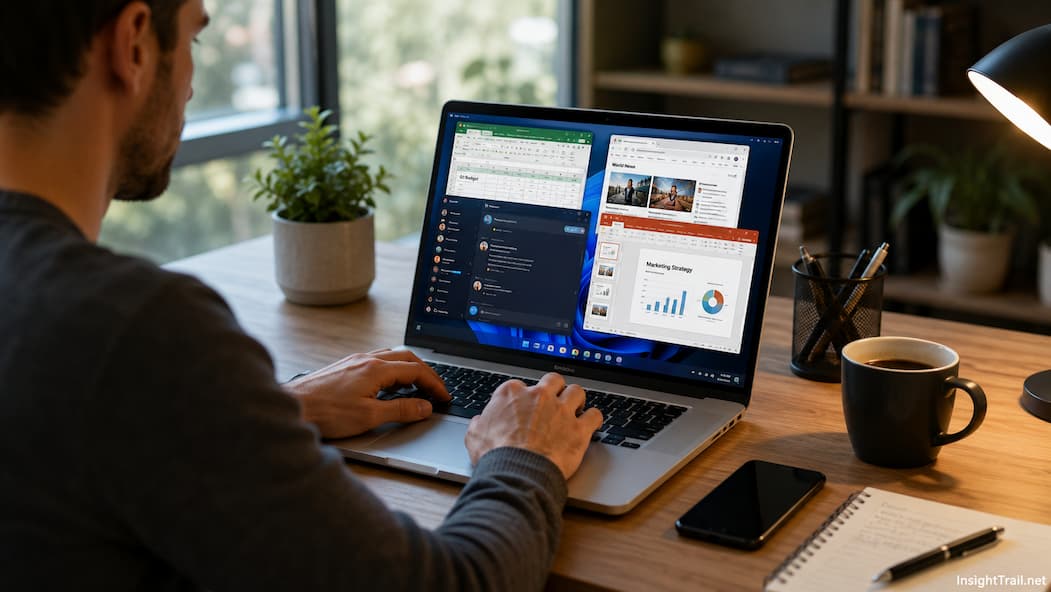
We have all experienced that sudden, frustrating moment of digital gridlock. You are working on a tight deadline with three browser windows open, a music streaming app playing in the background, a PDF reader open for reference, and a chat application pinging notifications. Suddenly, your cursor freezes, your keyboard inputs lag by three seconds, and the fan inside your laptop starts roaring like a jet engine.
Your immediate instinct is to blame your internet connection or assume your CPU is dying. In most cases, however, the real bottleneck holding your computer hostage is your RAM (Random Access Memory).
To many casual computer users, RAM is treated like an abstract buzzword listed on a spec sheet—often lumped together with hard drive space and processor speed. But understanding how RAM actually functions changes how you manage your workflow, buy hardware, and troubleshoot daily slowdowns. Let’s look under the hood at how RAM dictates everyday computer performance.
1. RAM vs. Storage: The Desk Analogy
To understand why RAM matters so much, it helps to visualize your computer as a physical office workspace:
-
Your Hard Drive or SSD (The Filing Cabinet): This is where all your files, applications, and operating system files live long-term. It has massive capacity, but pulling a file out of a deep drawer takes time.
-
Your RAM (The Desktop Surface): RAM is your active workbench. It holds the files, applications, and browser tabs you are actively working on right now.
When you launch an application like Microsoft Word or a web browser, your computer copies the necessary program data from your slow storage drive (the filing cabinet) straight into your RAM (the desktop). Because RAM is engineered for blazing-fast read and write speeds, your processor can interact with your open apps instantly without waiting around.
2. What Happens When Your RAM Fills Up? (The Swapping Trap)
If your RAM workbench is cluttered and you try to open one too many heavy applications, you run out of physical memory space.
When physical RAM hits 100% capacity, your operating system (Windows, macOS, or Linux) doesn’t just crash. Instead, it resorts to an emergency backup plan known as virtual memory or swap space.
-
The Swap Process: The operating system takes inactive data sitting in your RAM and temporarily writes it onto a designated partition of your main storage drive (SSD or HDD), clearing up physical RAM space for your active tasks.
-
The Performance Penalty: Even the fastest NVMe solid-state drives are drastically slower than physical RAM. Every time your computer has to shuffle data back and forth between your storage drive and your RAM (a process called thrashing), your system freezes, stutters, and crawls to a halt.
3. The Browser Memory Leak Phenomenon
If you wonder why modern computers require so much more RAM than computers did a decade ago, look no further than your web browser.
Modern browsers like Chrome, Edge, and Firefox treat every single open tab, extension, and web app as an isolated process. This architecture is fantastic for security and stability—if one tab crashes, it doesn’t take down your whole browser. However, the trade-off is massive memory consumption.
A single modern web app running heavy JavaScript (like a cloud-based video editor, a collaborative workspace, or a live dashboard) can easily consume 1GB to 2GB of RAM on its own. Multiply that by 30 open tabs, and a standard 8GB laptop will find its workbench completely overwhelmed within minutes.
4. How Much RAM Do You Actually Need Today?
Choosing the right amount of RAM depends entirely on your daily workload. Buying too little leads to constant stuttering; buying too much is a waste of money.
-
8GB RAM (The Bare Minimum): Adequate only for light web browsing, checking email, streaming video, and basic word processing. If you try to multitask heavy applications or run professional creative software, you will hit performance walls quickly.
-
16GB RAM (The Modern Sweet Spot): The gold standard for everyday users, remote workers, students, and casual gamers. It allows you to run dozens of browser tabs, office suites, and communication tools simultaneously without triggering virtual memory slowdowns.
-
32GB RAM and Above (Professional Workflows): Essential for video editors working with 4K timelines, 3D renderers, software developers running local virtual machines or Docker containers, and high-end modern gaming setups.
How to Optimize Your System and Free Up RAM
If you are dealing with sluggish performance right now, you don’t necessarily need to buy a new computer. You can optimize your memory footprint with these practical habits:
-
Audit Your Browser Extensions: Extensions run constantly in the background, consuming RAM even when you aren’t actively using them. Uninstall browser add-ons you haven’t used in months.
-
Use Tab Management Tools: Instead of keeping 50 tabs open simultaneously, use built-in browser features like “Memory Saver” (found in Chrome and Edge) or extensions that automatically suspend inactive tabs to free up RAM.
-
Restart Regularly: Leaving your computer running for weeks without a reboot causes background processes and memory leaks to accumulate. A simple weekly restart flushes your RAM completely clean.
Frequently Asked Questions
Q: Does adding more RAM make my computer processor (CPU) faster?
A: No. RAM does not increase your CPU’s processing speed or graphics power. Adding more RAM simply removes the bottleneck, ensuring your fast processor isn’t left waiting idly for data to load from a clogged memory queue.
Q: Why does Task Manager show high RAM usage even when I have no apps open?
A: Modern operating systems like Windows and macOS are designed to utilize available RAM efficiently. They proactively preload frequently used system services and cache application data into free memory space to speed up launch times. If an app requests memory, the OS instantly reclaims that cached space, so high passive usage is completely normal.
Q: Can I upgrade the RAM in my current laptop?
A: It depends entirely on the device. Most modern ultra-thin laptops and MacBooks solder the RAM chips directly onto the motherboard, making post-purchase upgrades impossible. However, many traditional Windows laptops and desktop towers still feature modular RAM slots that allow you to open the chassis and install upgraded memory sticks yourself.