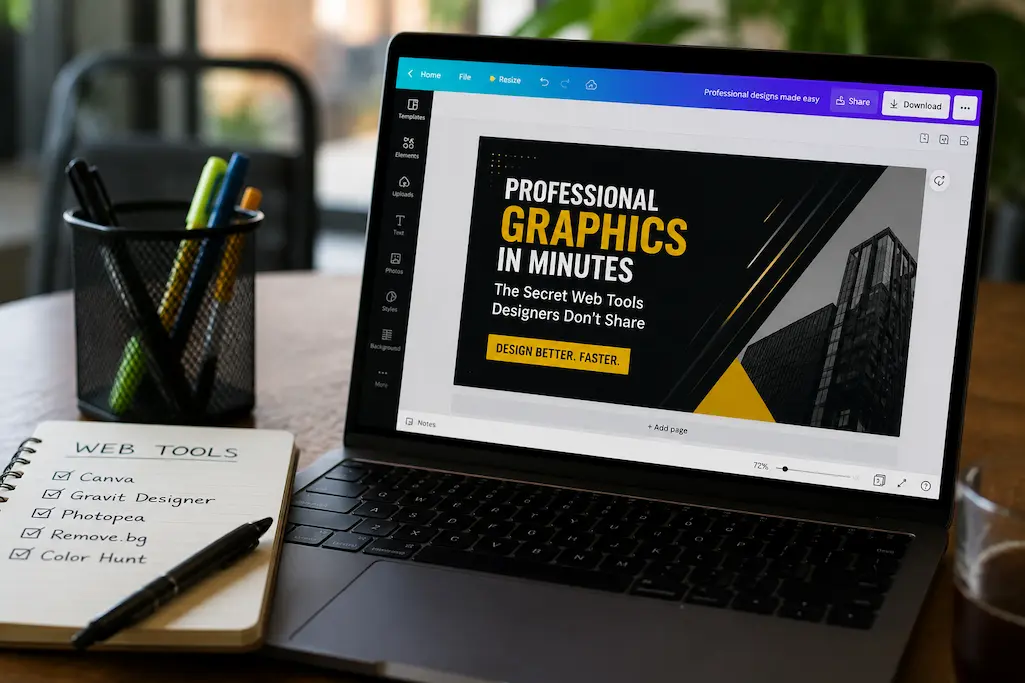
Here is a secret of designers: they don’t start entirely from scratch. Beautiful presentations, professional invoices, carefully crafted Instagram posts – none of these are a blank sheet of paper. They all use templates, shortcuts, and online tools that take most of the work off your hands, allowing the designer to focus on the remaining 10% of crucial decisions.
The following tools are not secrets, but rather hidden. They remain unknown because designers do not promote them. Why would they? Clients are not impressed by claims like “I did this in 8 minutes with a free online tool”; they value “customization.” But the result is usually the same, and the time savings are significant.
This article reveals how designers use these tools, processes, and key decisions to transform templates into seemingly personalized work. No design degree required, no software installation needed – just focus on the final product.
The Template Philosophy: Why Starting From Blank Is Slow
Professional designers often use templates. Not because they are lazy, but because starting with established proportions, spacing, and hierarchy eliminates 80% of the fatigue amateurs experience due to too many choices. Templates provide the framework, while designers fill in the content, such as brand colors, unique images, custom language, and subtle layout adjustments.
The following online tools are essentially template engines that offer just the right amount of customization options to produce a result that is virtually indistinguishable from the original. This is their advantage: the combination of the convenience of templates with the uniqueness of customization.
The Designer Mindset: A template isn’t cheating — it’s a starting point. The skill is knowing which template to choose and what to change. Amateur mistake: picking a template and changing nothing. Pro move: picking a template and changing everything that matters while keeping the structure that works.
Tool 1: Canva — The Swiss Army Knife (Used Differently Than You Think)
You know Canva. You probably think it’s for social media quotes and birthday invitations. But designers use Canva for client presentations, pitch decks, and even initial brand concepts — because it’s faster than opening Illustrator for a layout that might get rejected anyway.
The designer workflow:
- Search templates by mood, not by use case. “Minimal” or “Bold” finds better starting points than “Instagram post.”
- Strip the template to its structure: delete all placeholder text, images, and decorative elements. Keep only the layout骨架 (grid, spacing, hierarchy).
- Apply brand colors using the document colors panel. Lock them in so you can’t accidentally deviate.
- Add your content. The template’s spacing guides your decisions — you don’t guess where headlines go.
- Export at 300 DPI for print, 72 DPI for web, MP4 for video. Canva handles all three.
Designer secret: The “Brand Kit” feature (Pro only, $119/year) saves colors, fonts, and logos for instant application. But the free version works fine if you manually set document colors and upload your logo once. The time savings come from the template, not the automation.
Tool 2: Remove.bg — The Background Eliminator
Product photos, headshots, and cutout graphics all need transparent backgrounds. Photoshop’s background removal takes 5-10 minutes of careful selection. Remove.bg does it in 5 seconds with one click.
The AI isn’t perfect — hair edges, transparent objects, and complex backgrounds challenge it. But for 90% of product photos and standard headshots, the result is publication-ready. For the remaining 10%, use Photopea’s manual selection tools (free, browser-based) for touch-ups.
Designer workflow:
- Upload photo → automatic processing → download PNG with transparency
- Drop into Canva, Figma, or any design tool
- Add colored background, shadow, or composite into scene
- Total time: under 2 minutes from upload to finished graphic
Free limit: 1 free download at full resolution per image, unlimited previews. For bulk work, the subscription ($9/month) or pay-as-you-go credits make sense. But for occasional use, the free tier is genuinely sufficient.
Tool 3: Unsplash + Canva — The Stock Photo Shortcut
Designers don’t buy stock photos for every project. They use Unsplash’s free, high-resolution photography — but not the obvious way. Instead of searching for “business meeting” (which returns the same 20 images everyone uses), they search for textures, colors, and abstract concepts.
Designer search strategy:
- Search “concrete texture” for background overlays
- Search “gradient sky” for color inspiration
- Search “minimal desk” for hero images that don’t look like stock
- Search by color using Unsplash’s color filter — find images that match your palette without searching by subject
The trick is using the image as a starting point, not a final element. Drop it into Canva, apply a color overlay at 40% opacity, add text, and suddenly it’s a branded graphic rather than a stock photo with text slapped on it.
Tool 4: Figma — The Collaborative Mockup Engine
Figma is technically a design tool, but its free tier and web-based nature make it accessible to non-designers. The real power is in community plugins and templates — thousands of free UI kits, presentation templates, and design systems you can adapt in minutes.
Designer workflow for presentations:
- Open Figma community → search “pitch deck” or “presentation”
- Duplicate a template with 20+ slides already structured
- Replace placeholder content with your text
- Apply brand colors using the “Selection colors” panel
- Export frames as PNG or PDF
The result looks like a custom-designed deck because it is — you made specific choices about content, color, and emphasis. The template just handled the grid and typography so you didn’t have to.
Free tier limit: Unlimited personal files, 3 collaborative projects, 30-day version history. For solo work, it’s essentially unlimited.
Pro Tip: Figma’s “Auto Layout” feature resizes elements automatically when you change text length. It’s the difference between a design that breaks when you add two words and one that adapts gracefully. Enable it on text boxes and watch your productivity double.
Tool 5: Coolors.co — The Instant Palette Generator
Color selection paralyzes amateurs. Designers don’t waste time debating between 47 shades of blue — they generate palettes in seconds and move on.
Coolors creates five-color palettes with one keypress. Lock the colors you need (brand colors, existing palette constraints), shuffle the rest. Export to CSS, SVG, or Adobe formats. The “Image Picker” extracts palettes from any photo — upload a brand photo, get a matching palette instantly.
Designer decision framework:
| Palette Type | Communicates | Use For |
|---|---|---|
| Monochromatic | Sophistication, minimalism, focus | Luxury brands, professional services |
| Complementary | Energy, contrast, boldness | Fitness, entertainment, sales |
| Analogous | Harmony, nature, calm | Wellness, food, environmental |
| Triadic | Playful, diverse, creative | Children’s products, creative agencies |
Tool 6: Photopea — The Browser-Based Photoshop
When you need actual pixel manipulation — not just template customization — Photopea is the free, browser-based Photoshop alternative that designers use for quick edits. It opens PSD files, supports layers, masks, and blending modes, and handles text effects that Canva can’t touch.
Specific use cases:
- Removing complex objects from photos (content-aware fill equivalent)
- Creating text effects (drop shadows, gradients, strokes)
- Editing layered files from other designers without buying Photoshop
- Batch resizing and format conversion
The interface is nearly identical to Photoshop, so skills transfer directly. If you’ve ever used Photoshop, Photopea is instantly familiar. If you haven’t, YouTube tutorials for Photoshop apply almost verbatim.
Tool 7: Flaticon + The Noun Project — Icon Libraries That Don’t Look Generic
Icons communicate concepts faster than text. But most free icon libraries look identical — thin-line, minimalist, indistinguishable from every other startup’s website. The trick is combining icon styles and customizing colors.
Flaticon offers millions of icons in multiple styles: filled, outlined, colored, hand-drawn. The Noun Project specializes in conceptual icons that don’t look like they came from the same template pack. Both allow color customization before download.
Designer rule: Never use icons at default size. Scale them to match your text hierarchy. A 16px icon next to a 24px headline looks accidental. A 48px icon above a headline becomes a visual anchor. Size is a design decision, not a default.
The 5-Minute Workflow: From Idea to Finished Graphic
Here’s the exact process I use for social media graphics, blog headers, and presentation slides:
Minute 1: Define the purpose. One message, one action, one emotion. Write it down. If you can’t articulate it in one sentence, the graphic will fail regardless of tools.
Minute 2: Find a template in Canva or Figma that matches the mood, not the subject. Strip it to structure.
Minute 3: Apply brand colors from Coolors or existing palette. Add content. Adjust hierarchy — headline largest, body readable, CTA prominent.
Minute 4: Add imagery. Unsplash photo with color overlay, or Remove.bg cutout on solid background. Add icon from Flaticon if needed.
Minute 5: Export in correct format. Review at actual size. Adjust if text is illegible or colors clash. Done.
This isn’t rushing. It’s efficiency. The decisions that matter — message, hierarchy, color — get full attention. The decisions that don’t — grid alignment, font pairing, spacing — are handled by the template and tool.
Warning: Speed without judgment produces garbage. The 5-minute workflow assumes you know your brand, your message, and your audience. If you’re still figuring those out, no tool will save you. Design tools amplify clarity; they don’t create it.
When to Hire a Designer (And What to Give Them)
These tools handle 80% of design needs. The remaining 20% requires human expertise:
- Brand identity systems: Logo, color palette, typography, and usage rules that must last years
- Complex illustrations: Custom characters, detailed scenes, or technical diagrams
- Print production: Bleed, color profiles, and substrate considerations for physical materials
- Animation and motion: Beyond Canva’s basic animations, custom motion design requires After Effects or specialized tools
If you hire a designer, give them these tools’ outputs as reference, not final art. “I made this in Canva to show the direction” communicates more than “I want something like this website I saw.” Designers work best with clear constraints and examples. The tools above help you provide both.
Related Articles
- How to Look Like a Pro Designer—Even If You’ve Never Opened Photoshop
- Transform Your Visual Content With Digital Color Palette Tools
- Creative Block? These Digital Tools Break It in Under 10 Minutes
- Ditch PowerPoint: Presentation Tools That Actually Impress Audiences
- How to Turn Your Smartphone Into a Professional Video Camera
Sources and References
- Canva. (2026). Canva Pro: Brand Kits, Templates, and Design Workflows. Canva Help Center. https://www.canva.com/help
- Remove.bg. (2026). AI Background Removal: Technology and Use Cases. Remove.bg Documentation. https://www.remove.bg
- Figma. (2026). Community Templates and Auto Layout Features. Figma Blog. https://www.figma.com/community
- Photopea. (2026). Photopea vs. Adobe Photoshop: Feature Comparison. Photopea Documentation. https://www.photopea.com
- Unsplash. (2026). Free Photography for Commercial Use: License and Usage Guidelines. Unsplash License. https://unsplash.com/license
About the Author: The InsightTrail team has designed presentations in airport terminals, social graphics in coffee shops, and entire brand concepts during lunch breaks. We believe good design is about decisions, not degrees.

Sunita Voss wanders through software like a city flâneur—observing, testing, occasionally getting lost, always finding shortcuts. She writes about digital minimalism, hidden web tools, and tech hacks with the patience of someone who enjoys the journey and the urgency of someone who values her time. No gurus. No gatekeeping. Just discovered paths.