
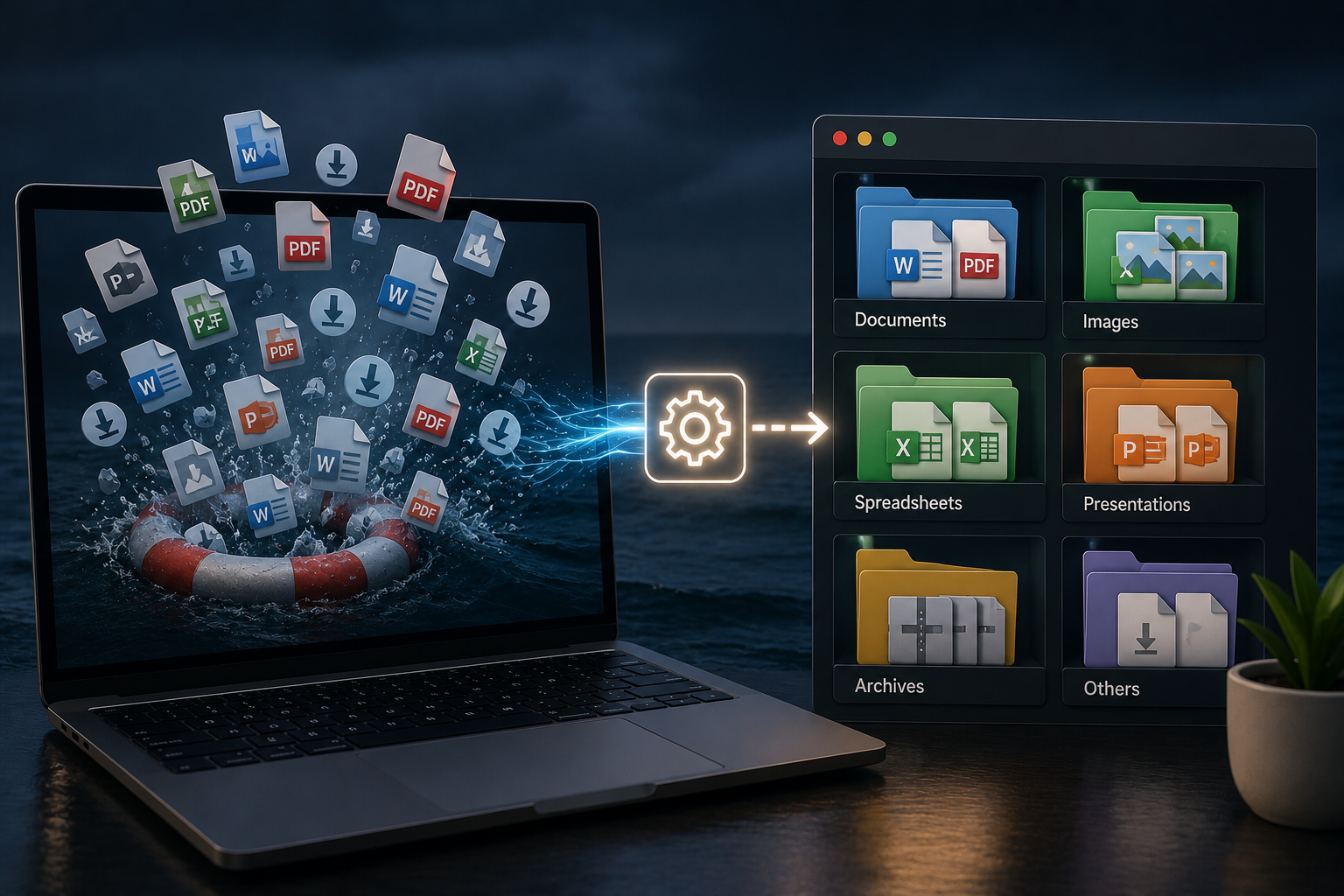
Most people only think about their ‘Downloads’ folder when it has become a complete mess. It might start with a single photo, PDF, invoice, installation file, or school/work document. A few weeks later, the folder is a jumble of files with incomprehensible names. You might see titles like ‘Final Version,’ ‘Document 2,’ ‘Screenshot,’ ‘Download Receipt,’ or ‘Copy Image,’ without a clear path to the file you are looking for. Because all downloaded files are located in the same place, this seemingly small problem takes up a lot of time. Fortunately, you can solve this without expensive applications or complicated systems. A simple browser setting can automatically organize your downloads by asking where you want to save them before you download each file. With this feature enabled, you can always choose the right folder without having to clean up a huge pile of files.
Why Your Downloads Folder Gets Messy So Fast
Due to its temporary nature, most people never clean out their ‘Downloads’ folder. The ‘Downloads’ folder is the default storage location where all browsers, email programs, and websites transfer files. This is convenient because files download and open quickly. However, the problem is that when you need those files again later, they are difficult to find. School assignments can appear alongside bank statements, family photos, software installation packages, work reports, and random online images. Because many files have unclear names, you have to look at them one by one. This results in a mountain of digital files that resemble a messy workbench. Folders can also slow down your productivity because you keep downloading files instead of retrieving old ones. A simple adjustment to your download settings can make your computer look neater, smoother, and more user-friendly.
The One Setting That Changes Everything
This option is often called “Ask where each file should be saved before downloading.” Most browsers have this option in their download settings. If this setting is disabled, the browser automatically saves all files to the ‘Downloads’ folder. When this is enabled, the browser opens a window to save files whenever a download occurs. This allows you to choose the folder where you want to save files before they arrive on your computer. Invoices, work documents, and photos can be saved directly in the ‘Invoices,’ ‘Work,’ or ‘Photos’ folders. This might seem redundant, but organizing files as soon as they arrive saves time. You won’t have to search through hundreds of files later. This setting works because it integrates a simple habit into your daily routine.
How This Setting Helps You Stay Organized Automatically
This option organizes files automatically so they don’t pile up. Downloaded files don’t become a mountain, but you can quickly find the files you need. You don’t need complex archiving; instead, your files are well managed before they become cluttered. This is much simpler than cleaning up messy folders at the end of the month. Save files immediately so you know why you downloaded them. This simplifies naming and sorting. For example, download a CV template and place it in the ‘Careers’ folder; Save downloaded recipes in the ‘Cooking’ folder; and store downloaded manuals in ‘Family Documents.’ After a few days, your ‘Downloads’ folder becomes a temporary storage location for the files you need.
A Simple Folder System That Works for Most People
A few folders are sufficient to keep everything organized. Too many folders actually make it harder to organize everything, because you might lose files. A basic folder structure is perfect for daily use. Create main folders such as ‘Work,’ ‘Personal,’ ‘Bills,’ ‘Photos,’ ‘School,’ ‘Receipts,’ ‘Projects,’ and ‘Temporary.’ These folders organize most of your downloads, preventing your computer from becoming full. We are not striving for a perfect system, but for one that makes saving files easier, without requiring you to place them directly in the ‘Downloads’ folder. When your browser prompts you, you can simply select the file’s most recent save location. You can create separate folders for downloaded content for clients, courses, hobbies, or family projects. Folder names should be concise and easy to understand. A good folder name should still be clear and easy to recognize six months later. A simple folder structure makes the download function more user-friendly.
How to Use This Setting Without Making It Annoying
Some people avoid this setting for fear that their computer will slow down. It might feel strange at first, but you will quickly get used to it. The most important thing is to make folders more easily accessible. You can store frequently used folders in easily accessible locations on your computer. This way, you won’t have to search in different places when the save window appears. For files you only use briefly, you can create a ‘Today’ or ‘Temporary’ folder. This is useful for files that you open only once and then delete. This setting should simplify your work. In a single project, you can download multiple project files and save them in one folder. If you are unsure where to place your downloaded files, choose the ‘Temporary’ folder instead of the ‘Downloads’ folder. This cleans up your system without you having to make complicated decisions every time.
Why is this Method Better than Cleaning up Later
Cleaning up the ‘Downloads’ folder sounds simple, but you often skip this step because it is a time-consuming task. You probably cannot remember the names of the hundreds or thousands of files in a folder. Opening a file, checking it, renaming it, moving it, deleting it, and repeating this process is cumbersome and can be frustrating. Organizing files before they pile up is much easier, because you can remember them more easily. The reason for downloading and the download location are also immediately clear. This reduces the chance of losing important files. Many people accidentally delete useful files because they look outdated or messy. By saving files properly from the start, you can find them faster and make safer decisions. Developing good download habits is like washing a cup after use. It only takes a few seconds now, but it can prevent greater losses later.
Small Naming Habits to Find Files More Easily
File names and download locations are crucial. Many downloaded file names are confusing. Documents can contain random numbers, photos with long camera codes, and PDF files with meaningless titles. Quickly rename the file in the save window before you save it. The file name does not have to be perfect; Choose a name that you can easily find later. ” “April Electricity Bill,” “Summer Holiday Hotel Reservation,” or “Client Logo Design” are all better than “Download 123.” It is best to date receipts, invoices, reports, and school documents. Clear names help with searching on the computer. Later, you might only need one word to quickly find the file. This naming convention aligns with your browser settings, as they take effect simultaneously.
Future Cleanup of the Download Folder
Enabling this option makes your download folder more organized, but it may still contain some cluttered files. You do not need to clean it up immediately. First, organize the files you know and need. Place important files in the correct folders and remove unnecessary items such as outdated installers, duplicate photos, and accidentally downloaded files. Place suspicious files in a temporary monitoring folder for later inspection. As soon as your old download folder is less full, the new option prevents it from filling up again. You can also check the folder weekly to see if any items have been missed. This check takes only a few minutes. Our goal is not to have a perfect computer but to prevent future clutter. This simple option makes the daily management of downloads much easier.
Common Mistakes when Organizing Downloaded Files
Creating too many folders can cause problems. If every small item has its own folder, saving files becomes very cumbersome. Avoid confusing folder names such as ‘Miscellaneous,’ ‘New,’ ‘Important,’ or ‘Other.’ These names might seem convenient at first, but they ultimately lead to a messy jumble. People often forget to rename important files, making them difficult to find. Even in the correct folder, files can be unfindable if the file names are not clear enough. Another common mistake is permanently saving downloaded files. Not all files need to be saved. Installation files, temporary images, and duplicate PDFs can be saved temporarily when necessary. Deleting unnecessary files is fine. An ideal system is simple, user-friendly, and repeatable. A system that is too cumbersome will only discourage users. Ensure that folders are functional, enable storage location options, and develop good habits.
Conclusion
Downloaded files do not have to become clutter. With simple settings, you can save files in the correct locations and prevent them from piling up. By enabling the ‘Ask where each file should be saved before downloading’ feature, you gain control when needed. You can select folders, rename files, and avoid major cleanup operations. This method is simple and user-friendly for beginners and highly effective for downloading files, images, receipts, school materials, work documents, and personal files. The biggest advantage is the time and effort saved. File organization makes your computer usage easier and your daily work simpler. You can reduce the time you spend searching, cleaning up, and redownloading files. Create a few empty folders, enable the browser settings, and save newly downloaded files to the correct locations.
FAQs
1. Which setting organizes downloaded files automatically best?
The ideal setting is ‘Ask where each file should be saved before downloading.’ You can choose the folder before saving each file.
2. Does this setting work in all browsers?
Most common browsers have similar download settings. Although the names may differ, the goal is the same.
3. Can I delete downloaded files?
You can delete files that you do not need. Store important data in folders before deleting them.
4. How many folders should I create?
Create a few basic folders, such as ‘Work,’ ‘Personal,’ ‘Accounts,’ ‘Photos,’ ‘Receipts,’ and ‘Temporary.’ Only add more folders if necessary.
5. Is this method suitable for beginners?
No extra software is required, making this method very beginner-friendly. Only minimal browser settings and folder editing are needed.

Sunita Voss wanders through software like a city flâneur—observing, testing, occasionally getting lost, always finding shortcuts. She writes about digital minimalism, hidden web tools, and tech hacks with the patience of someone who enjoys the journey and the urgency of someone who values her time. No gurus. No gatekeeping. Just discovered paths.