
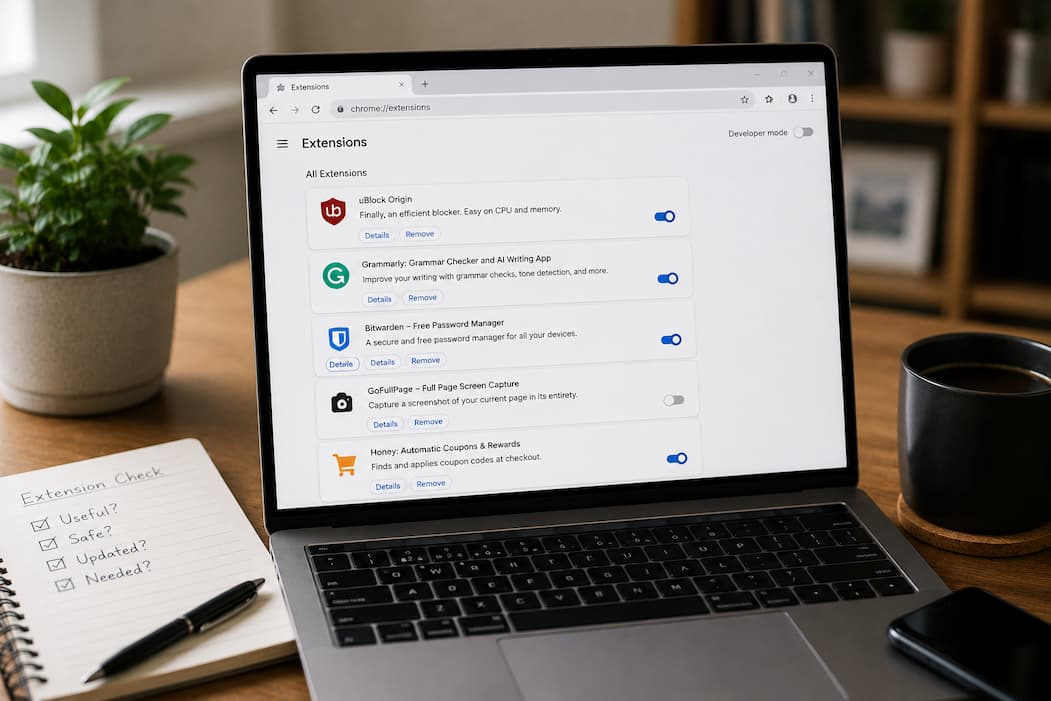
Modern web browsers have evolved far beyond simple windows for reading static HTML documents. Today, they operate as fully fledged desktop operating systems within our operating systems. We rely on browsers for everything from professional enterprise software and cloud document editing to video conferencing, project management, and daily communication. To tailor these environments to our exact workflows, we install browser extensions and add-ons for every imaginable convenience: ad blockers, password managers, grammar checkers, coupon finders, dark mode toggles, price trackers, and screen recorders.
Each individual add-on promises a tiny, seemingly harmless quality-of-life upgrade. You install one to block annoying pop-ups, another to check your spelling in email drafts, and a third to save recipes from culinary blogs. But over time, accumulation sets in silently. You look up at your browser toolbar one afternoon and realize twenty colorful, animated icons are staring back at you, competing for your attention.
Almost immediately, subtle performance degradation begins to surface. Your browser takes ten full seconds to launch from a cold start. Web pages stutter and hitch as you scroll down heavy feeds. Your laptop’s internal cooling fans spin up into a roaring turbine every time you open a new tab or load a data-heavy dashboard.
You aren’t imagining things, nor is your computer necessarily aging prematurely. Browser extensions run continuous, hidden background processes that consume massive quantities of RAM and CPU cycles. Managing your browser extensions isn’t just about tidying up a cluttered visual toolbar—it is about reclaiming your device’s speed, preserving your battery life, and closing dangerous security vulnerabilities. Let’s look under the hood at how extensions impact system performance and how to conduct a rigorous, systematic audit without breaking your daily workflow.
1. The Hidden Cost: How Extensions Drain System Resources
Many casual computer users harbor a fundamental misconception about how browser add-ons function: they assume that if an extension’s dropdown popup menu is closed and hidden, the software is dormant and doing nothing. In reality, this could not be further from the truth.
Unlike traditional desktop software that only executes code when you explicitly open its application window and interact with it, the vast majority of browser extensions inject background scripts into every single tab, iframe, and background process you open.
The Memory Tax
Every active extension claims a distinct slice of your browser’s RAM pool. If you have 20 extensions installed and 15 active browser tabs open, your browser is not just managing 15 pages—it is juggling hundreds of concurrent background scripts, event listeners, and data observers simultaneously. When RAM fills up, your system resorts to virtual memory swapping, dragging overall computer performance to a crawl.
The Network and DOM Overhead
Many add-ons are designed to inspect, modify, or intercept web traffic and Document Object Models (DOM) to do their jobs. A poorly optimized script can delay page load times significantly by forcing your browser to wait for external API responses, CSS injections, or script executions before rendering basic page elements.
The Security Attack Surface
Every extension you install holds permissions to read, change, or harvest data across the websites you visit. A compromised extension, a rogue developer selling out to a malicious ad network, or an abandoned project purchased by bad actors turns your innocent add-on list into a massive privacy liability.
2. Four-Step Framework for Auditing Your Extensions
Clearing out extension bloat does not mean you have to strip your browser down to bare metal or abandon tools that genuinely improve your daily productivity. You simply need a systematic, repeatable audit strategy.
| Audit Phase | What to Look For | Action to Take |
| 1. The Redundant Check | Do you have multiple extensions performing the exact same function? (e.g., three different grammar checkers or two separate ad-blocking suites). | Consolidate: Keep only the single best, most reliable tool and completely uninstall the rest. |
| 2. The Frequency Check | When was the last time you actually clicked this extension’s icon or relied on its core feature? If it’s been over a month, it is dead weight. | Purge: Remove anything you utilize less than once a week to minimize your background footprint. |
| 3. The Permission Check | Does a simple unit converter, weather widget, or meme extension request “Access to read and change all your data on all websites”? | Revoke/Delete: High-permission extensions with low utility represent unnecessary privacy and security risks. |
| 4. The Performance Check | Open your browser’s built-in Task Manager (Shift + Esc in Chrome, Edge, or Brave) to monitor real-time RAM and CPU consumption per extension. |
Disable: Instantly terminate or remove extensions that hog excessive computing resources while sitting idle. |
3. Step-by-Step Guide to Managing Add-Ons Like a Pro
Once you understand the hidden overhead of your browser add-ons, you can implement a practical, ongoing management strategy to keep your browsing experience lightning-fast.
Step 1: Use Browser Task Managers to Find the Culprits
Never guess which extension is dragging down your system performance; measure it directly using built-in developer tools.
-
In Chrome, Brave, or Microsoft Edge, press Shift + Esc to open the internal browser Task Manager (distinct from your operating system’s Task Manager).
-
Sort the active processes by Memory Footprint or CPU usage.
-
Look closely for extensions consuming hundreds of megabytes of RAM or constantly spiking CPU cycles even when sitting idle on a blank tab. These are prime candidates for immediate removal.
Step 2: Leverage Meta-Extension Managers
If your work requires specific heavy tools—such as web scrapers, video downloaders, SEO crawlers, or developer debuggers—you may need them available, but you certainly don’t want them draining your resources while you are relaxing over the weekend or writing long-form text.
-
Install a master extension switcher tool (such as Extensity or Context).
-
These meta-managers allow you to group extensions into toggleable profiles (e.g., “Writing Mode,” “Development Mode,” “Shopping Mode”), turning heavy add-ons completely off until you explicitly need to activate them.
Step 3: Restrict Site Permissions Granularly
Modern browsers have introduced advanced permission controls that allow you to limit when and where an extension can execute code. Instead of granting blanket permission to “Read and change all your data on all websites,” configure your extensions to activate only when you click the extension icon, or restrict their access to specific trusted domains. This stops background scripts from running rampant on your sensitive banking portals, corporate intranets, and private dashboards.
Frequently Asked Questions
Q: Do browser extensions slow down internet speed or just computer performance?
A: They primarily impact your computer’s local processing performance (consuming CPU cycles and RAM), which can make web pages feel sluggish to render and scroll. However, extensions that filter network requests, inject heavy tracking scripts into every page, or communicate with external telemetry servers can also noticeably increase web page load latency and response times.
Q: Is it safer to use extensions exclusively from official browser app stores?
A: Yes, downloading extensions from official marketplaces like the Chrome Web Store or Firefox Add-ons repository is significantly safer than sideloading unknown files, because official stores run automated malware scans and compliance checks. However, malicious actors occasionally slip past store reviews by disguising adware as simple utility apps, which is why periodic manual audits remain essential for complete security.
Q: Why do some extensions ask for permission to read my clipboard?
A: Clipboard access allows utility extensions (such as password managers, code formatters, translation tools, or text expanders) to automatically paste text or copy generated authentication tokens. While extremely useful for productivity, granting clipboard access to unverified extensions poses a massive privacy risk, as malicious scripts could theoretically harvest sensitive copied data, including passwords, private keys, or credit card numbers. Only grant clipboard permissions to tools you completely trust and verify.