Cleaning up digital files may seem like a simple subtraction problem: you find what you no longer need and delete it. In practice, the process can create another layer of files before anything actually becomes simpler.
You might copy a folder before reorganizing it, create a “Final” version before deleting the old one, export files into a new format, move photographs into an archive, or discover that deleted files are still sitting in a recycle bin. Cloud synchronization can add another complication because changes made in one location may be reflected elsewhere.
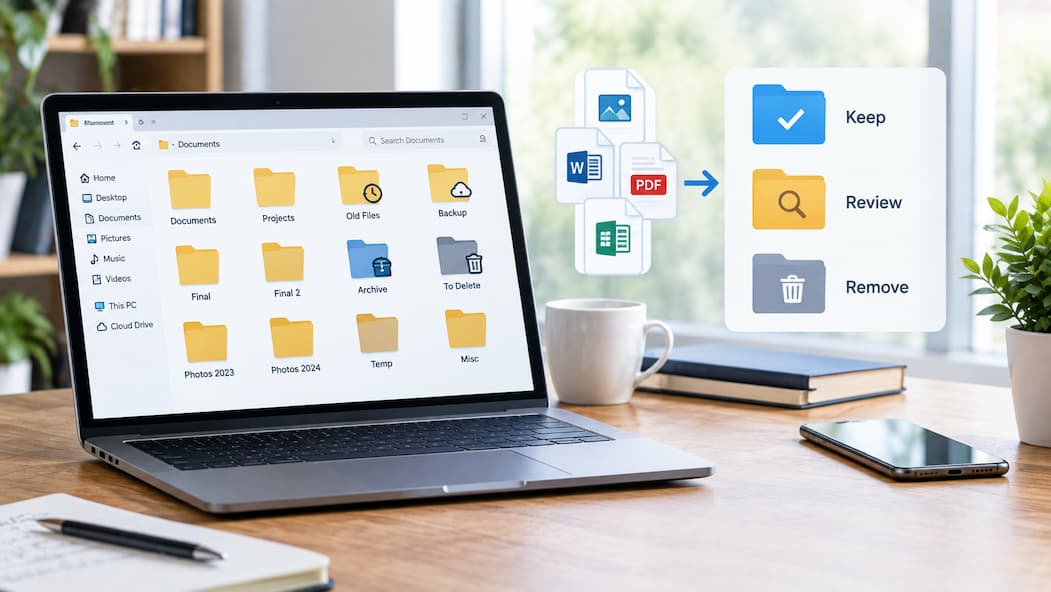
The result is a strange situation: you started cleaning because you had too many files, but now you have folders called Old, Archive, Backup, Final, and Final-2.
The Problem Starts When Cleanup Becomes Another Form of Storage
A common cleanup habit is to avoid deleting anything immediately. Instead, files get moved into a temporary folder such as “To Delete,” “Old Files,” or “Review Later.” That can be sensible when you are uncertain about something, but the temporary folder needs an ending.
Otherwise, cleanup has not removed the decision. It has simply moved the decision into another location.
The same thing happens when several copies are created for safety. You may duplicate a folder before reorganizing it, make another backup before deleting anything, and then export selected files somewhere else. Each individual action feels reasonable. Together, they can produce more storage than the original cleanup would have removed.
“Backup” Can Become an Excuse for Keeping Everything
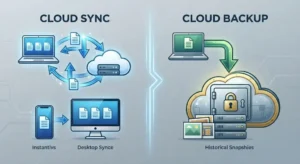
There is an important difference between preserving a copy and creating another unmanaged copy.
If you make a backup with a clear purpose and know how it can be restored, that backup has a defined role. A folder named “Backup New” sitting on the same drive as the original files is different. It may simply be another collection of files that you eventually have to sort.
This distinction becomes particularly important with cloud services. A synchronized folder is not just a passive duplicate. With OneDrive, for example, changes made in the synced folder can be reflected in the cloud, including additions, changes, and deletions.
That means copying files into another synchronized location can create more relationships to manage rather than a genuinely independent safety copy.
Deleted Does Not Always Mean Gone
Another reason cleanup appears to create more files is that deletion often has an intermediate stage.
When you delete a synced OneDrive file, for example, it can remain in the device’s Recycle Bin and may also be available through OneDrive’s cloud recycle bin. Microsoft says personal OneDrive accounts can generally restore deleted files for up to 30 days, while work or school accounts can have a 93-day retention period unless an administrator has changed the setting.
So a cleanup session may reduce the files visible in your normal folders without immediately removing every stored copy.
That is not necessarily a problem. The recycle bin is useful protection against accidental deletion. The problem appears when you treat the visible folder count as the complete picture of your storage.
Reorganizing Can Create Versions Instead of Removing Them
File cleanup often involves renaming and editing at the same time.
A document might become:
Budget.docx
Budget Revised.docx
Budget Final.docx
Budget Final 2.docx
Photos and creative projects can develop an even larger family of variations because applications may create exports, previews, compressed versions, or alternate formats.
The issue is not that versions are always bad. Keeping meaningful versions can be useful when you need to return to an earlier state. The problem is when every intermediate state survives indefinitely without a reason.
A better question is not “Can I delete this version?” but “What purpose does this version still serve?”
If the answer is nothing, it is a candidate for removal.
Moving Files Can Also Make Cleanup More Complicated
Suppose you find a folder containing hundreds of old photographs. You decide to organize them by year, so you create several new folders and start moving everything.
That can improve the structure, but it can also make the original organization harder to understand while the process is underway. If you stop halfway, you may end up with some photos in the old location and others in the new structure.
Cloud synchronization can make large reorganizations even more significant because changes inside synced folders are propagated to the cloud.
For that reason, large cleanups are usually easier when you make one structural decision first and then carry it out consistently instead of repeatedly changing the destination.
The Safest Cleanup Process Has an Exit
A useful cleanup system needs three states:
Keep — the file has a clear purpose and remains where it belongs.
Review — you are genuinely uncertain and need time before deciding.
Remove — you have decided the file no longer has a useful role.
The important part is that Review cannot become permanent storage.
Give it a boundary. That might mean reviewing the folder at the end of the session, setting a reminder for a later date, or keeping only items for which deletion could have meaningful consequences.
Windows itself provides cleanup features that separate different types of material, including temporary files, large or unused files, cloud-synced files, and unused applications. That reflects an important principle: cleanup works better when you understand what type of data you are removing rather than treating every file as equivalent.
Before Creating a Copy, Ask What It Is For
This small question can prevent a surprising amount of digital clutter:
“What job will this copy perform that the original cannot?”
If the answer is backup, decide where the backup belongs and how it will be restored.
If the answer is editing, keep the working copy and establish what happens to the finished version.
If the answer is “I might need it later,” consider whether that uncertainty actually justifies another permanent copy.
If the answer is “I am afraid to delete the original,” the better solution may be a temporary review period rather than an unlimited collection of duplicates.
Cleanup Should Reduce Decisions, Not Just Files
A successful digital cleanup is not necessarily the session that deletes the largest number of files. It is the one that leaves you with fewer unclear relationships between files.
You should know which copy is active, which one is a backup, which files are waiting for review, and which material can safely disappear. If you cannot tell those things, deleting another twenty files may not solve the underlying problem.
This is why digital organization can sometimes feel harder after a cleanup session. The files may be fewer, but the remaining structure may contain more exceptions, copies, and temporary decisions.
The goal is not simply an emptier folder. It is a digital system in which each important file has a clear reason for being there.
FAQs
Why do I have more files after organizing a folder?
Reorganization often creates temporary copies, renamed versions, exports, archives, or backup folders. If those temporary materials are not removed after the organization is complete, they become permanent clutter.
Is making a backup before deleting files a bad idea?
No. A backup can be valuable protection. The important distinction is whether it is a deliberate backup with a known purpose and location, rather than another unmanaged copy that you eventually have to organize.
Does deleting a cloud-synced file delete it everywhere?
It can. With OneDrive synchronization, changes made to files in the synced folder can be reflected in the cloud and across other synced locations. Deleted files may still be recoverable through recycle-bin mechanisms for a limited period.
What should I do with files I am not sure about?
Put genuinely uncertain files into a clearly temporary review area rather than scattering them through multiple archive folders. Give that review area an eventual decision point so it does not become another permanent storage location.