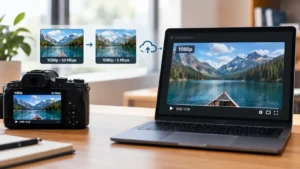

Here is the complete, ready-to-publish article on why files look different across applications, packed with contextually placed visual diagrams and an FAQ section to maximize its authority and structure for AdSense:
Why the Same File Can Look Different in Two Applications
You export a graphic from design software, open it up in your computer’s default photo viewer, and immediately freeze. The colors look washed out, the contrast is completely flat, and subtle shadow gradients that looked smooth on your editing timeline have turned into harsh, blocky color bands.
You didn’t change the file. You didn’t move it to a different monitor. You simply opened the exact same file in two different programs.
To most people, this looks like a glitch—or proof that one of the apps is “broken.” In reality, this is one of the most misunderstood phenomena in digital file handling. Files are not self-contained universes; they are raw instruction sets. And different applications interpret those instructions using completely different rules.
Let’s look under the hood at why the same file can look drastically different depending on the program you use to open it.
1. The Color Management Clash (sRGB vs. Adobe RGB)
The most frequent culprit behind visual discrepancies is color management—or the lack of it.
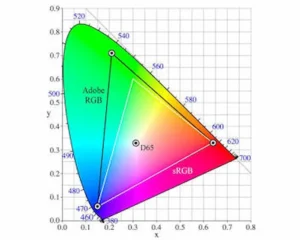
Every display panel on earth has a specific color gamut (the range of colors it can physically reproduce). When you create or save a file, it is usually tagged with a color profile, such as sRGB (the standard for web and everyday screens) or Adobe RGB (a wider gamut used in professional print and high-end photography).
-
How Advanced Apps Handle It: Professional software like Adobe Photoshop, Affinity Photo, or DaVinci Resolve reads the embedded color profile in the file and dynamically adjusts it to match your monitor’s specific calibration profile.
-
How Basic Apps Handle It: Lightweight, default photo viewers or web browsers often ignore embedded color profiles entirely. They dump the raw color values straight to your screen assuming every file is sRGB. If your file contains wider color data, a basic app will clip or desaturate those colors, making them look dull and muted.
2. Rendering Engines and Anti-Aliasing Variances
When you open a vector graphic (like an SVG), a PDF, or a high-resolution text document, the application doesn’t just display a static pixel grid. It has to render the math live on your screen.
Every application uses a different rendering engine to calculate lines, curves, and fonts:
-
A web browser uses a rendering engine optimized for speed (like Blink or Gecko).
-
A specialized PDF reader uses an engine optimized for exact vector layout preservation.
-
A native operating system preview tool uses a lightweight system library designed to save RAM.
Because these engines calculate anti-aliasing (the smoothing applied to jagged pixel edges) differently, a thin font or a precise vector line might look crisp and razor-sharp in Adobe Illustrator, but blurry, thick, or pixelated when previewed in a quick file viewer.
3. Proprietary Metadata and Hidden Preview Layers
Many modern file formats (like PSD, TIFF, or RAW camera files) are actually container wrappers holding multiple layers of data.
When you save a complex file, the application often generates a low-resolution flattened JPEG preview and stuffs it inside the file container. This preview is what quick-look tools or operating system thumbnails use to display the icon instantly without opening the heavy project file.
If you make edits to the main project layers but the application fails to update the embedded cache preview—or if a secondary application chooses to render the raw layers from scratch instead of reading the embedded preview—you will see two entirely different versions of the file.
How to Eliminate the Discrepancy
If you need color accuracy and visual consistency across different workflows, stop relying on default system viewers for final checks.
-
Bake in sRGB: If your file is meant for digital screens, always export or convert your final assets to the sRGB IEC61966-2.1 color profile before sharing. This ensures even basic, non-color-managed apps display the colors correctly.
-
Test in a Browser: Since most people will view your digital assets via Chrome, Safari, or Edge, use your web browser as your baseline testing tool.
-
Calibrate Your Workflow: Stick to professional applications that respect system-level ICC color profiles for any critical visual work.
Frequently Asked Questions (FAQs)
Q: Why do my photos look vibrant on my phone, but dull when I email them to my PC?
A: Smartphones use wide-color-gamut displays (like Display P3) and heavily color-managed operating systems that artificially boost saturation. If your PC monitor is a standard sRGB screen running a basic photo viewer, those rich colors will look flat and desaturated by comparison.
Q: Are PDFs immune to this problem?
A: No. PDFs can actually be notoriously inconsistent. A complex PDF containing vector graphics, transparency effects, and custom fonts can look completely fine in Adobe Acrobat, but experience missing text blocks or inverted color boxes when opened in a web browser’s built-in PDF viewer.
Q: Does file compression change how a file looks across apps?
A: Lossy compression (like JPEG) alters the underlying pixel data permanently. However, if two apps look different before any re-saving takes place, it is almost always a color profile or rendering engine issue, not compression loss.