
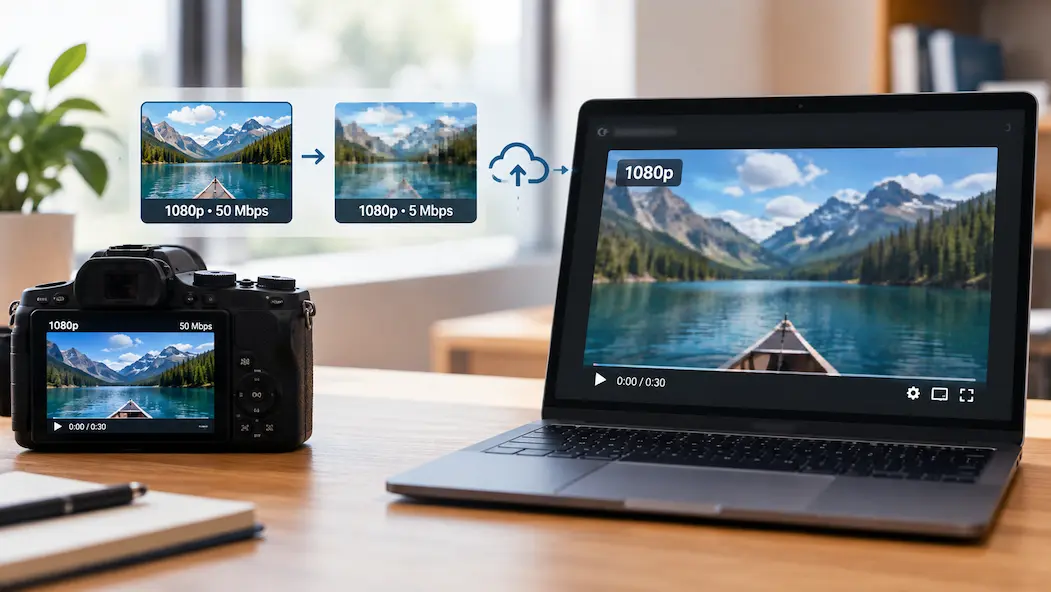
You spend hours editing a video, export it in pristine 1080p or 4K, and check every frame to ensure it looks sharp. The moment you upload it to YouTube, Instagram, or TikTok, your heart sinks. The edges look blocky, fast-moving scenes turn into a muddy pixelated mess, and subtle color gradients are replaced by harsh, ugly bands of color.
Yet, if you check the platform’s settings, it proudly displays 1080p or 4K.
To most creators, this feels like an arbitrary bug or a punishment by platform algorithms. In reality, resolution is only a tiny fraction of what defines video quality. Here is why your video looks drastically different after uploading, even when the resolution number stays identical.
1. The Bitrate Massacre (Resolution vs. Data Density)
The biggest misconception in digital video is that resolution equals quality. Resolution is simply the pixel dimensions (e.g., 1920×1080). Bitrate, on the other hand, determines how much data is packed into every single second of that video.
-
Your Local Export: When you export a video from editing software like Premiere Pro or DaVinci Resolve, your bitrate might be set to a massive 30 to 50 Mbps. That gives every single pixel plenty of breathing room.
-
The Platform’s Reality: Platforms like YouTube, Instagram, or Twitter host billions of hours of content. To save on massive server storage and bandwidth costs, they re-encode your video through their own automated pipelines, capping 1080p files at a much lower bitrate (often between 4 to 10 Mbps).
When you cram a heavy file into a tight bitrate restriction, the platform’s encoder strips away high-frequency details, causing fine textures (like grass, water, or confetti) to turn into a muddy blur.
2. Temporal vs. Spatial Compression (The Motion Crunch)
When platforms re-encode your video, they use advanced compression algorithms that look at two types of data:
-
Spatial Compression: Compressing visual data within a single frame.
-
Temporal Compression: Compressing data across multiple frames by only saving the pixels that actually change from frame to frame.
If your video features high-motion activity—like camera panning, fast action sports, or confetti dropping—the temporal encoder has to work overtime to calculate thousands of moving vectors in a fraction of a second. Because platforms limit how much data can move per second, high-motion scenes suffer heavy artifacting.
This is why a static talking-head video looks razor-sharp at 1080p after upload, while a cinematic vlog with fast camera movements looks blocky and degraded at the exact same 1080p resolution.
3. Chroma Subsampling and Color Space Stripping
Your camera captures video with complex color data (often 4:2:2 or 4:4:4 chroma subsampling), meaning rich color information is assigned to almost every pixel.
Most consumer-facing web platforms aggressively downsample color data to a lighter format (usually 4:2:0) to save space. During this automated conversion, subtle color transitions, skin tone gradients, and shadows are flattened. What looked like a cinematic color grade on your editing timeline can look desaturated, flat, or blotchy once the platform’s server finishes processing it.
How to Fight Back and Keep Your Uploads Sharp
While you cannot stop platforms from compressing your videos, you can optimize your export settings to “feed” their encoders the exact type of data they prefer:
-
Upload in 4K (Even for 1080p Projects): Platforms allocate significantly higher bitrates and superior codecs (like VP9 or AV1) to 4K uploads. Even if your final video is watched in 1080p, uploading it as a 4K file forces the platform to give you a higher bitrate allotment, bypassing the aggressive compression applied to standard 1080p uploads.
-
Match the Recommended Bitrate: Don’t export at unnecessarily massive bitrates (like 150 Mbps). Look up the platform’s official recommended upload specs (e.g., YouTube’s creator guidelines) and match your export settings closely to their target threshold to prevent their automated encoder from over-correcting.
-
Add Light Grain or Reduce Noise: Heavy digital noise confuses video encoders because every tiny grain looks like a moving object, eating up your entire bitrate budget. Running a light denoiser over your footage before export keeps compression artifacts to a minimum.
Frequently Asked Questions (FAQs)
Q: Why does my video look terrible immediately after upload, but improves hours later?
A: When you first upload a video, the platform instantly serves a low-resolution, hastily processed draft so you can preview it immediately. The heavy, optimized encoding queue—which generates the actual 1080p or 4K versions—can take anywhere from 30 minutes to several hours depending on platform traffic.
Q: Does uploading in 60fps instead of 30fps lower video quality?
A: Yes, it often can. A 60fps video contains twice as many frames per second as a 30fps video. If the platform applies a strict bitrate cap, that fixed amount of data has to be split across twice as many frames, resulting in lower individual frame quality and higher compression artifacts during motion.
Q: Why do videos uploaded directly to iPhone apps (like Instagram Reels) look better than desktop uploads?
A: Mobile apps often use optimized, hardware-accelerated local presets tailored specifically to that platform’s API constraints, whereas raw desktop browser uploads might trigger a heavier, generalized server-side re-encoding pass if the source file format isn’t precisely matched.