Understanding Common File Formats and Safe Ways to Convert Them
You download an important document, double-click it, and an error appears saying your computer doesn’t know how to open the file. A few minutes later, a website rejects an image because it requires a different format, or a colleague says the presentation you emailed doesn’t display correctly on their computer. These situations are common, yet they often leave people wondering why a file that looks perfectly normal on one device behaves differently somewhere else.
The answer usually isn’t that the file is broken. More often, the issue lies in the format. Every digital file follows a specific structure that tells software how its contents are organized. A word processor understands a document differently from an image editor, and a media player reads a video file in an entirely different way from a spreadsheet application. Choosing the correct format—and knowing when to convert one into another—can save time, preserve quality, and prevent compatibility problems.
Understanding file formats does not require technical expertise. Once you know why different formats exist and what happens during conversion, it becomes much easier to decide whether a file should be changed, shared as it is, or opened using different software.
A File Format Is More Than a Name at the End of the File
Most people recognize extensions such as .pdf, .jpg, or .mp4, but the extension is only a label. Behind that label is a specific structure that determines how information is stored and interpreted.
Think of a file format as a language. Two books may tell the same story, but if one is in English and the other in Japanese, a reader must understand the language to interpret it. Software behaves similarly. It reads the internal structure of a file according to rules defined by that format.
For example, a text document may include fonts, headings, tables, images, comments, and page layouts. A photo file stores pixels, color information, and sometimes camera settings. An audio recording contains sound samples organized according to an entirely different structure. Because these files describe different kinds of information, they require different formats.
The extension helps the operating system identify which application should open the file, but changing the extension alone does not convert it. Renaming photo.jpg to photo.png does not transform it into a PNG any more than changing the title of a novel changes its language.
A simple diagram showing how file contents, formats, and software interact would help readers visualize this relationship.
Different Formats Exist Because Different Priorities Exist
A common misconception is that newer file formats are always better than older ones. In reality, every format represents a series of design decisions.
Some formats prioritize compatibility across many devices. Others focus on preserving editing features, reducing storage space, supporting transparency, maintaining image quality, or enabling rapid streaming over the internet.
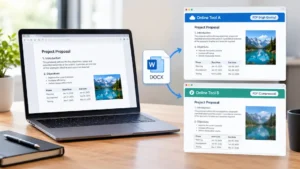
Consider documents as an example. A file created for editing usually contains far more information than one designed only for viewing. During editing, software needs to remember formatting, revision history, embedded objects, and layout instructions. Once the document is finalized, many of those editing capabilities become unnecessary, allowing formats intended for distribution to emphasize consistency instead.
The same principle applies to images. A professional photographer may choose one format while editing because it preserves maximum detail, then export another version optimized for websites where smaller file sizes improve loading speed.
Understanding these priorities makes format selection much more logical. Instead of asking which format is best, it is more useful to ask which format best matches the intended purpose.
Conversion Does Not Always Preserve Everything
People often assume converting a file simply changes its extension while leaving everything else untouched. Unfortunately, conversion is rarely that straightforward.
When software converts one format into another, it must translate information between two different systems. If the destination format supports every feature contained in the original, the conversion may appear seamless. However, many formats support capabilities that others simply cannot represent.
Imagine converting a richly formatted document containing comments, tracked changes, custom fonts, and interactive forms into a simpler format designed primarily for reading. The visible text may remain intact while comments disappear, fonts change, or interactive elements stop functioning.
Images and videos introduce another challenge. Some formats deliberately reduce file size by removing information that is considered less noticeable to the human eye. Once that information has been discarded, converting the file back to its original format cannot restore the missing detail.
For this reason, professionals often keep an original copy alongside any converted versions. If another format is needed later, they begin from the highest-quality source rather than repeatedly converting files that have already been modified.
Lossless and Lossy Formats Solve Different Problems
One of the most important concepts in file conversion is the difference between lossless and lossy formats.
A lossless format preserves all original information during compression. The file becomes smaller without permanently removing data, allowing the original content to be reconstructed accurately when opened. This approach is particularly useful for documents, software, archives, and images that may require future editing.
Lossy formats reduce file size by permanently discarding some information. The reduction is often small enough that many users cannot immediately notice the difference, especially when viewing photos or watching videos on everyday devices. The trade-off is that some original detail no longer exists.
This distinction explains why repeatedly saving an image in certain formats can gradually reduce its quality. Each new save may remove additional information, producing visible artifacts over time.
For most everyday tasks, lossy formats are entirely appropriate because they balance quality and storage efficiently. Problems usually arise only when people unknowingly edit and resave the same file many times instead of preserving an original version.
Compatibility Often Matters More Than Features
Choosing the most advanced file format is not always the most practical decision.
Imagine sending an important document to several clients. A format that preserves every editing feature may work perfectly on your computer but fail to display correctly if recipients use different software or older versions of the same application.
Compatibility becomes especially important when sharing files across operating systems. Windows, macOS, Linux, Android, and iPhone all support many common formats, yet specialized software sometimes relies on proprietary file structures that are unavailable elsewhere.
Businesses often avoid compatibility issues by sharing finalized documents in widely supported formats while keeping editable originals internally. This approach allows recipients to view the content reliably without requiring identical software.
The same principle applies to multimedia. A video recorded in an uncommon format may provide excellent quality but create playback problems on devices lacking the necessary codec. Converting it to a broadly supported format before sharing often produces a better experience for everyone involved.
Metadata Travels With Many Files
When people think about file contents, they usually focus on what they can see or hear. Many formats also contain additional information known as metadata.
A photograph may include the camera model, exposure settings, date, time, and even GPS location where the image was taken. Documents can store author names, editing history, software versions, and revision details. Artist information, album titles, genres, and artwork are frequently included in audio files.
During conversion, this metadata may be preserved, modified, or removed depending on the software and destination format. Sometimes the result is beneficial. Removing unnecessary metadata can reduce privacy risks before sharing files publicly.
At other times, preserving is beneficial. Removing unnecessary metadata can reduce privacy risks before sharing files publicly.
At other times, preserving metadata is essential. Professional photographers, researchers, journalists, and businesses often rely on embedded information to organize large collections or verify when and how files were created.
Because metadata is not always visible, users may overlook it entirely. Before sharing sensitive files, it is worth checking whether hidden information should remain attached to the document.
Online Converters Offer Convenience, but Privacy Deserves Equal Attention
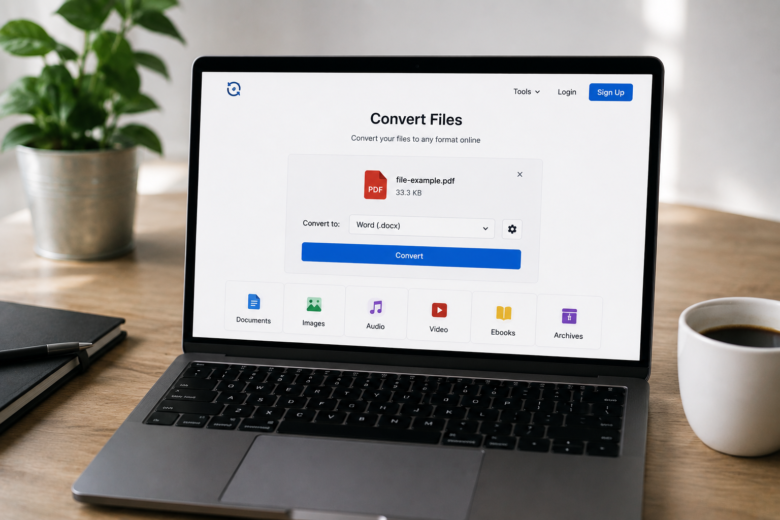
Web-based file conversion services have become popular because they require no installation and often work across different operating systems. Upload a file, choose the desired format, and download the converted version a few moments later.
For everyday, non-sensitive files, this approach can be perfectly reasonable. However, convenience should always be balanced against privacy.
Uploading a document means temporarily transferring its contents to another company’s servers. Reputable services often delete uploaded files after processing, but policies vary, and users should understand how their data is handled before uploading confidential material.
This becomes particularly important when converting business contracts, financial records, identification documents, medical information, or personal photographs. In these situations, locally installed software may provide greater control because the files never leave the device.
Whenever an online converter is used, reviewing the provider’s privacy policy, file retention practices, and security measures is just as important as checking the quality of the conversion itself.
| File Format | Common Purpose | Best For | Usually Safe to Convert? |
|---|---|---|---|
| Final documents | Sharing and printing | Yes, though editable features may be lost | |
| DOCX | Editable text documents | Writing and collaboration | Yes, formatting should be checked afterward |
| JPG | Compressed images | Photos and websites | Yes, but repeated conversions may reduce quality |
| PNG | Lossless images | Graphics, screenshots, transparency | Yes, quality is generally preserved |
| MP4 | Video | Playback and sharing | Usually, though encoding settings affect quality |
| ZIP | File archives | Compressing multiple files | Generally yes, provided archive integrity is maintained |
Compression and Archiving Are Not the Same as Conversion
People often use the terms “compressing” and “converting” as if they describe the same process, but they solve different problems.
When a file is converted, its internal structure changes so that another application or device can interpret it differently. Compressing a file, on the other hand, usually leaves the original format untouched while reducing storage space or combining several files into a single archive.
For example, creating a ZIP archive containing spreadsheets, photographs, and presentation files does not change any of those files into a new format. Each file remains exactly what it was before being placed inside the archive. When extracted later, the contents return in their original form.
Understanding this distinction prevents a common mistake. If someone needs a website to accept a PNG instead of a BMP image, placing the BMP inside a ZIP archive will not solve the compatibility problem because the image format itself has not changed.
Archives are valuable for organizing related files, reducing download sizes, and preserving folder structures during transfer, but they should not be confused with true file conversion.
Fonts, Layouts, and Embedded Content Can Change Unexpectedly
One of the most frustrating experiences in file conversion occurs when a document opens successfully but looks noticeably different from the original.
This often happens because documents contain more than text. Fonts, page margins, embedded images, charts, tables, hyperlinks, and interactive elements all contribute to the final appearance. If the destination format or viewing software cannot reproduce those features exactly, substitutions may occur.
Fonts are a particularly common source of problems. If the original font is unavailable on another computer, the software usually replaces it with a similar alternative. Even small differences in font width can shift line breaks, page lengths, and table layouts.
Embedded objects introduce another challenge. A spreadsheet inserted into a report or a video embedded inside a presentation may not remain interactive after conversion. Occasionally the object becomes a static image, while in other cases it disappears entirely if the destination format cannot support it.
For important business documents, reports, resumes, or presentations, it is good practice to review the converted version on another device before sharing it. Catching formatting issues early is much easier than discovering them after a client or colleague has already opened the file.
Some Websites Require Specific Formats for Practical Reasons
It is common to encounter websites that accept only one or two file formats during uploads. At first glance, these restrictions may seem inconvenient, but they usually exist for practical reasons.
Standardizing file formats helps websites process information more reliably. A passport application portal may request PDF documents because page layouts remain consistent across devices. An online photography competition might specify JPEG files to simplify judging, while a video-sharing service could recommend MP4 because it balances compatibility and streaming performance.
File size also plays an important role. Certain formats compress information more efficiently than others, allowing websites to reduce storage requirements and improve upload speeds.
Rather than viewing these requirements as arbitrary rules, it helps to recognize that they are designed to create a predictable experience for both users and the systems processing the files.
Converting a File Does Not Repair Corruption
Another common mistake is thinking that changing a broken file into a different format will bring back lost data.
If a document has become corrupted because of storage failure, an interrupted download, or hardware problems, conversion software usually has nothing complete to work with. The converter can only interpret the data that still exists.
Sometimes a file appears damaged simply because the wrong application is trying to open it. In those cases, using compatible software resolves the issue without any conversion at all. If the file itself is genuinely incomplete or corrupted, however, recovering the original data often requires backups or specialized repair tools rather than a different format.
Before assuming a file needs conversion, it is worth checking a few basic possibilities. Confirm that the download completed successfully, verify the file extension, and ensure you are using the appropriate application. These simple steps solve many apparent compatibility problems without modifying the file.
A Safe Conversion Process Includes Verification
Successful conversion involves more than obtaining a new file with the desired extension. The converted version should also be checked to ensure that nothing important has changed.
For text documents, review headings, tables, images, hyperlinks, page numbering, and formatting. If the document includes forms or interactive elements, confirm that they still function as expected.
For images, compare sharpness, colors, transparency, and dimensions. If the image will be printed, verify that the resolution remains suitable for the intended output rather than relying solely on how it appears on a screen.
Videos deserve similar attention. Playback should be tested from beginning to end, checking both picture quality and audio synchronization. Large videos may also benefit from testing on different devices, particularly if they will be viewed by clients or shared with a broad audience.
These verification steps require only a few minutes but can prevent situations where important details disappear unnoticed during conversion.
Choosing the Right Format Before You Create the File
Many conversion problems can be avoided entirely by selecting an appropriate format at the beginning of a project.
Someone preparing a document that multiple people will edit should usually save it in an editable format during development. Once the content has been finalized, a separate version intended for distribution can be exported in a format optimized for viewing and printing.
Photographers often follow a similar approach. Original files remain untouched during editing, while copies are exported in formats suitable for websites, email, social media, or printing. This preserves maximum flexibility because future versions can always be created from the original source.
The same principle applies to presentations, videos, and audio recordings. Maintaining an original master file allows new formats to be generated later without repeatedly converting previously compressed versions.
This workflow may occupy slightly more storage space, but storage is generally far less expensive than recreating lost work or accepting avoidable quality loss.
| Situation | Recommended Approach | Why It Works |
|---|---|---|
| Editing documents with others | Keep an editable master copy | Preserves comments, formatting, and revision features |
| Sharing finalized reports | Export a viewing-friendly version | Improves compatibility across different devices |
| Publishing images online | Create optimized copies from the original | Balances quality and file size without altering the master file |
| Sending confidential files | Prefer trusted local conversion software when possible | Reduces privacy risks associated with uploading sensitive data |
| Long-term storage | Keep original files alongside converted versions | Makes future conversions more accurate and flexible |
Understanding Formats Makes Everyday Technology Simpler
Most file-related frustrations are not caused by faulty software or damaged computers. They arise because different formats are designed for different purposes, and those purposes are not always obvious at first glance.
Once you understand why formats exist, many common situations become easier to handle. A website requesting a particular file type, a document that looks different after conversion, or a video that will not play on another device all become predictable problems with practical solutions rather than confusing technical issues.
This knowledge also encourages better habits. Keeping original files, checking converted versions before sharing them, understanding the difference between compression and conversion, and paying attention to metadata all contribute to more reliable file management over time.
Conclusion
File formats are the foundation of digital information. They determine how documents, images, videos, spreadsheets, and many other types of content are stored, shared, and interpreted by software. Because each format is designed with different priorities, converting between them is sometimes necessary—but it should always be done with an understanding of what may change during the process.
The safest approach is to begin with the highest-quality original file, convert only when there is a clear reason to do so, and verify the results before relying on the new version. Paying attention to compatibility, formatting, metadata, and privacy helps avoid many of the problems that people commonly encounter when exchanging files across devices and applications.
With a basic understanding of how file formats work, choosing the right format becomes less about memorizing extensions and more about matching each file to its intended purpose.
Frequently Asked Questions
1. Can I change a file format simply by renaming its extension?
No. Renaming a file extension changes only the label, not the file’s internal structure. Proper conversion requires software that understands both the original and destination formats.
2. Why does my converted document look different?
Formatting changes can occur if fonts, page layouts, embedded objects, or interactive elements are unsupported by the destination format or unavailable on the device opening the file.
3. Is it safe to use online file converters?
They can be suitable for non-sensitive files, but you should review the service’s privacy policy and avoid uploading confidential business, financial, legal, or personal documents unless you trust how the provider handles uploaded data.
4. Why do some image conversions reduce quality?
Some image formats use lossy compression, which permanently removes certain visual information to reduce file size. Repeated conversions between lossy formats may gradually decrease image quality.
5. Should I keep the original file after converting it?
Yes. Keeping the original allows you to create new versions later without accumulating quality loss or losing editing features that may not survive conversion.
6. Can file conversion remove viruses from an infected file?
No. Converting a file should not be considered a security measure. If you suspect a file is malicious, scan it with trusted security software before opening or sharing it.
7. Do Windows, macOS, Linux, Android, and iPhone support the same file formats?
They support many common formats such as PDF, JPEG, PNG, MP4, and ZIP. However, compatibility with specialized or proprietary formats may vary depending on the operating system and the applications installed.

Sunita Voss wanders through software like a city flâneur—observing, testing, occasionally getting lost, always finding shortcuts. She writes about digital minimalism, hidden web tools, and tech hacks with the patience of someone who enjoys the journey and the urgency of someone who values her time. No gurus. No gatekeeping. Just discovered paths.